Pixpoo Bridge moves three kinds of file between a phone and a computer — images, PDFs and documents — and all three use the same trick: a QR code on one screen, a camera on the other. This is the whole thing, screen by screen, so you can see what happens before you try it.
Nothing is installed on either device. There is no account. You will need about a minute.
Try it while you readOpen the Bridge on the computer you are reading this on, and have your phone to hand.Open Pixpoo Bridge →
Step 1 — say what you are moving
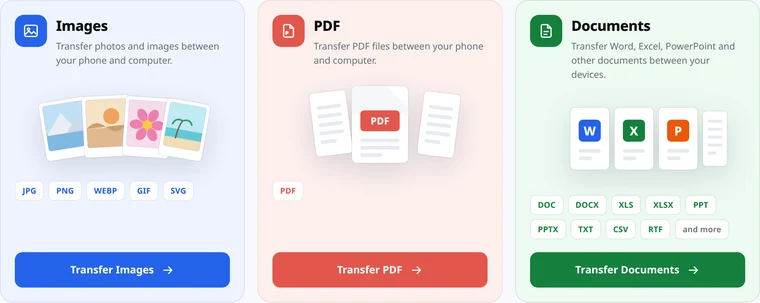
The first screen asks one question: images, PDF, or documents. It is not a cosmetic choice — each category has its own page, its own file picker, and its own set of tools waiting on the other side. Choosing PDF gets you a page count and a page-by-page preview; choosing Images gets you pixel dimensions and an image editor. A document picker that offered your camera roll would be no use to anybody.
Direction is a separate control on the next screen, not a separate page, because most people know what they are moving long before they think about which way it is going.
Step 2 — scan the code
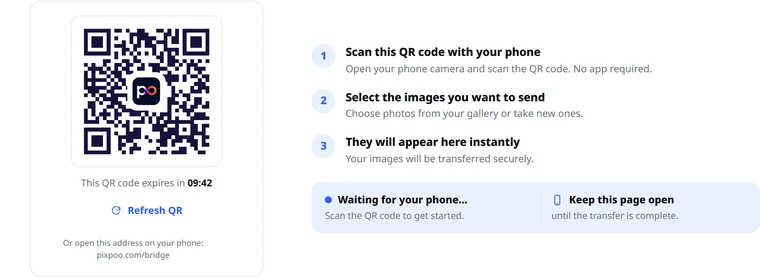
The computer opens a temporary transfer session and shows you a QR code. The code is a web address with a one-time key in it — that is all it contains. None of your files are in there; a QR code holds a few hundred characters and a photograph is several million bytes.
Point your phone’s camera at it. You do not need a scanner app: the built-in camera on both iPhone and Android recognises a code and shows a banner you can tap. Note the countdown under the square — the session does not sit open indefinitely, and by default it clears itself after about ten minutes.
If the phone will not read it, it is nearly always distance, focus, or a dim monitor. The address is printed underneath in plain text as a fallback.
Step 3 — choose the files on your phone
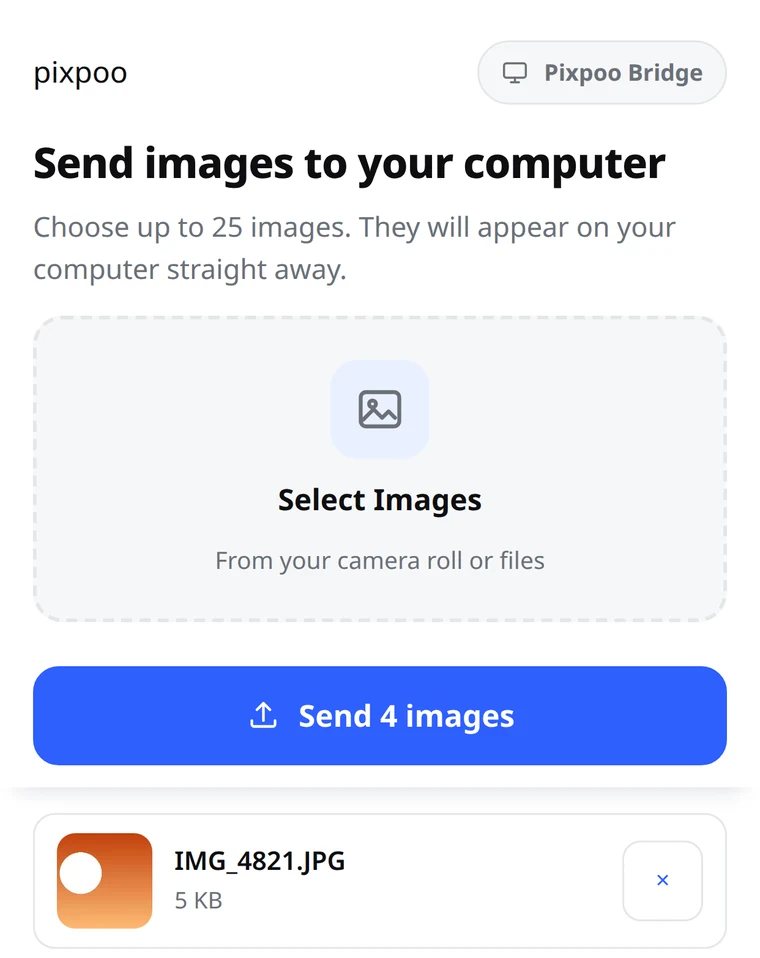
The phone opens a page with one job. Tap to select — from the camera roll for photographs, from the Files app for a PDF or a Word document — and the files you picked are listed so you can drop any you did not mean.
The Send button sits above the list rather than below it, which sounds like a small thing and is not: choose twenty pictures and a button at the bottom is a long scroll away from the moment you decide you are done.
Step 4 — they appear on the computer
This is where the three categories stop looking alike, because what is useful to know about a file depends on what kind of file it is.
Images
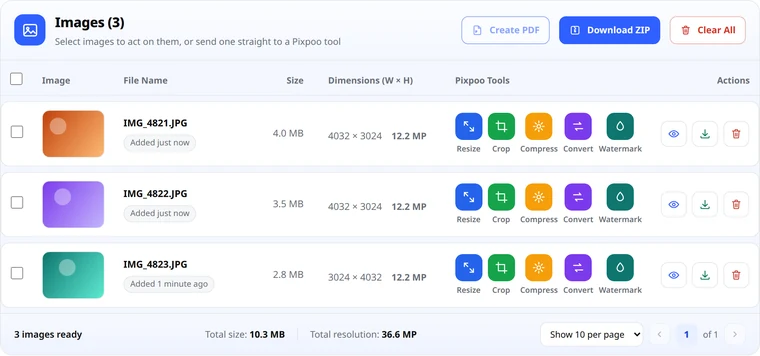
Each picture arrives with a thumbnail, its file size and its pixel dimensions — which is the quickest way to tell a 12-megapixel original from a screenshot at a glance. The photograph is the file that left the phone, byte for byte, not a re-encoded copy: EXIF and all.
Beside each row are the tools it can go straight into — Resize, Crop, Compress, Convert and Watermark — with the file already loaded, so there is no download-and-upload in the middle.
PDFs
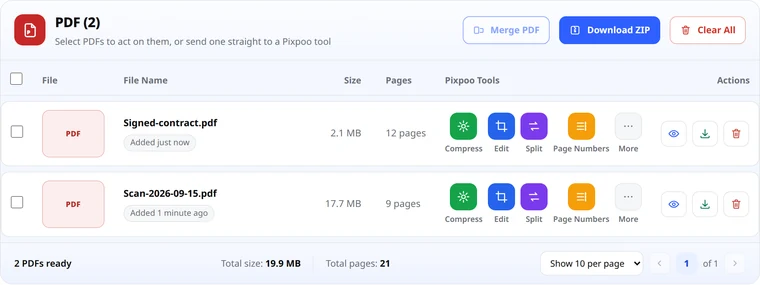
A PDF shows its page count rather than dimensions, and the eye button opens it page by page in a window on the page itself. For a scan made with a phone camera that preview is the point: it is where you find out that page four came out sideways, before the file goes to anybody.
The row tools are Compress, Edit, Split and Page Numbers, with the rest of the toolkit behind More — rotate, reorder, sign, password, OCR, convert to Word. Tick several and Merge combines them into one.
Documents
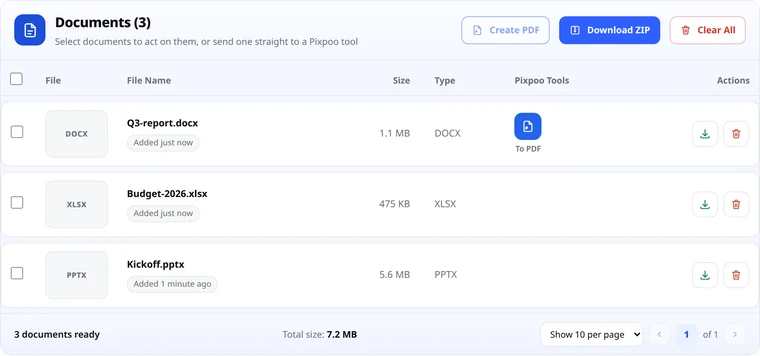
Office files show their type, since neither pixels nor pages mean much for a spreadsheet. Word, Excel, PowerPoint, OpenDocument, TXT, CSV and RTF all cross, unopened and unconverted — fonts, styles, formulas and tracked changes intact.
Word files get a To PDF button, which is the usual next step. A spreadsheet or a presentation has no converter attached to it yet, so those simply arrive, ready to download and open in whatever you normally use.
Every category can also be taken in bulk: Download ZIP saves the lot in one file, and for images and documents Create PDF turns the arrival into a single document.
The same thing backwards
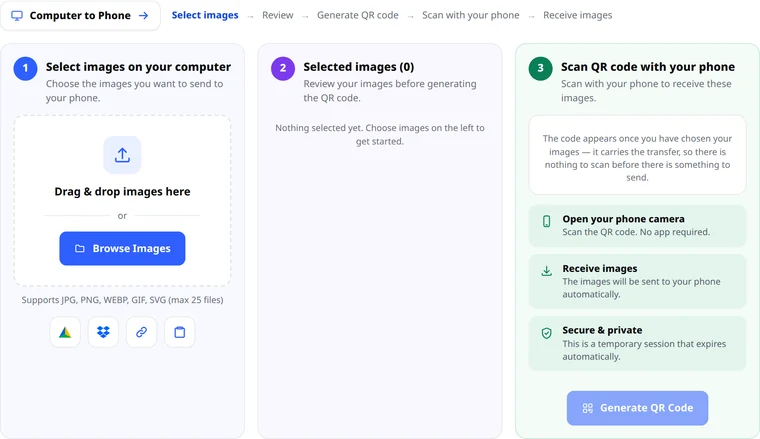
Switch the direction and the order reverses. You choose the files on the computer first — from the disk, from Google Drive or Dropbox, from a link, or straight off the clipboard — and the QR code is generated for those files. Scan it and the phone receives them.
The three panels are numbered because the order matters, and the third one says so plainly: the code appears once you have chosen something, because until then there is nothing for it to carry.
What is actually happening underneath
Worth being straight about, because the answer is not what the demonstration implies. The two devices never speak to each other. The computer opens a short-lived session on Pixpoo’s server; the QR hands that session’s one-time key to the phone; both ends then talk to the session rather than to each other.
That design is why it works where AirDrop and Quick Share do not — the phone can be on mobile data in a car park while the computer is on office ethernet three floors up, and neither has to see the other. The trade is that the file passes through a server for the minute it takes.
What bounds that: the key can be claimed by one phone and one only, so a second device scanning the same square gets nothing. The session expires by itself, ten minutes by default. Files are deleted when it ends or the moment you press Clear All. Nothing is indexed or kept, and with no account there is nothing for a file to be filed under.
The limits, in one place
| Images | Documents | ||
|---|---|---|---|
| Formats | JPG, PNG, WebP, GIF, SVG, AVIF, HEIF, BMP, TIFF | DOC, DOCX, XLS, XLSX, PPT, PPTX, ODT, ODS, ODP, TXT, CSV, RTF | |
| Shown on arrival | Thumbnail and pixel size | Page count and a preview | File type |
| Files per transfer | 25 | 25 | 25 |
| Size per session | 150 MB | 150 MB | 150 MB |
| Session expiry | ~10 min | ~10 min | ~10 min |
Both numbers are set by whoever runs the site, so a self-hosted Pixpoo can raise or lower them.
Common questions
Do I need to install anything?
No, on either device. The QR code opens a web page, not an app store, and the camera that came with the phone reads it without help.
Will this work if my phone and my computer are different brands?
Yes, and in any other pairing you can think of, because the work happens in two browsers rather than in two operating systems. It matters most for documents: connect an iPhone to Windows with a wire and all Windows will show you is the camera roll, which means a cable cannot move a PDF off that phone at all.
Do the devices need to be on the same Wi-Fi?
No. The session is on the internet rather than on your local network.
Can I send one of each in a single transfer?
No — a session carries one category. Pick the one you need; starting a second transfer is another scan and a few seconds.
What if my phone will not read the code?
Move a little closer, turn the monitor brightness up, and check that QR scanning is switched on in the camera settings. Failing all that, the address is printed under the code and can be typed.
Is it free?
Yes, with no account and nothing held back behind a plan.
Start with what you are moving
- Transfer imagesPhotographs and screenshots at full size, with the image tools beside them.
- Transfer a PDFScans and contracts, with a page-by-page preview before you save.
- Transfer documentsWord, Excel and PowerPoint, carried without conversion.
- How QR transfer worksThe idea behind the square, explained from the beginning.
- Every way to move a fileCable, email, cloud, AirDrop and the rest, compared.