Free Image Cropper Online
Crop images online quickly and precisely.
7 easy ways to add an image
Add an image from anywhere. Fast, simple and flexible.
- 1Drag & dropDrop your image right here
- 2Choose from deviceBrowse your computer
- 3Copy & pasteCopy an image from a webpage or screenshot and paste it here
- 4Google DriveImport from Google Drive
- 5DropboxImport from Dropbox
- 6From LinkPaste an image link (URL)
- 7Scan QR CodeUpload from your mobile
How to crop an image online
- Add the picture you want to cut down. It is read in your browser first, so the selection appears before anything is sent.
- Drag a box on the picture, or pick an aspect ratio and let the box snap to that shape.
- Check the size and the percentage of the frame you are keeping, then press Crop Image.
- Download the result, or hand it straight to another tool from the buttons underneath.
Want a more detailed walkthrough? Read the full step-by-step guide →
Crop Images to Exact Pixels
Need a specific image size? Crop your picture to exact pixel dimensions using a custom crop area. Set the width and height you need and precisely select the part of the image you want to keep.
Cut and Crop Photos Online
Remove unwanted areas from your photos by selecting the part of the image you want to keep. Crop your photo quickly online without installing software.
Crop Images to Any Aspect Ratio
Choose a preset or custom aspect ratio to create square, portrait, or landscape crops for websites, social media, documents, and more.
Free Image Cropper Online — free, fast and no watermark
Crop images online for free. Crop pictures to exact pixels, custom dimensions, or aspect ratios. Fast, easy image cropping with no signup or watermark.
How your image is processedYour image is uploaded to our server once for processing. It is held temporarily in memory only for the duration of the operation and is not permanently stored. The processed file is then returned to your browser. Our PDF tools work differently: those run entirely in your browser and upload nothing.
About Crop
Cropping removes part of a picture. That is what separates it from resizing, which keeps the whole frame and redraws it smaller, and from compressing, which keeps every pixel and spends fewer bytes on them. A crop changes what is in the photograph, not just how big it is — which is why it is the tool that actually improves a picture rather than merely fitting it somewhere.
Two jobs bring most people here. The first is composition: a distracting edge, a subject sitting too far from where the eye wants it. The second is shape: a platform that wants a square, a 16:9 banner or a 9:16 portrait, and a photograph that is none of those. The screen handles both — drag a box on the picture, or pick a ratio and the box snaps to it.
Everything is measured in the pixels of your original, so a crop is exact rather than approximate. The number under the size boxes tells you how much of the frame you are keeping before you commit. The file you download is a new one; your original is never modified, which matters because a crop cannot be undone from the result — the pixels outside the box are gone from that copy for good.
When cropping is the right fix
Whenever the problem is what is in the frame, or what shape the frame is.
- A platform that wants a shape your photo is not — a square post, a 9:16 story, a 16:9 banner.
- A profile picture that needs the face centred rather than lost in a wide shot.
- A product shot with a cluttered edge or a stray hand at the side of the frame.
- A screenshot where only one panel matters and the rest is browser chrome.
- A photograph that has to be an exact pixel size for an upload form.
Crop options explained
The picture is the control here: the box on it is what gets kept, and everything on the right either constrains that box or measures it. Nothing is applied until you press the button, so a shape you try is free to undo.
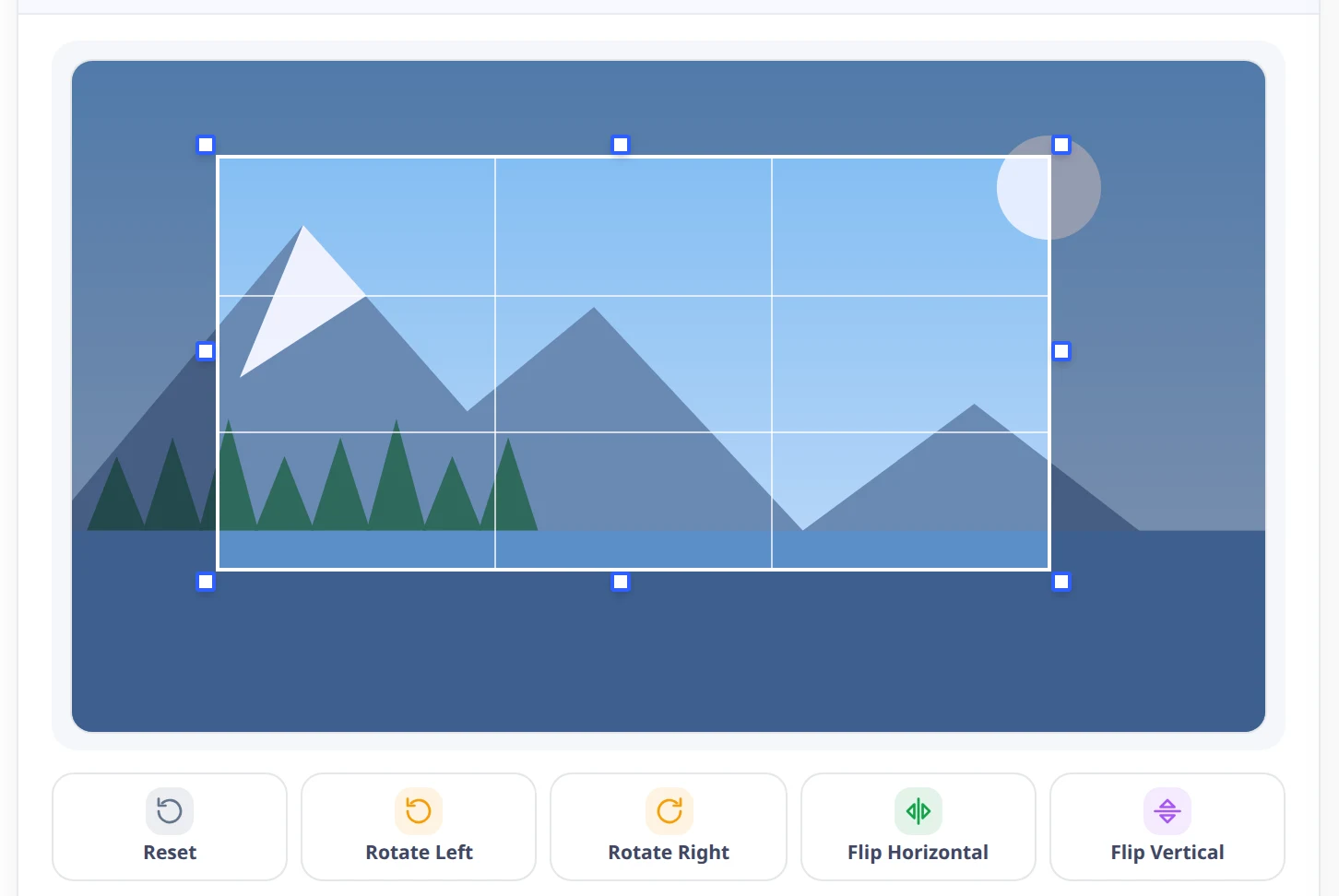
The selection box
Drag inside the box to move it, or any of the eight handles to resize it. Drag on empty space to draw a new box from scratch. Arrow keys nudge the selection by one per cent of the image, and Escape resets it to a centred box.
This is the fastest way to a crop you can see. The right-hand panel exists for when you need the result to be an exact shape or an exact number of pixels — the box and the numbers are the same selection, so moving either updates the other.

Aspect Ratio
Locks the shape of the box. Free lets you draw anything. The five fixed ratios snap the current selection to that shape immediately, so the tile does something visible rather than waiting for the next drag. Custom leaves the shape free but is the mode to be in when you are typing exact numbers below.
Pick the ratio the destination demands, then move the locked box to frame the picture — that order is much quicker than trying to drag an exact 16:9 by hand. With a ratio set, typing a width below recalculates the height for you.

Grid Overlay
Guidelines drawn inside the selection. Rule of Thirds is on by default; None, Square, Diagonal and Golden Ratio are the alternatives. They are a drawing aid only — nothing about the grid reaches the file you download.
Thirds for most photographs: put the horizon on a line and the subject on an intersection. Square is a straight centre cross, useful for symmetry. Diagonal helps line a picture up along a leading line. Golden Ratio is a tighter version of thirds for anyone who prefers it.

Quick Start
Six shapes for the jobs people arrive with, each labelled with the ratio it sets. Whole image is the exception: it clears the ratio and puts the box around the entire frame, which is the honest meaning of “keep everything”.
Use them instead of the ratio row when you are thinking in destinations rather than numbers. They set the same aspect lock, so anything you do afterwards behaves identically.

Selected Size
The selection in pixels of your original image, editable directly. With an aspect ratio set, changing one recalculates the other and the lock shows as engaged. The line underneath reports the crop size against the source and what percentage of the frame survives.
Type here when a form demands exact pixels. Watch the percentage: a crop that keeps a small part of a large photograph gives you a small picture, and enlarging it afterwards cannot put the detail back — if the result needs to be big, start from a bigger original or use Resize Image on the crop.

Rotate and flip
Rotate Left and Rotate Right turn the picture in 90° steps; the two flip buttons mirror it. The selection box turns with the picture, so it keeps framing the same part of it. Reset clears every transform and puts the box back to a centred one.
Whenever the picture came off the camera the wrong way up. Turn it first, then frame the crop against what you will actually get. Underneath, the server extracts the crop box before it rotates, so the box is always measured against the image as it arrived — the screen turns the box along with the picture to keep the two in step.
Why use Pixpoo for Crop?
- A live selection box with eight handles: drag inside it to move, drag a handle to resize.
- Seven aspect ratios, and exact width and height boxes when a number matters more than a shape.
- A composition grid — thirds, square, diagonal or golden ratio — drawn over the selection.
- Rotate in 90° steps and flip either way, applied to the cropped result.
- A running count of how much of the frame survives, before you press anything.
- Camera and location metadata is removed from the file you download.
Crop features
Crop limitations
Where the honest edges are. A crop is subtraction: the pixels outside the box are not in the file you download, and no amount of enlarging afterwards puts that detail back — keep your original. Cropping hard into a small photograph leaves you with a small photograph. There is no straighten control on this screen — rotation is in 90° steps only, so a horizon that leans by a degree or two cannot be corrected here. The picture is cropped on a server rather than in your browser, so the file does travel. Images go through one at a time, the upload ceiling is 25 MB, and iPhone HEIC files are refused.
Common Crop questions
How do I crop an image to an exact size?
Type the numbers into the Width and Height boxes under Selected Size — they are in pixels of your original image, so the result is exact rather than approximate. If a shape matters more than the numbers, pick an aspect ratio first and the box will hold that shape while you drag it around the picture.
How do I crop a photo to a square?
Press the 1:1 tile under Aspect Ratio, or the Social quick start, which sets the same thing. The current selection snaps to a square immediately; drag it to frame the part you want. The box stays square however you resize it.
What is the rule of thirds grid for?
It divides the selection into nine, and the convention is to put the horizon on one of the horizontal lines and your subject on an intersection rather than dead centre. It is a drawing aid only — the lines are never written into the file you download. Square, Diagonal and Golden Ratio are alternatives for the same job.
Does cropping reduce image quality?
Not in the sense of blurring anything: the pixels that survive are the original pixels, untouched. What changes is how many of them there are. Crop to a quarter of the frame and you have a quarter of the pixels, so the result is a smaller picture — fine on screen, and a problem only if you then need it large. The percentage under the size boxes tells you where you stand before you press.
Can I undo a crop?
Not from the downloaded file — the pixels outside the box are gone from that copy. Your original is never modified, though, so the real answer is to go back to it. On the finished screen, Change Crop returns you to the selection with the same picture still loaded, so trying a different framing costs nothing.
Does the picture turn when I press rotate?
Yes — the picture turns on screen and the selection box turns with it, so the box keeps framing the same part of the photograph. That matters because the crop is always measured against the image as it arrived: the server extracts your selection first and rotates the result afterwards. Turning the box alongside the picture is what keeps the two in step, so what you frame is what you get.
Can I straighten a tilted horizon?
Not on this screen. Rotation is in 90° steps, which handles a photograph that came off the camera sideways but not one that leans by a degree or two. If a slight tilt is the problem, straighten it in a photo editor before cropping here.
Does cropping remove EXIF and GPS data?
Yes. The camera model, the date and any location tags are stripped from the file you download, which is what you want for anything going somewhere public.
What is the difference between cropping and resizing?
Cropping throws part of the picture away and keeps the rest at its original scale. Resizing keeps the whole picture and redraws it at a different pixel size. If the frame is wrong, crop; if the frame is right but the file is too big for its slot, use Resize Image — the finished screen here hands your cropped image straight to it.
Does it work on a phone?
Yes. The tool runs in any modern browser on Android and iOS with nothing to install, and you can crop an image straight from your camera roll.
Is the Crop tool free?
Yes. Crop with Pixpoo is completely free — no sign-up, no watermark and no usage limits on the free tier.
Are my images uploaded to a server?
Yes. Image Toolkit operations upload the selected image to our server for processing. The file is held temporarily in memory, used only to perform the requested operation, and then discarded. Images are not permanently stored, never written to disk and never shared. Our PDF tools work differently: those run entirely in your browser and upload nothing, so a PDF stays on your device throughout.
Related image tools
Resize · Compress · Convert · Upscale · All image tools