PDF to Word
Convert your PDF files to editable Word documents
Drag & drop your PDF file here
or click to choose a file from your device
How to Convert PDF to Word Online
- Open PDF to Word and supply the document, either by dragging it in or selecting it from your device.
- Choose an output format. Word (.docx) is the better choice unless you specifically need the .doc extension.
- If the PDF is a scan, turn on OCR Text Recognition. If you can already select the text in a PDF reader, leave it off.
- Decide on Preserve Layout: on for forms, invoices and anything laid out in short lines; off for continuous prose.
- Click Convert to Word and wait — OCR in particular works page by page and takes longer on long documents.
- Download the Word file, then read it through. Converted documents almost always need some tidying.
Want a more detailed walkthrough? Read the full step-by-step guide →
PDF to Word online — free, fast and private
Convert PDF to an editable Word document. With Pixpoo you can convert PDF to Word online for free, right in your browser — no sign-up, no watermark, and your files are processed locally rather than sent to Pixpoo’s servers.
About PDF to Word
Converting a PDF to Word means extracting the text stored in a PDF and rebuilding it as an editable Word document. Pixpoo reads the text objects the PDF stores, groups them into lines by their position on the page, and writes those lines into a Word file. If a page has no text objects at all — a scan, or a photograph of a page — there is nothing to read, and OCR has to interpret the pixels instead.
It helps to know what a PDF actually is before expecting a perfect result. A PDF records where each piece of text sits on the page, not that this block is a heading, that this is a two-column layout, or that these cells form a table. Word needs exactly that structural information, so every PDF-to-Word converter is reconstructing something the source file never stored. Pixpoo recovers the text and the line structure faithfully; it does not attempt to rebuild tables, columns, headers, footers or the original fonts and styling.
That makes this the right tool when you want the words back — to reuse a paragraph, correct a typo, translate a document, or work from a draft someone only sent as a PDF. It is the wrong tool if you need a pixel-faithful Word replica of a designed layout, because that is not recoverable from the source. For scanned documents, turning on OCR is the difference between getting editable text and getting a picture of a page.
When should you convert a PDF to Word?
Converting is worth doing when you need the text back in an editable form. Common cases:
- Reusing paragraphs from a report, proposal or article you only have as a PDF
- Correcting a typo in a document whose original file has been lost
- Updating last year’s version of a template or contract to produce this year’s
- Getting text out of a scanned document so it can be searched, edited or translated
- Extracting quotes or figures from a paper without retyping them by hand
- Handing a colleague something they can comment on and track changes in
PDF to Word options explained
The PDF to Word panel has three settings, and each one matters for a different kind of source document. Here is what each does and when to change it.
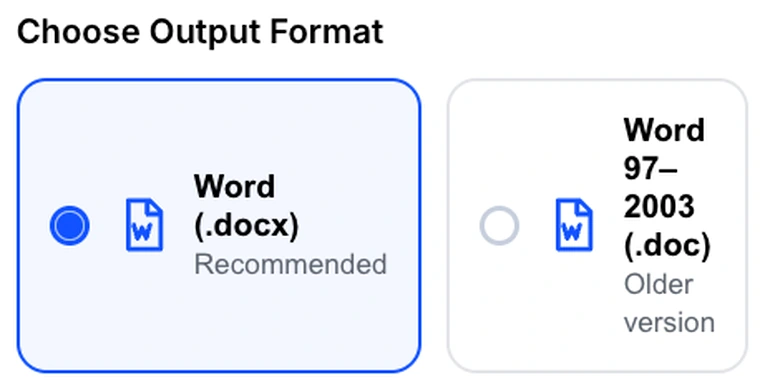
Choose Output Format
Word (.docx) produces a genuine Office Open XML document. Word 97–2003 (.doc) produces an RTF file with a .doc extension — Word and LibreOffice open it without complaint, but it is not the old binary Word format.
Choose .docx unless something specifically requires the older extension, because it is the more capable of the two. The practical difference is images: a .docx can embed pages that contain no extractable text, so a scanned page still appears in the document. The .doc path is text-only, so those pages cannot be included and you get a note instead. If your PDF is entirely text, the two are close to equivalent.
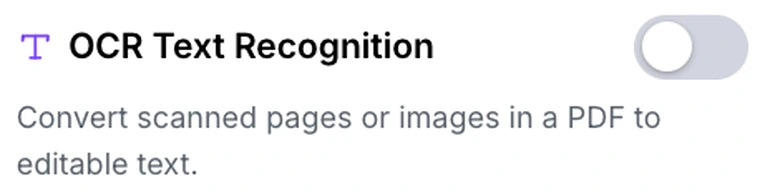
OCR Text Recognition
Runs optical character recognition over each page, reading the text out of the pixels rather than from the PDF’s own text objects. Recognition currently covers English only.
Turn it on when the PDF is a scan or a photograph of a document — anything where you cannot select the text in a PDF reader. Leave it off for PDFs exported from Word, a browser or design software, because those already contain real text objects, and reading them directly is both faster and perfectly accurate. OCR is slower, works page by page, and its accuracy depends on the scan: clean, straight, high-contrast pages read well, while faint, skewed or handwritten ones do not. Expect to proofread the result. One practical note: the first time you use OCR it downloads an English language pack, so it needs an internet connection and that first run is slower than later ones. The download is the recognition model coming to your browser — your document still never leaves it.
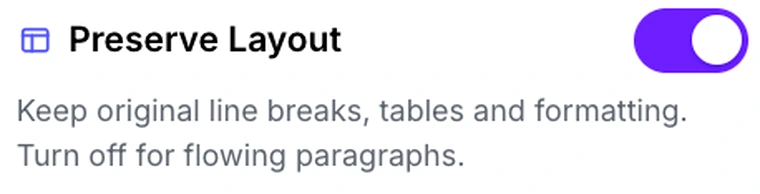
Preserve Layout
Controls how detected lines become paragraphs. On, every line of the PDF becomes its own paragraph, so the text sits on the page much as it did. Off, consecutive lines are joined into flowing paragraphs that break only at blank lines.
Leave it on when line positions carry meaning — addresses, invoices, forms, poetry, code, anything laid out in short lines. Turn it off when the source is continuous prose, because a PDF stores each visual line separately and keeping them produces a Word file where every line is a paragraph, which is awkward to edit and re-wraps badly. For a report or an article, turning it off usually gives the more workable document.
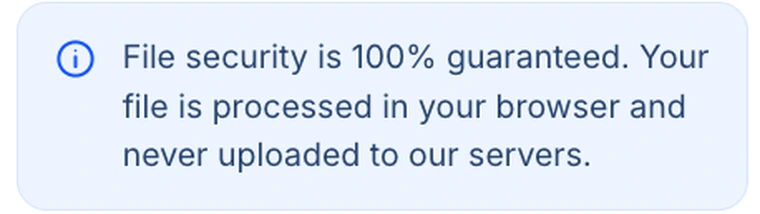
Everything runs in your browser
The conversion, including OCR, happens on your own machine. Your PDF is never sent to a server.
This matters most for exactly the documents people most often need converted — contracts, medical letters, financial statements, anything under an NDA. Because the work is local, conversion speed depends on your device rather than on a queue, and a long OCR job on an older machine will take a while. The trade is worth it: nothing leaves the browser.
Why use Pixpoo for PDF to Word?
- Real .docx output built as an Office Open XML document, not a renamed HTML file
- Optional OCR for scanned pages, so image-only PDFs still produce editable text
- Layout control: keep the original line breaks, or reflow into proper paragraphs
- Scanned pages are embedded as images in .docx rather than coming out blank
- Extraction happens on your device, so the document never travels to Pixpoo’s servers
- No registration or email needed, and the Word file comes back unbranded
PDF to Word features
PDF to Word limitations
Pixpoo recovers text and line structure, not visual design. Tables, multi-column layouts, headers, footers, fonts, colours and text styling are not reconstructed — the Word file contains the words in reading order, with each detected line as its own paragraph. Pages with no selectable text are embedded as images in a .docx unless OCR is enabled; the .doc format is text-only and cannot embed them at all. OCR currently recognises English only, and its accuracy depends on the quality of the scan. Password-protected PDFs must be unlocked before they can be converted. OCR also downloads an English language pack on first use, so it requires an internet connection even though the recognition itself runs locally.
Common PDF to Word questions
How do I convert a PDF to Word?
Add your PDF, pick an output format, set OCR and Preserve Layout to suit the document, then click Convert to Word. The file is built on your own machine and downloads as soon as it is ready.
Will the Word file look exactly like my PDF?
No, and no converter can fully manage this. A PDF records where text sits on the page, not that a block is a heading or that some cells form a table, so that structure has to be inferred. Pixpoo recovers the words and their line order faithfully but does not rebuild tables, columns, headers, footers or the original fonts and styling. Expect to do some formatting work in Word.
Can I convert a scanned PDF?
Yes, but turn on OCR Text Recognition first. A scan contains no text objects, only pixels, so without OCR there is nothing to extract — the pages are embedded as images in a .docx instead. With OCR on, the text is read out of the image and becomes editable.
Which languages does OCR support?
English only at present. Recognition of other languages, and of scripts that are not Latin, is not currently available, so text in another language will come back unreliable or garbled.
What is the difference between .docx and .doc here?
The .docx option produces a genuine Office Open XML document. The .doc option produces an RTF file with a .doc extension, which Word and LibreOffice open without complaint but which is not the old binary Word format. The important practical difference is that .docx can embed image pages and .doc cannot.
Should I keep Preserve Layout on or off?
On is right for documents where line positions matter — invoices, forms, addresses, code. Off is usually better for prose, because a PDF stores every visual line separately, and keeping them makes each line its own paragraph in Word, which re-wraps badly when you edit.
Are tables converted into Word tables?
No. Table cells are extracted as text in reading order rather than rebuilt as a Word table, because the PDF does not record that the cells belong to one. You will need to rebuild the table in Word, or copy the values into one.
Why is my converted document missing the formatting?
Fonts, sizes, colours, bold and italic are not carried across — the output is plain paragraphs. This is a deliberate scope choice: recovering text reliably is achievable, while reconstructing a designed layout from positional data is not, and a half-reconstructed layout is usually harder to fix than clean text.
Can I convert a password-protected PDF?
No, the text cannot be pulled out of a file that is still locked. Run it through Unlock PDF to remove the password, then convert the open copy.
Does converting change my original PDF?
No. The PDF is only read. A new Word file is created alongside it and your original stays exactly as it was on your device.
Is the PDF to Word tool free?
Yes. PDF to Word with Pixpoo is completely free — no sign-up, no watermark, no usage limits and no paid plan. It runs entirely in your browser, so there is nothing for us to meter.
Are my files uploaded to a server?
No. When you use PDF to Word, your files are processed in your browser and are not sent to Pixpoo’s servers — Pixpoo does not upload or store them.
Related tools: JPG to PDF, PDF to JPG, Word to PDF, PDF to PNG. All PDF tools →