Convert Image
Change a picture from one format to another.
JPG, PNG, WebP, AVIF, GIF or TIFF.
7 easy ways to add an image
Add an image from anywhere. Fast, simple and flexible.
- 1Drag & dropDrop your image right here
- 2Choose from deviceBrowse your computer
- 3Copy & pasteCopy an image from a webpage or screenshot and paste it here
- 4Google DriveImport from Google Drive
- 5DropboxImport from Dropbox
- 6From LinkPaste an image link (URL)
- 7Scan QR CodeUpload from your mobile
How to convert an image online
- Add the file you want converted. It is read in your browser first, so the preview and its dimensions appear before anything is sent.
- Pick the format you want — or press a quick start, which sets the format and its companions together.
- Check the estimated result, then press Convert Image.
- Download the converted file, or hand it straight to another tool from the buttons underneath.
Want a more detailed walkthrough? Read the full step-by-step guide →
Convert an image to another format — free, fast and no watermark
Free online image converter — convert between JPG, PNG, WebP, AVIF, GIF and TIFF. Turn PNG to JPG, JPG to WebP or anything to AVIF, keep transparent backgrounds, choose lossless for logos and screenshots, and set the quality yourself. No sign-up, no watermark.
How your image is processedYour image is uploaded to our server once for processing. It is held temporarily in memory only for the duration of the operation and is not permanently stored. The processed file is then returned to your browser. Our PDF tools work differently: those run entirely in your browser and upload nothing.
About Convert
Converting an image rewrites it in a different file format. The picture is decoded to raw pixels and encoded again by a different set of rules — which is why the same photograph can weigh 187 KB as a JPEG and 1.09 MB as a PNG without a single pixel changing.
Formats are not better or worse in the abstract; they are specialised. JPEG and its successors were built for photographs, where colour varies continuously and small errors hide in the noise. PNG and GIF were built for flat artwork, where colour comes in large uniform areas and a single wrong pixel on a hard edge is obvious. Choose against the grain of your image and the file balloons.
So the useful question is never “which format is smallest” but “what kind of picture is this”. A converter earns its keep when something downstream demands a particular type — a printer wanting TIFF, a form refusing anything but JPEG, a page you want served as WebP — or when the file you have is simply the wrong shape for its contents.
Converting is also where the real savings usually are. Compressing a photograph harder trades away detail you can see; moving the same photograph to a format built for it can halve the file with nothing visibly lost. If size is the whole problem, try the format first.
When converting is the right fix
Usually because something at the other end will only accept one type of file, or because the file you have is the wrong format for what it contains.
- A page that should serve modern formats rather than decade-old JPEGs.
- A print shop or publisher asking specifically for TIFF at 300 DPI.
- A form that rejects anything except JPG or PNG.
- A screenshot saved as JPEG, where the text has gone fuzzy and the file is bigger than it needed to be.
- A logo that needs its transparent background carried into a different format.
Convert options explained
The format is the decision that matters, and everything else on the screen is either a shortcut to it or a refinement of it. The quick starts set a format and its sensible companions in one press; the quality slider and compression type decide how that format is written; and the estimate underneath updates as you go, including when the format you picked would make the file bigger.

Quick starts
Six shortcuts that set several controls together, each labelled with what it does. Website selects WebP at quality 80 and 72 DPI. Social selects JPEG at 85. Email selects JPEG at 65. Print selects TIFF at quality 95 with 300 DPI. Max quality pushes quality to 100 and switches on lossless. Smallest drops quality to 40.
A good starting point rather than a final answer — touching any control afterwards clears the chip, because the settings are no longer the ones it stands for. Two of the six behave differently from the rest: Max quality and Smallest change only the quality settings and leave whatever format you already chose in place. And Print has a side effect worth knowing, described under Resolution below: asking for a DPI figure also restores the metadata block.

Convert to
The format your file is rewritten as: WebP, JPEG, PNG, AVIF, TIFF or GIF. The card matching your uploaded file is marked “current”, so it is clear what you are converting from as well as to.
This is where the whole decision lives, and the answer flips completely depending on what the picture contains. Converting a 573 KB photograph at quality 80, we measured 187 KB as JPEG, 213 KB as WebP, 186 KB as TIFF and 405 KB as AVIF — but 1.09 MB as PNG and 2.41 MB as GIF, both far larger than the original. Photographs want JPEG, WebP or AVIF; screenshots, logos and line art want PNG. WebP is the one format that is respectable at both. AVIF is worth a look specifically when you are compressing hard: at quality 80 it was the largest of the four sensible choices, but at quality 50 it produced 21 KB against JPEG’s 43 KB.

Quality
How hard the new format is asked to squeeze, from 1 to 100, starting at 82. It disappears for GIF, which has no quality dial, and when you choose lossless, which has nothing to trade.
Leave it near the default for photographs. What the numbers buy is very uneven, and it is worth knowing that dropping the quality often does less for you than changing the format: on our test photo, moving from JPEG to AVIF at quality 50 saved more than halving the quality within JPEG did. PNG is the exception to all of this — what it spends bytes on is the number of colours it keeps rather than a fidelity setting, so the slider moves it far less predictably than it moves the others.

Compression type
A choice that appears for WebP, PNG and AVIF — the three destinations with a lossless mode. Lossy discards detail to save space; lossless keeps the pixels exactly and saves only what can be saved without changing them.
Lossy for photographs. Lossless when converting a logo, a diagram or a screenshot, where a softened edge is the thing people notice. We checked the promise rather than assuming it: decoding lossless WebP, PNG and AVIF output and comparing against the source, all three came back with identical pixels, every sample matching. It is not cheap — on a 1000×1000 test crop, WebP came to 54 KB lossy and 967 KB lossless — which is why photographs belong on the other setting.

Estimated result
A projection of what the conversion will produce, with the format on each side so the trade is legible at a glance. It is arithmetic rather than a trial encode — running the real thing on every click would mean a round trip per press — so treat it as the shape of the answer. The download screen afterwards carries the real figure.
Read it before pressing, especially when it disagrees with what you expected. The most useful thing it does is warn you off a format that is wrong for your picture.
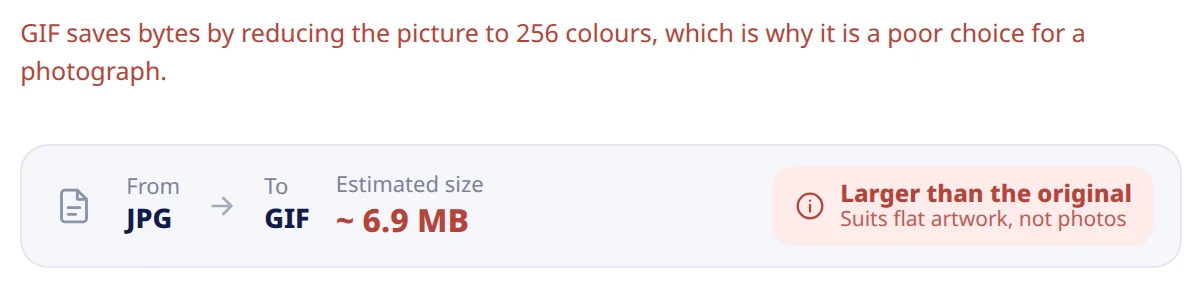
When the new file would be bigger
Choosing a format that stores your kind of picture badly is not blocked, but it is called out — the estimate says “Larger than the original” instead of a saving, and explains why underneath. GIF additionally has no quality control at all, so the slider is replaced by a line saying so.
Nearly always a sign to pick a different format. Converting a photograph to GIF took our 573 KB file to 2.41 MB, because GIF reduces the picture to 256 colours and then stores it in a way built for flat artwork. PNG did the same thing less dramatically at 1.09 MB. Both are the right choice for a logo or a screenshot and the wrong one for a photograph, and this is the panel that tells you which situation you are in.

Transparency and background
Under More options, Keep transparency carries an alpha channel into the new file wherever the destination can hold one — PNG, WebP, AVIF and GIF. When it cannot, or when you turn it off, a row of swatches appears to choose what the transparent area is filled with: white, black or a colour of your own.
Leave it alone for most work. JPEG and TIFF have no alpha channel, so anything transparent has to become a colour, and white is the safe default. Turn Keep transparency off deliberately when you want a solid background even though the format could carry one — a logo going onto printed white paper, for instance, where a transparent PNG can surprise you at the printer.
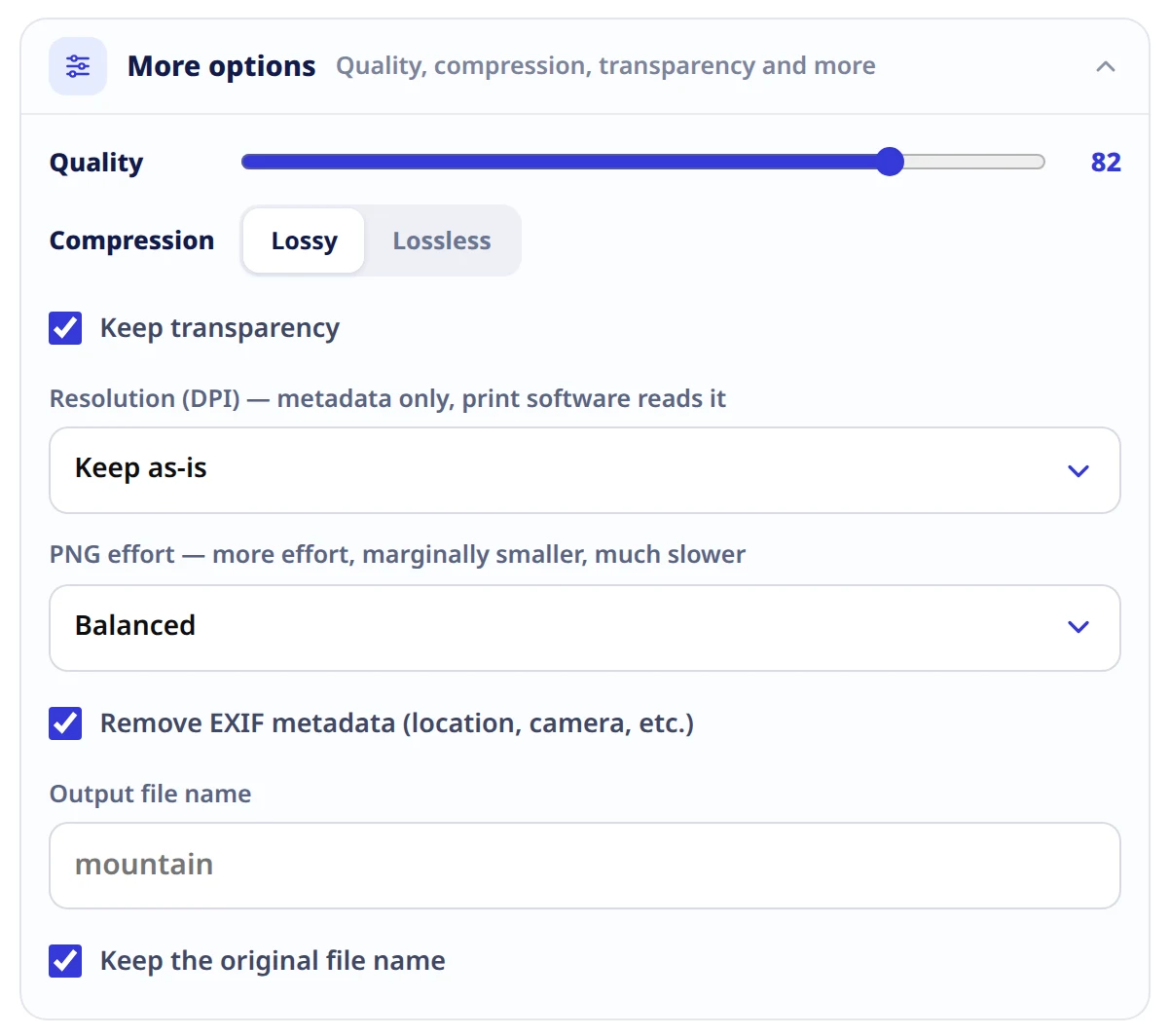
More options
Everything that refines a conversion without changing what it fundamentally is. Resolution writes a DPI figure into the file. PNG effort trades encoding time for a slightly smaller PNG. Remove EXIF metadata, ticked by default, decides whether camera, date and location tags travel with the picture. Resize while converting scales the picture in the same pass. Output file name renames the download.
Three of these deserve a word. **Resolution** is metadata only — it changes no pixels and only print software reads it — and it has a consequence that is easy to miss: the underlying library can attach a DPI only by writing the whole original metadata block back out, so choosing any value here restores the camera and location tags even with the metadata box ticked. We measured exactly that: a test file’s EXIF was removed on the default path and came back, all 244 bytes of it, as soon as a DPI was set. If privacy matters more than the DPI figure, leave it on Keep as-is. **PNG effort** is nearly free to ignore — going from Fast to Maximum saved 0.4% on a photograph and 5% on a flat graphic, for up to twelve times the encoding time. **Resize while converting** is off by default, so a conversion converts and nothing else; tick it when the destination has a size rule as well as a format rule.
Why use Pixpoo for Convert?
- Six formats laid out as cards, with your current one marked so you can see what you are changing from.
- Six quick starts for web, social, email, print, maximum quality and smallest size.
- An estimated size before you commit, and a warning when the format you picked will make the file bigger.
- Lossless WebP, PNG and AVIF for artwork that must survive the trip untouched.
- Transparency carried across wherever the destination can hold it, and a colour of your choosing where it cannot.
- Camera and location data removed unless you ask for it to stay.
Convert features
Convert limitations
The boundaries worth knowing. Converting is a decode and a re-encode, so anything but a lossless destination costs a little detail — and converting a JPEG to PNG does not recover what the JPEG already discarded, it only stores the damage in a bigger file. Choosing a format against the grain of your picture makes it heavier rather than lighter, sometimes several times over: our test photograph came back at four times its size as a GIF. Neither JPEG nor TIFF can hold transparency, so alpha becomes a solid colour there. GIF has no quality setting, and an animated GIF is flattened to a single frame. Setting a DPI restores the metadata the tool otherwise strips, which is a real privacy consequence rather than a footnote. PNG effort barely earns its own control. JPEG 2000 and JPEG XL are reachable over the API but are not offered on this screen, because both need optional libraries that a normal server build does not carry. Dimensions are unchanged unless you tick Resize while converting. Pictures go through one at a time, the upload ceiling is 25 MB, and iPhone HEIC files are refused. Conversion happens on a server, so the file does travel — the privacy question below sets out exactly what happens to it.
Common Convert questions
Which image format should I convert to?
It depends entirely on what the picture is. For photographs going on a web page, WebP is the best default — smaller than JPEG at the same quality and supported everywhere that matters. For photographs that must open in old software, JPEG. For screenshots, logos, charts and anything with hard edges or transparency, PNG. For print, TIFF. AVIF is the smallest of all when you are compressing hard, though at gentle settings it can be larger than JPEG. GIF is for flat artwork with very few colours and almost never the right answer for a photograph.
Does converting an image reduce its file size?
It can do more for the size than compressing does, or it can make things dramatically worse — the format has to suit the picture. Converting a 573 KB photograph at quality 80, we measured 187 KB as JPEG and 213 KB as WebP, but 1.09 MB as PNG and 2.41 MB as GIF. The estimate panel on the screen tells you which way it is going before you press anything.
Does converting reduce image quality?
Any lossy destination discards a little detail, and it is worth remembering that this stacks on top of whatever an earlier save already threw away — converting a JPEG to PNG stores the JPEG’s existing damage in a larger file rather than repairing it. If you need the pixels intact, convert to WebP, PNG or AVIF and switch Compression type to Lossless; we decoded all three and compared them against the source, and every sample matched.
Will my transparent background survive the conversion?
Into PNG, WebP, AVIF or GIF, yes — Keep transparency is on by default. Into JPEG or TIFF, no: neither format has an alpha channel, so transparent areas are filled with a colour instead. The screen shows a swatch row in that case so you can choose white, black or your own colour rather than being given white silently.
Can I convert a JPG to PNG without losing quality?
You can convert it without losing anything further — choose PNG and set Compression type to Lossless, and every pixel of the JPEG is preserved exactly. What you cannot do is get back the detail the original JPEG discarded when it was first saved; that information is gone from the file you have. The result is a faithful, and considerably larger, copy of the JPEG as it stands.
Does converting remove EXIF and GPS data?
Yes by default — Remove EXIF metadata is ticked, and a test file’s camera and location tags were gone from the download. There is one exception that matters: setting a Resolution (DPI) restores the whole metadata block, because the image library can only attach a DPI by writing the original metadata back out. We measured it: 244 bytes of EXIF removed on the default path, and present again as soon as a DPI was set. If you care about privacy, leave Resolution on Keep as-is.
What is the difference between converting and compressing?
Compressing keeps the format and spends fewer bytes describing the same pixels. Converting changes the format, which changes the rules used to describe them. They often produce a similar-sized result by very different routes, and converting is frequently the bigger win — moving a photograph to a format built for photographs can beat squeezing it harder in a format that is not. Pixpoo’s Compress Image tool deliberately never changes the format, so the two decisions stay separate.
Can I convert an animated GIF?
Not with the animation intact — the picture is read as a single frame, so what you get back is a still image. That applies to converting an animated GIF into any other format, and to converting anything into GIF.
What about JPEG 2000 and JPEG XL?
Both are accepted by the API, but neither is offered on this screen, because they depend on optional libraries that a standard server build does not include. Offering a card that might fail is worse than not offering it. If you need one of them, WebP and AVIF cover most of the same ground with far better support.
Does converting change the image dimensions?
No, unless you tick Resize while converting under More options and give a width and height. A conversion on its own changes the file format and nothing about the pixel grid, so the download comes back at exactly the size it went in at.
Does it work on a phone?
Yes. The tool runs in any modern browser on Android and iOS with nothing to install, and you can convert an image straight from your camera roll.
Is the Convert tool free?
Yes. Convert with Pixpoo is completely free — no sign-up, no watermark and no usage limits on the free tier.
Are my images uploaded to a server?
Yes. Image Toolkit operations upload the selected image to our server for processing. The file is held temporarily in memory, used only to perform the requested operation, and then discarded. Images are not permanently stored, never written to disk and never shared. Our PDF tools work differently: those run entirely in your browser and upload nothing, so a PDF stays on your device throughout.
Related image tools
Resize · Crop · Compress · Upscale · All image tools