Split PDF
Split a PDF file into multiple files in various ways
- Split by page range
- Extract specific pages
- Split every page
Drag & drop a PDF file here
or click to choose from your device
How to Split PDF online
- Open Split PDF and load the document you want to cut up, either by dropping it on the panel or picking it from your device.
- Check the page preview. If anything needs fixing first, reorder, rotate, remove or insert pages here; the split runs on the document as you leave it.
- Choose a split mode: single pages, page ranges, extract, bookmarks or equal chunks.
- Fill in what that mode needs — a range like 1-3, 5, 8-10, or the number of parts to divide into.
- Set a base filename if the defaults are not what you want, and check the preview of the output names.
- Click Split PDF. The work happens on your own machine, so large documents start processing straight away.
- Download the result — a single PDF when you extract, or a ZIP archive containing every part for the other modes.
Want a more detailed walkthrough? Read the full step-by-step guide →
Split PDF online — free, fast and private
Split a PDF into multiple files. With Pixpoo you can split PDF online for free, right in your browser — no sign-up, no watermark, and your files are processed locally rather than sent to Pixpoo’s servers.
About Split PDF
Splitting a PDF means taking one document and producing several smaller ones from it, either by cutting it at chosen points or by pulling specific pages out into a file of their own. The page content itself is copied across untouched, so text stays selectable and searchable and vector graphics stay sharp — splitting is a structural operation, not a re-render.
The need usually appears when a document is bigger than the job at hand. A 200-page scanned bundle contains the six pages your accountant actually asked for. A committee pack needs to reach five departments, each of whom should only see their own section. An upload form caps attachments at 10 MB and your report is 40. In every case the useful unit is smaller than the file you have.
Pixpoo gives you five ways to cut, because the right boundary depends on the document. Some PDFs split naturally at their bookmarks; some need explicit page ranges; some just need to be broken into equal pieces to get under a size limit. One thing worth knowing before you start: any edits you make in the page preview — reordering, rotating, deleting or inserting blank pages — are applied first, so the split runs on the document as you have arranged it, not on the original file.
When should you split a PDF?
Splitting earns its place whenever the whole document is more than the situation needs. Common cases:
- Pulling a handful of relevant pages out of a long scanned bundle to send on
- Separating a combined scan back into the individual documents it was made from
- Sharing only one section of a report with the team it concerns, without exposing the rest
- Getting under an upload or email size limit by breaking a large file into parts
- Turning a multi-page scan into one file per page for filing or indexing
- Breaking a book or manual into chapters so each can be read or printed on its own
Split PDF options explained
Every setting in the Split PDF panel changes how the document is split. Here is what each one does and when it is worth using.
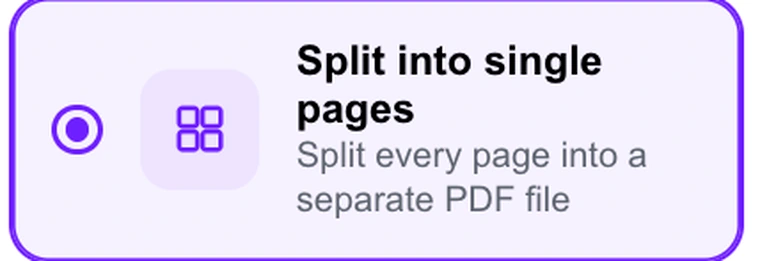
Split into single pages
Produces one PDF per page. A 30-page document becomes 30 files, delivered together as a ZIP archive.
Use it when each page is really its own document — a batch of scanned receipts, certificates or forms that were captured in one pass and now need to be filed separately. It is also the quickest way to get a set of pages you can re-order freely in another tool. For a long document this produces a lot of files, so check the page count first.
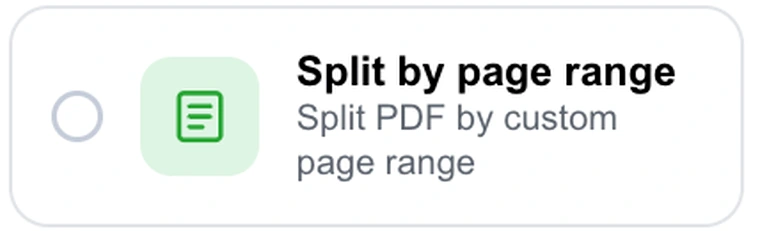
Split by page range
Cuts the document at boundaries you define and produces one file per range. Ranges are written like 1-3, 5, 8-10, which yields three files: pages 1 to 3, page 5 on its own, and pages 8 to 10.
This is the mode for a document with a known structure — a report where you already know the appendix starts at page 24, or a bundle where each contract occupies a known block of pages. Ranges do not have to be contiguous and pages you leave out simply do not appear in any output file, so you can drop a cover sheet by omitting it.

Extract pages
Takes the pages you name and puts them into a single new PDF. This is the one mode that always produces exactly one file, downloaded directly rather than zipped.
Reach for this when you want a subset, not a set of pieces — the four pages of a long lease that mention the deposit, or pages 2, 7 and 11 of a scan. It accepts the same 1, 4-6, 9 syntax as page ranges, and duplicates are removed automatically, so listing a page twice will not repeat it in the output.

Split by bookmarks
Reads the PDF’s outline and starts a new file at every top-level bookmark, naming each output after the bookmark it begins with.
This is the most convenient mode when it applies, because the document tells you where its own boundaries are — chapters in a manual, sections in a policy document, tabs in a court bundle. Two caveats: only top-level bookmarks are used, so nested sub-sections stay inside their parent file, and a PDF with no outline at all (most scans) will simply come back as a single part.
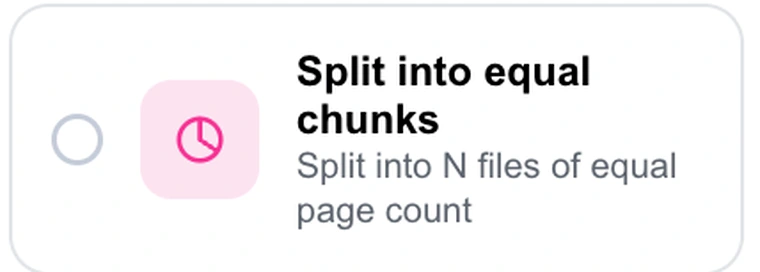
Split into equal chunks
Divides the document into a number of parts you choose, each with the same page count. The minimum is two parts, and when the pages do not divide evenly the final part is the short one.
This is the size-limit mode. When an upload form or mail server rejects your file and you do not care where the cut falls, splitting into three or four parts is the fastest way through. It is a blunt instrument by design — it will cut mid-section without hesitation — so prefer ranges or bookmarks whenever the boundaries actually matter.
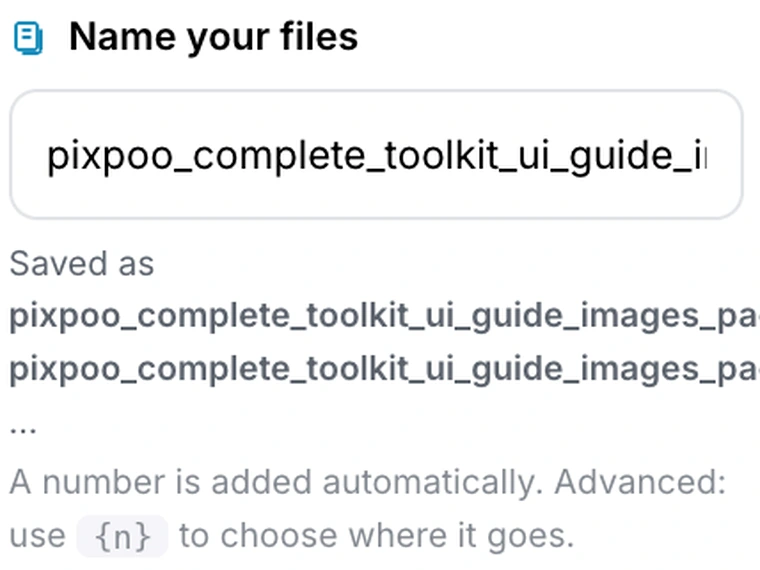
Naming your files
Sets the base name for the output files. A number is appended automatically, and the preview below the field shows the exact filenames you will get before you commit.
Worth a moment whenever the files are going somewhere shared. If you want the number somewhere other than the end, put the {n} token where it belongs — invoice_{n}_2026 produces invoice_1_2026.pdf and so on. Without the token the number is added at the end. Names are sanitised for characters that filesystems reject, so an awkward source filename will not produce an unusable output.

Editing pages before you split
The page preview is editable. You can click to select pages, drag to reorder them, and rotate, remove or insert blank pages before running the split.
Because the split runs on the edited document rather than the original, this lets you do two jobs in one pass — drop the blank separator sheets a scanner inserted, straighten pages that came in sideways, or move a stray page into the section it belongs to, and then cut. Undo and Redo cover every change, so it is safe to experiment before committing.

Grayscale
Converts the pages to black and white, discarding colour information, before they are split.
Useful when the split files are destined for archiving or mono printing and colour adds nothing but size. The same trade-off applies as everywhere else in Pixpoo: this effect is painted into the page, so pages are redrawn as 150 DPI images and their text stops being selectable and searchable. Leave it off if the output needs to stay searchable.

Enhance Contrast
Deepens dark pixels and lightens light ones so faint text separates from the page background.
Worth turning on when you are breaking up an old or faded scan and want the resulting files to be more readable than the original. As with Grayscale, the effect is rendered into the page at 150 DPI, so treat it as a choice for image-based scans rather than for PDFs whose text layer you want to keep.
Why use Pixpoo for Split PDF?
- Five split modes, so you can cut by structure, by page or by size
- Edit pages before splitting — reorder, rotate, remove and insert, with full undo
- Runs in your browser — your documents are not sent to Pixpoo’s servers
- No account, no email address, and nothing stamped across the pieces you get back
- Page content is copied, not re-rendered, so split files keep the original quality
- Multiple outputs arrive as one ZIP instead of a queue of separate downloads
Split PDF features
Split PDF limitations
Pixpoo copies page content without re-encoding, so split files keep the quality of the original. Bookmark splitting uses only top-level bookmarks and depends on the PDF actually containing an outline — many scanned documents have none, in which case the whole file comes back as one part. Bookmarks, form fields and annotations belong to the source document and may not carry into every output file. Grayscale and Enhance Contrast redraw pages at 150 DPI, which removes selectable text from the processed pages. Password-protected PDFs must be unlocked before they can be split.
Common Split PDF questions
How do I split a PDF?
Upload the PDF, pick the split mode that matches how you want the document divided, give it whatever that mode needs, then click Split PDF. Everything runs in your browser, so there is no upload wait and the results download as soon as they are ready.
Can I extract only certain pages?
Yes. Choose Extract pages and list them as 1, 4-6, 9. Those pages are collected into one new PDF, in page order, with duplicates removed automatically. This is the only mode that always produces a single file rather than a set.
What is the difference between page ranges and extracting pages?
Page ranges produce one file per range — 1-3, 5, 8-10 gives you three separate PDFs. Extract puts every page you name into one PDF. Use ranges to break a document into pieces, and extract to pull a subset out of it.
How do I get one PDF per page?
Choose Split into single pages. Every page becomes its own file and they are delivered together as a ZIP archive, so a 30-page document gives you 30 PDFs in one download.
Why did splitting by bookmarks return only one file?
That happens when the PDF has no bookmark outline, which is normal for scanned documents. Splitting by bookmarks reads the outline the document carries, and only its top-level entries — nested sub-sections stay within their parent section. If there is no outline, use page ranges instead.
Will splitting reduce the quality of my PDF?
No. Each page is transferred whole into its new file — no re-encoding, no flattening into a picture — so the type, the embedded fonts and any vector artwork come through byte-identical. The exceptions are Grayscale and Enhance Contrast, which redraw pages as 150 DPI images and remove the selectable text layer.
How do I name the files I get back?
Enter a base name under Name your files. A number is added automatically, or you can place it yourself with the {n} token — report_{n} produces report_1.pdf, report_2.pdf and so on. The exact filenames are previewed before you split.
Can I split a password-protected PDF?
Not until it is unlocked — an encrypted PDF cannot be read for splitting. Remove the password with the Unlock PDF tool first, then split the unprotected file.
Can I split a PDF on my phone?
Yes. Any current phone browser will do, on either Android or iPhone, and there is nothing to install — the pieces arrive through whatever download handling your phone already uses.
Is the Split PDF tool free?
Yes. Split PDF with Pixpoo is completely free — no sign-up, no watermark, no usage limits and no paid plan. It runs entirely in your browser, so there is nothing for us to meter.
Are my files uploaded to a server?
No. When you use Split PDF, your files are processed in your browser and are not sent to Pixpoo’s servers — Pixpoo does not upload or store them.
Related tools: Merge PDF, Compress PDF, Rotate PDF, Delete Pages. All PDF tools →