Word to PDF
Convert your Word documents to PDF files.
Drag & drop your Word file here
or click to choose a file from your device
How to convert Word to PDF
- Drag your .docx file into the upload panel, or click Choose File.
- Set the page size, orientation and margins you want the PDF to use.
- Decide how the document should be converted using the three Format Options — the first one is the important choice.
- Optionally rename the output file, and use Preview PDF to open the result in a new tab before you download it.
- Click Convert to PDF and download the finished file.
Want a more detailed walkthrough? Read the full step-by-step guide →
Word to PDF online — free, fast and private
Convert Word documents to PDF. With Pixpoo you can convert Word to PDF online for free, right in your browser — no sign-up, no watermark, and your files are processed locally rather than sent to Pixpoo’s servers.
About Word to PDF
Word to PDF turns a .docx file into a PDF so it can be sent, printed or filed without the recipient needing Word and without the layout shifting on their machine. You choose the page size, orientation and margins, and the document is laid out to fit them.
There are three ways to convert behind the one button, and the "Maintain layout, images and formatting" checkbox is the main choice. Ticked — your document is rendered visually, so headings, bold and italic, bullet lists, tables and images all appear as they look on screen. Unticked, the text is extracted and re-set as plain selectable text, which drops the images and styling but keeps every word searchable. With the searchable-text option enabled, Pixpoo also adds an invisible text layer over the visual output, giving you both the original appearance and searchable text.
That choice is the main thing to understand about this tool, and the option cards below explain which of the three suits which job.
When should you convert Word to PDF?
Converting is worth it whenever the document is finished and the way it looks now is the way it should stay.
- Sending a CV or job application, where a Word file may reflow on the reader’s machine or reveal tracked changes.
- Issuing a quote, invoice or statement of work that should not be editable in transit.
- Submitting coursework, a report or a form to a portal that only accepts PDF.
- Archiving a signed-off document so it still looks the same years later, on software that may not exist yet.
- Printing from a machine that does not have Word installed, or where the fonts you used are missing.
Word to PDF options explained
The middle panel controls the page the document is poured onto; the Format Options underneath decide how the conversion itself is done. That last group is the one worth reading properly.

Page Size
Sets the physical size of the PDF pages: A4, US Letter, Legal, A3 or A5. Your document is laid out to fit the size you pick here rather than the page size set inside the Word file.
A4 for most of the world, Letter for the United States and Canada — sending an A4 PDF to a US printer gives slightly wrong margins and vice versa. Legal suits contracts drawn up on long stock, A3 suits plans and large tables, and A5 suits booklets and handouts.

Orientation
Switches the page between tall and wide. It swaps the width and height of whichever page size you chose, and the document is re-laid out to the new proportions.
Portrait for anything that reads as prose. Landscape when the content is wider than it is tall — a table with many columns, a schedule, a chart or a slide handout. Because the layout is recalculated rather than rotated, a wide table gets genuinely more room in landscape rather than just being turned on its side.

Margins
The white border around the content, in four steps: None, Narrow, Normal and Wide. This is the PDF’s own margin and it replaces whatever margin the Word document had.
Normal suits most documents. Narrow fits more on each page and is useful for a long report you would rather not print across extra sheets. Wide leaves room for binding, hole-punching or handwritten notes. None is for content that should run to the edge, such as a full-page image or a certificate.
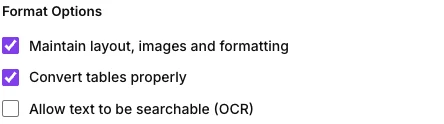
Format Options
The first box is a genuine fork in the road. Ticked, your document is rendered visually and each page is placed in the PDF as a picture — it looks right, but no text in it can be selected or searched. Unticked, the words are extracted and re-set as real text, which is fully searchable but arrives without images, tables or styling. The second box controls whether table borders are drawn. The third runs text recognition over the rendered pages and lays the recovered words invisibly on top, which makes the visual output searchable too.
Leave the first box ticked for anything where appearance matters — a CV, a quote, a designed document. Untick it when the words matter more than the look, such as pasting a draft into another system. Tick the third box when you want both: it takes noticeably longer, because a recognition engine has to read every page, but it is the setting that gives you a PDF that looks right and can still be searched. The third box only does something while the first is ticked.

Output File Name
Pre-filled with your Word file’s name and a .pdf extension. Change it to name the download whatever you like; the .pdf ending is added for you if you leave it off.
Worth setting when the file is going to someone else, where "Application - Jane Smith.pdf" lands better than the working name your draft happened to have. The Preview PDF button next to it opens the result in a new tab so you can check the conversion before downloading.
Why use Pixpoo for Word to PDF?
- Five page sizes and both orientations, so the PDF matches whatever the recipient will print or file it as, rather than defaulting to whatever the document was drafted in.
- The visual conversion keeps bold, italics, headings, bullet lists, tables and embedded images.
- A searchable-text option adds an invisible OCR text layer to the visual output, so the PDF keeps its appearance while making recognized text searchable and copyable.
- Runs in your browser — your document is not sent to Pixpoo’s servers, which matters for contracts, CVs and anything with personal detail in it.
- You can name the output file before converting, and preview the result in a new tab before committing to it.
Word to PDF features
Word to PDF limitations
This is a rendering conversion rather than a Word-quality one, and it is worth knowing where that shows. Run-level font formatting is not carried over: the document is drawn in one standard sans-serif face at one body size, so serif and monospace passages come out in the same sans-serif as everything else, and text you set at different point sizes arrives at the same size. Bold, italic, headings, bullet lists, tables and images are all kept, so structure survives even though typography does not. Page breaks are decided by where the rendered content falls rather than by the breaks in your Word file, so a line can occasionally be cut across a page boundary, and headings will not always start where they did in Word. With "Maintain layout" ticked the pages are images, so nothing in them is selectable unless you also tick the searchable-text box. With it unticked the text is real but images, tables and styling are dropped, and characters outside the Latin alphabet — Greek, Cyrillic, Chinese, Japanese and most symbols — are replaced with question marks, though accented Latin such as café and Müller comes through correctly. Only .docx files are supported; a legacy .doc file has to be saved as .docx in Word first.
Common Word to PDF questions
Will my formatting be preserved?
Structure largely is: with the default setting, headings, bold and italic text, bullet lists, tables and embedded images all appear as they do on screen. Typography is not. Everything is rendered in one standard sans-serif face at one body size, so a serif or monospace passage loses its face and text set at 8pt, 14pt and 28pt all arrive the same size. Page breaks are recalculated rather than taken from your Word file. Expect a document that reads correctly and is laid out sensibly, rather than a pixel match for what Word shows you.
Why can’t I select the text in my PDF?
Because with "Maintain layout, images and formatting" ticked, each page is placed into the PDF as a picture of the document. That is what makes it look right, but it means there is no text to select. Tick "Allow text to be searchable (OCR)" as well and a recognition pass adds an invisible text layer over each page, which restores searching and copying. Alternatively, untick the layout box to get real text without the styling.
What is the difference between the three Format Options?
The first chooses between a visual conversion and a plain-text one, and it changes the output completely. The second only decides whether table borders are drawn. The third adds a searchable text layer to the visual output, and it has no effect when the first box is unticked, because that output is already real text.
Can I convert a .doc file?
No — only the modern .docx format is supported. Legacy .doc is a much older binary format that cannot be read reliably in a browser. Open it in Word or any compatible editor and use Save As to produce a .docx, then convert that.
Does the page size in my Word document carry over?
No. The PDF uses the page size, orientation and margins you choose in the settings panel, and the document is laid out to fit them. If you want the PDF to match the document, set them to the same values your Word file uses.
Why is the searchable-text option slow?
Because it works by reading the rendered pages with a recognition engine, character by character, rather than by reading the original text. That engine has to load first and then process every page, so a long document takes noticeably longer. The result is worth it when you need a PDF that both looks right and can be searched.
Are my documents uploaded when I convert them?
No. The whole conversion runs inside your browser — the file is read, rendered and written to a PDF on your own machine, and it is not sent to Pixpoo’s servers.
Is the Word to PDF tool free?
Yes. Word to PDF with Pixpoo is completely free — no sign-up, no watermark, no usage limits and no paid plan. It runs entirely in your browser, so there is nothing for us to meter.
Are my files uploaded to a server?
No. When you use Word to PDF, your files are processed in your browser and are not sent to Pixpoo’s servers — Pixpoo does not upload or store them.
Related tools: PDF to Word, JPG to PDF, PDF to JPG, PDF to PNG. All PDF tools →