Loading signer…
How to sign a PDF
- Drag your PDF into the upload panel. Pixpoo renders the first page so you can see exactly what you are signing.
- Choose Type, Draw or Upload in the signature panel and make your signature. Typing lets you pick from four handwriting styles; drawing gives you a pad to sign on; uploading takes a PNG or JPG of a real signature.
- Click "Add signature to page", then drag it where it belongs and pull a corner to resize it. Use the zoom controls and the page arrows to work at a comfortable size.
- Under Pages to Sign, choose All Pages, Specific Pages or Last Page Only.
- Click Apply Signature and download the file, which is saved with _signed added to its name.
Want a more detailed walkthrough? Read the full step-by-step guide →
Sign PDF online — free, fast and private
Add a signature to PDF documents. With Pixpoo you can sign PDF online for free, right in your browser — no sign-up, no watermark, and your files are processed locally rather than sent to Pixpoo’s servers.
About Sign PDF
Sign PDF puts your signature onto a PDF without printing it, signing it by hand and scanning it back in. You make a signature once — by typing your name in a handwriting font, drawing it with a mouse, trackpad or finger, or uploading a photo of a real one — then drag it into position on the page and apply it.
What comes out is your original PDF with the signature drawn on top. The pages underneath are not rebuilt or re-photographed: the text stays selectable and links keep working. The original page sizes and underlying content are preserved — only the signature is added, as a transparent image layer, which does add to the file size.
This is an electronic signature — a visible mark that shows you signed. It is not a digital certificate signature, the cryptographic kind that a reader can validate against an identity and that shows a green tick in Acrobat. The difference matters for some documents, and the section below is clear about which is which.
When should you sign a PDF this way?
A typed or drawn signature is right for everyday paperwork where the point is to show agreement and identify who agreed.
- Returning a signed quote, invoice approval, purchase order or delivery note to a supplier or client.
- Signing a rental agreement, permission slip, membership form or club application.
- Adding your name to an internal approval, expense claim, timesheet or policy acknowledgement.
- Completing an onboarding pack, NDA or contractor agreement where the other side just needs a signed copy back.
- Any document you would otherwise print, sign with a pen, scan and email — the same result, without the printer.
Sign PDF options explained
The signature panel on the right builds the mark; the panel on the left decides which pages it lands on. Here is what each control does.

Type, Draw or Upload
Three ways to produce the same thing. Type turns your name into a handwriting-style signature. Draw gives you a pad you can sign on with a mouse, trackpad or finger. Upload takes a PNG or JPG — a photo or scan of a signature you made on paper.
Type is fastest and most legible, and is fine for routine paperwork. Draw is the natural choice on a phone or tablet, where a fingertip gives a genuinely handwritten line. Upload is for when the document should carry your real signature; a PNG with a transparent background sits on the page most cleanly, because a JPG brings its white rectangle with it.
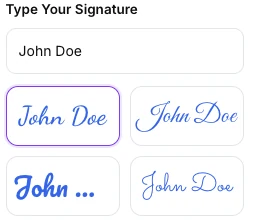
Handwriting style
Type your name once and four cursive styles are previewed with your own text in them. Whichever you click is the one that gets added to the page.
Pick by legibility rather than flourish — a signature a recipient can actually read as your name is more useful on a form than an ornate one. The preview shows your real name rather than sample text, so what you see is what lands on the page.
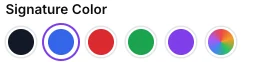
Signature Color
Five preset colours — near-black, blue, red, green and purple — plus a picker at the end for any colour you like. The colour applies to typed signatures and to the drawing pad.
Blue is the conventional choice because it distinguishes a signature from printed black text, which is exactly why it became the habit on paper. Use black when a form asks for black ink. One thing to know: the colour swatches are shown on the Type tab, so if you want to draw in a different colour, set it there first and then switch to Draw.
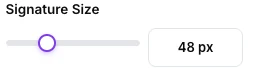
Signature Size
Sets how large a typed signature starts out, from 20 to 120. It is a starting size rather than a final one — once the signature is on the page you can drag any corner to resize it, and that works for drawn and uploaded signatures too.
Leave it alone and adjust on the page instead, where you can judge the size against the signature line. Set it here first when you are signing many pages and want a predictable starting point every time.

Advanced Options
Opens one setting: add today’s date underneath the signature. The date is taken from your own device and written in your regional format, and it is added as a separate item that you can move or delete on its own.
Turn it on where a form has a date field next to the signature line, or where the document should record when it was signed. Leave it off if the document already prints a date, or if you need a date other than today — you would then be stating something inaccurate.
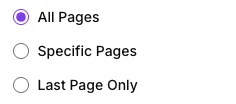
Pages to Sign
Decides which pages receive the signature. All Pages puts it on every page, Last Page Only on the final page, and Specific Pages takes a typed list such as 1, 3, 5-8. Whatever you choose, the signature lands in the same spot on each of those pages — the position you set in the preview.
Last Page Only suits most contracts, where the signature belongs at the end. Use Specific Pages for a document that needs initialling in particular places. All Pages is for forms that ask you to sign every sheet. Because the position is shared across pages, check that the spot you picked is blank on the other pages too.
Why use Pixpoo for Sign PDF?
- Three ways to produce a signature — type, draw or upload an image — so it works whether you are on a laptop, a tablet or a phone.
- You place the signature yourself on a live preview of the real page, at the zoom level you choose, rather than trusting a fixed position.
- Your PDF is not flattened into images, so text, links and bookmarks all survive signing exactly as they were.
- It runs entirely in your browser. A signature is about as personal as a document gets, so it matters that neither the document nor the signature is sent to Pixpoo’s servers.
- The same signature can be applied to every page, to a list of pages you type, or to the last page only.
Sign PDF features
Sign PDF limitations
Two things are worth knowing before you rely on this. First, it produces an electronic signature, not a digital certificate signature: the signature is a visible image on the page, so Acrobat will not show a validation tick and it carries no cryptographic proof of who signed or that the file is unchanged since. For most everyday paperwork that is exactly what is wanted, but a document that specifically requires a certified or digitally verified signature needs a certificate-based tool instead. Second, the signature is added as an image rather than as text, so it will not be selectable or searchable in the finished file, and on a document whose pages are not all the same size or orientation the signature can be stretched on the pages that differ from the one you positioned it on — sign those pages individually if your document mixes portrait and landscape. Finally, an already-encrypted document cannot be signed until its password is removed — Pixpoo will spot one and offer Unlock PDF instead.
Common Sign PDF questions
Is this a digital signature or an electronic signature?
It is an electronic signature — a visible signature drawn onto the page. A digital signature in the strict sense uses a certificate to cryptographically bind your identity to the file, which is what makes Acrobat show a validation tick. Pixpoo does not issue certificates, so if a document specifically asks for a certificate-based or digitally verified signature, you will need a tool built for that.
Is an electronic signature legally valid?
In many countries electronic signatures are recognised for a wide range of everyday agreements, and a typed or drawn signature is routinely accepted on quotes, forms and standard contracts. Rules differ by country and by document type, and some documents — wills, certain property deeds and some court filings among them — have stricter requirements. We are not lawyers; check what applies to your document if anything significant depends on it.
Does signing change the rest of my document?
Almost nothing changes. Your original PDF is loaded and the signature is drawn on top, so pages are not re-rendered or flattened into pictures: selectable text, clickable links, bookmarks, fonts, page sizes and the document title and author all come through as they were. Two small things do change — the file grows by the size of the signature image, and the PDF’s modification date and producer fields are updated to record that the file was edited.
Will the signature be searchable text in the finished PDF?
No. Whether you type, draw or upload it, the signature is placed as an image, so a text search will not find your name in it. That is normal for a signature and is how a scanned one behaves too, but it is worth knowing if you expected the typed version to stay as text.
Can I put the signature in a different place on each page?
Not in one pass. The position you set is applied to every page you selected, so a signature placed at the foot of page one lands at the foot of each chosen page. To sign different spots, apply the signature to one page, then run the signed file through the tool again for the next page.
How do I remove a signature I placed by mistake?
Click it in the preview to select it and press Delete or Backspace, or use the bin button in the toolbar above the page. Nothing is written into the PDF until you press Apply Signature, so you can rearrange as much as you like first.
Does Pixpoo keep a copy of my signature?
No. The PDF and signature are processed in your browser and are not sent to Pixpoo’s servers, so Pixpoo holds no copy of either and has nothing to reuse next time. That does mean you make your signature fresh each visit, which is the trade for it not being sent anywhere.
Can I sign a password-protected PDF?
Not while the password is still on it — the pages must be readable before anything can be drawn over them. Pixpoo detects a locked file and points you to Unlock PDF; strip the password there, then return with the open copy.
Is the Sign PDF tool free?
Yes. Sign PDF with Pixpoo is completely free — no sign-up, no watermark, no usage limits and no paid plan. It runs entirely in your browser, so there is nothing for us to meter.
Are my files uploaded to a server?
No. When you use Sign PDF, your files are processed in your browser and are not sent to Pixpoo’s servers — Pixpoo does not upload or store them.
Related tools: Edit PDF, Watermark PDF, Page Numbers. All PDF tools →