Page Numbers
Number your pages, your way.
Drag & drop your PDF file here
or click to choose a file from your device
How to add page numbers to a PDF
- Upload the PDF. The pages appear in a grid you can page through.
- Pick a position from the nine-square grid, then a number format.
- Adjust the font, size, colour and margin, watching the preview update.
- Open Numbering Options if you need to skip the cover or number only some pages, then press Add Page Numbers.
Want a more detailed walkthrough? Read the full step-by-step guide →
Page Numbers online — free, fast and private
Add page numbers to a PDF. With Pixpoo you can add page numbers to a PDF online for free, right in your browser — no sign-up, no watermark, and your files are processed locally rather than sent to Pixpoo’s servers.
About Page Numbers
Add Page Numbers puts a number on every page of a PDF. It sounds like a small thing, but a document without numbers is difficult to talk about — nobody can say "look at page nine", a printed stack cannot be put back in order, and a court filing or a tender submission will usually be rejected outright.
You choose where the number sits, how it is written, what it counts from and which pages get one. The preview shows the numbers on your actual pages before anything is downloaded, so you can see whether they clash with a footer or run into the margin.
The rest of the document is left alone, and provably so: the existing page is kept as its own layer and the number is written after it. We compared a five-page file before and after, and every page’s content stream matched byte for byte, with the bookmarks, links, images, page sizes and rotation flags all untouched.
When a PDF needs numbering
Numbers matter most when a document leaves your hands and someone else has to navigate it.
- A report or dissertation that has to be paginated before submission.
- A contract or legal bundle where clauses are cited by page.
- A set of scans merged into one file that came out with no numbering at all.
- A printed handout that people will read out of order and need to put back together.
- A tender or grant application with a page-numbering requirement in the rules.
Page Numbers options explained
Most of these do exactly what you expect. Three of them — the format, the starting number and the page list — interact in a way worth understanding before you press the button.
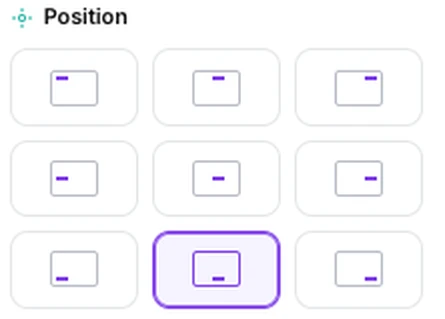
Position
Nine anchor points: three across the top, three down the middle, three along the bottom. Bottom-centre is selected by default, which is where most documents put their numbers.
Bottom-centre for anything that will be read on screen or bound down the left edge. Bottom-right suits a printed document that will be flicked through with the right thumb. Use the top row when the bottom of the page already carries a footer, and the middle row almost never — it puts the number across the body text. If your document mixes portrait and landscape pages, the number is placed relative to the page as the reader sees it. We rendered all nine positions on pages flagged 0, 90, 180 and 270 degrees — thirty-six combinations — and every number landed in the corner it was asked for and read upright.
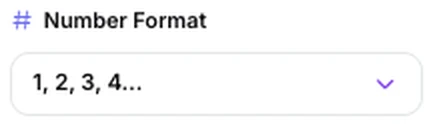
Number Format
Five ways to write the number: plain digits, "Page 1 of N", dashes either side, lower-case roman numerals, or letters. Roman and letters are lower case, and letters carry on past z as aa, ab and so on.
Plain digits for almost everything. "Page 1 of N" is reassuring on a document that will be printed and handed round, because a missing page is obvious. Dashes suit a manuscript or a script. Roman numerals are the convention for front matter — a preface or contents pages numbered i, ii, iii before the body starts at 1, which you can do by running the tool twice with different page lists.
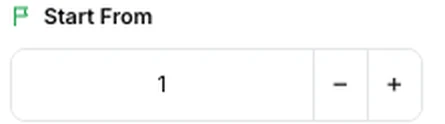
Start From
The number given to the first page that gets one. Everything after it counts up from there. It accepts zero and any number above it.
Leave it at 1 unless this file is part of something larger. Set it to 25 when the document continues from another that ended at page 24, so the numbering runs on. It also pairs with the skip-first option: with the cover skipped and Start From left at 1, the second page of the file is numbered 1, which is usually what a title page wants.
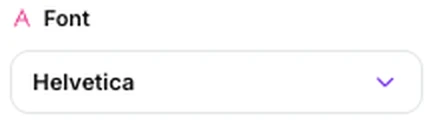
Font, Font Size and Text Color
Five typefaces — Helvetica, Helvetica Bold, Times Roman, Times Bold and Courier — from the set every PDF reader is guaranteed to have. We inspected the output for each of them and no font program is embedded in any case, which is what keeps the numbering itself so cheap. Size is held between 6 and 72 points, whether you type a value or use the arrows, and the colour is five presets plus a picker for anything else.
Match the document: a serif face for a document set in a serif, Courier for anything monospaced. Between 9 and 12 points is the usual range — the 12-point default is comfortable, and below 8 points a number stops being useful on paper. Black or dark grey for a document that will be printed; a lighter grey keeps the number discreet on screen without losing it entirely.
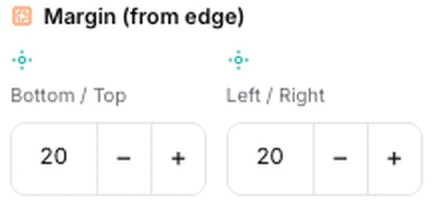
Font Size and Margin
How far the number sits from the edge of the page, in points, set separately for the vertical and horizontal edges. Both default to 20 points, a little over 7 millimetres.
The default keeps the number clear of the trim on an ordinary print job. Raise the vertical margin to about 30 or 36 points if your document already has a footer and the number is landing on top of it, and raise the horizontal one if the file will be bound or hole-punched. The preview is the quickest way to check, since it draws the number on your own pages — treat it as a close guide rather than an exact proof, because it is a scaled-down rendering.
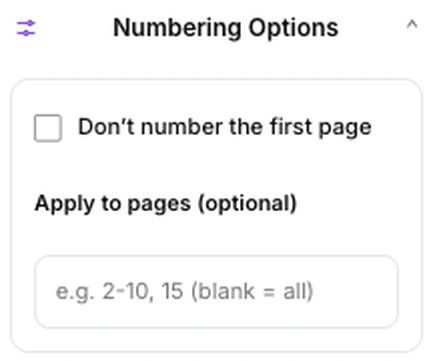
Numbering Options
Two controls that decide which pages get a number. "Don’t number the first page" leaves the cover alone. "Apply to pages" takes a list such as 2-10, 15 and numbers only those; left blank, every page is numbered.
Tick the first for anything with a title page. Use the list when only part of the document should be numbered — an appendix, or the body of a report after the front matter. The two combine, and the first page is skipped even if your list includes it. One behaviour worth knowing: the counting starts at the first page that actually gets a number, so with the cover skipped it is page two of the file that is numbered 1, not page two numbered 2.
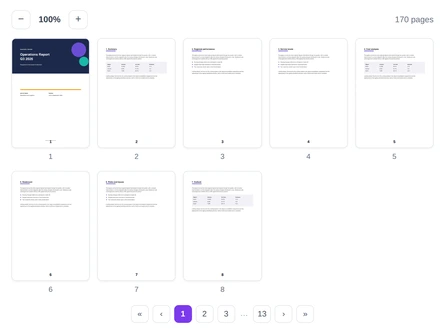
The preview grid
Your actual pages, eight at a time, with the number drawn where it will land. The pager underneath walks through the document and the zoom control makes the thumbnails larger.
Check the pages that are different from the rest — the first one, the first page after a section break, and any landscape page — rather than scrolling through all of them. The grid builds thumbnails for the first hundred pages of a long file, but that is a preview limit only: numbering itself is applied to every page you have selected, however long the document is.
Why use Pixpoo for Page Numbers?
- A live preview of your own pages with the numbers on them, not a diagram.
- Nine positions, five number formats, and control over font, size, colour and margin.
- Start from any number, skip the cover, or number only the pages you list.
- Bookmarks, links and page content survive — the number is added, nothing is rebuilt.
- Handles pages saved rotated: all nine positions were checked against 0, 90, 180 and 270 degree pages and each landed where the reader expects.
Page Numbers features
Page Numbers limitations
The main thing to know is that a page number added here is ordinary page content, not a live field: it is fixed at the moment you add it, so if you later insert or delete pages the numbering will no longer match and the file needs running through again. Nor does the tool see numbers that are already there — running it twice, or numbering a document that came with its own numbers, will simply put a second number on the page, so remove the old ones first or choose a different position. The five typefaces are the standard PDF fonts, which is what keeps the file from growing, but it does mean the number will not match a custom font used elsewhere in your document. There is no option for upper-case roman numerals or capital letters. Two smaller things are worth knowing: the font size is held between 6 and 72 points, but the margin has no upper limit, so a very large one can push the number off the page entirely — the preview will show you. And a page list that falls wholly outside the document numbers nothing at all rather than warning you; the count above the button reads zero, which is the signal to check what you typed. Finally, while you can produce front matter in roman and a body in digits, it takes two passes with different page lists rather than one.
Common Page Numbers questions
How do I add page numbers to a PDF?
Upload the file, choose one of the nine positions, pick how the number should be written, and adjust the font, size, colour and margin while the preview updates on your own pages. If you need to leave the cover blank or number only part of the document, open Numbering Options. Then press Add Page Numbers and download the result.
Can I skip the cover page?
Yes — tick "Don’t number the first page" in Numbering Options. The counting then starts on the second page of the file, and with Start From left at 1 that page is numbered 1 rather than 2, which is what a title page normally calls for. If you would rather it read 2, set Start From to 2.
Can I start numbering from a different number?
Yes. Start From sets the number given to the first page that receives one, and everything after counts up from there — we checked 0, 1, 25 and numbers in the thousands, and the sequence runs on correctly from each. It is what you want when a file continues from another: set it to 25 and the numbering carries on from a document that ended at 24. One detail on the two alphabetic formats — neither roman numerals nor letters have a zero, so those two always count from one however low you set the box, which keeps every label distinct.
What does "Page 1 of N" count?
N is the number of pages that actually receive a number, not the number of pages in the file. On a 45-page document with everything numbered it reads "Page 1 of 45", but tick the skip-first option and the same document reads "Page 1 of 44", because the cover is no longer part of the count. The same applies when you give a page list: numbering pages 10 to 20 produces "Page 1 of 11".
Can I number only some of the pages?
Yes. "Apply to pages" in Numbering Options takes a list in the usual form — 2-10, 15 — and only those pages are numbered; leave it blank and every page gets one. It combines with the skip-first checkbox, and the first page stays unnumbered even if your list includes it.
Will the numbers appear in the right place on landscape pages?
Yes. Some pages carry a flag telling the reader to turn them, and the stored page dimensions then do not match what you see on screen — which is how a bottom-centre number can end up on the side of a page, or upside down at the top. The position you pick is applied to the page as the reader sees it instead. We tested all nine positions against pages flagged 0, 90, 180 and 270 degrees and rendered every one of the thirty-six results: each number landed in the corner or edge it was asked for, and read the right way up.
Does adding numbers change the rest of the document?
No, and this is easy to be sure of because of how it works. Your page is kept as its own stream and the number is written into a second one after it, so the original is never touched. We compared a test file carrying bookmarks, web links, an internal link jumping to another page, embedded font programs, a JPEG, a transparent PNG, vector artwork and five different page sizes and rotations. Every page’s existing content stream matched byte for byte; the images, annotations, page boxes and rotation flags were identical; the bookmarks survived; and the link that jumps to another page still arrived at the right one. Beyond that, only the producer and modified-date lines differ, as they do after any PDF editor touches a file.
Can I use roman numerals for the front matter and digits for the body?
Yes, in two passes. Run the tool once with the format set to roman numerals and "Apply to pages" set to the front matter — say 1-6 — then take the result and run it again with plain digits applied to 7 onwards and Start From set to 1. It is a little more work than a word processor would need, but it produces exactly the conventional layout.
Can I remove page numbers I added before?
Not with this tool, and it is worth being aware of before you run it twice. The number becomes part of the page, so adding numbers again puts a second one alongside the first rather than replacing it. If a document already carries numbering — its own, or from an earlier pass — either work from a clean copy or choose a position that does not collide with what is already there.
Will the file get bigger?
The numbering itself costs very little, because the five typefaces are the standard PDF fonts and no font program is embedded — we checked the output and there is none. What you cannot predict from that alone is the final size, because the whole file is rewritten and re-compressed on the way out. Across sixteen runs spanning four documents, three number formats and four typefaces, the result moved in both directions: eight files grew and eight shrank, by anything from about 870 bytes a page less to a couple of hundred more. Expect a small change either way rather than a reliable saving.
Is the Page Numbers tool free?
Yes. Page Numbers with Pixpoo is completely free — no sign-up, no watermark, no usage limits and no paid plan. It runs entirely in your browser, so there is nothing for us to meter.
Are my files uploaded to a server?
No. When you use Page Numbers, your files are processed in your browser and are not sent to Pixpoo’s servers — Pixpoo does not upload or store them.
Related tools: Edit PDF, Sign PDF, Watermark PDF. All PDF tools →