Loading editor…
How to Edit PDF online
- Open Edit PDF and load the document you want to change, dropping it in or choosing it from your device.
- Pick a tool from the toolbar. Edit Text rewrites words already on the page; Text adds a new box.
- Click a highlighted line to retype it, or click anywhere on the page to place new text, an image, a shape or a link.
- Use Redact or Whiteout to cover anything that should not be in the document, dragging to size the box.
- Restyle the selected item with the fill, border and opacity controls, and use the layer buttons if things overlap.
- Use Organize Pages if the document itself needs reordering, rotating or trimming.
- Click Save Changes or Download Edited PDF, then open the result and check the pages you changed.
Want a more detailed walkthrough? Read the full step-by-step guide →
Edit PDF online — free, fast and private
Edit text, images and more in a PDF. With Pixpoo you can edit PDF online for free, right in your browser — no sign-up, no watermark, and your files are processed locally rather than sent to Pixpoo’s servers.
About Edit PDF
Editing a PDF means changing what is on the page after the document has been finished. Pixpoo gives you a canvas over each page where you can rewrite an existing line, drop in new content, cover up anything that should not be there, and reorder or rotate the pages themselves.
It helps to know that a PDF is not a document in the way a Word file is. It records where each mark sits on the page rather than what the marks mean, so there is no paragraph to reflow and no style to inherit. Every PDF editor works around this in the same way — by placing new content over the old — and the honest question is how convincingly it does so. Pixpoo works the same way, matching the look of the line you click as closely as a small set of web fonts allows — which is why the tool says the font is a close match rather than exact.
The most important thing to understand is what happens when you download. Pages you have not touched are copied straight out of the original file, so they keep their text layer and their original quality. Any page you have edited is flattened into an image so that your changes are baked in permanently. That is what makes redaction genuinely safe here, and it is also why an edited page is no longer searchable.
When should you edit a PDF?
Editing is useful when you need to change a finished PDF and no longer have the original editable source file. Common cases:
- Correcting a typo, a date or a price in a document you cannot regenerate
- Blacking out personal or commercial details before sharing a document
- Adding a logo, stamp or signature image to a finished page
- Filling in a form that has no fillable fields by typing on top of it
- Highlighting or annotating a contract or paper for someone else to read
- Adding a clickable link to a printed-style document before sending it
Edit PDF options explained
The toolbar along the top picks what you are doing to the page, and the panel on the right styles whatever you have selected. Here is what each part does.

The editing toolbar
Chooses the mode you are working in: Select to move things already placed, Text to add a new text box, Edit Text to rewrite a line that is already on the page, then Image, Link, Shape, Draw, Highlight, Redact, Whiteout, Erase, Insert Page and Rotate. Erase is worth calling out: it is a freehand white brush rather than an undo, so it covers whatever it is painted over. Removing something you added is done by selecting it and using Delete Selected.
The distinction that matters most is Text versus Edit Text. Text drops a new box wherever you click, which is what you want for a stamp, a note or filling in a blank. Edit Text works on words already printed on the page — click a highlighted line and retype it. Reach for Select whenever you want to move or restyle something you have already added rather than create another one.

Editing existing text
In Edit Text mode the lines Pixpoo can rewrite are highlighted. Clicking one reads its font family, size and weight from the PDF and reproduces them with the nearest available web font, so a serif line comes back as a serif rather than defaulting to Arial.
This is the right tool for a typo, a wrong date or an out-of-date figure. Two honest caveats, both of which the tool states up front: the replacement font is a close match rather than the original typeface, and the technique relies on covering the old line, so it works cleanly on plain, light backgrounds and less so over a photograph or a coloured panel. Check the result at full zoom before sending the file.
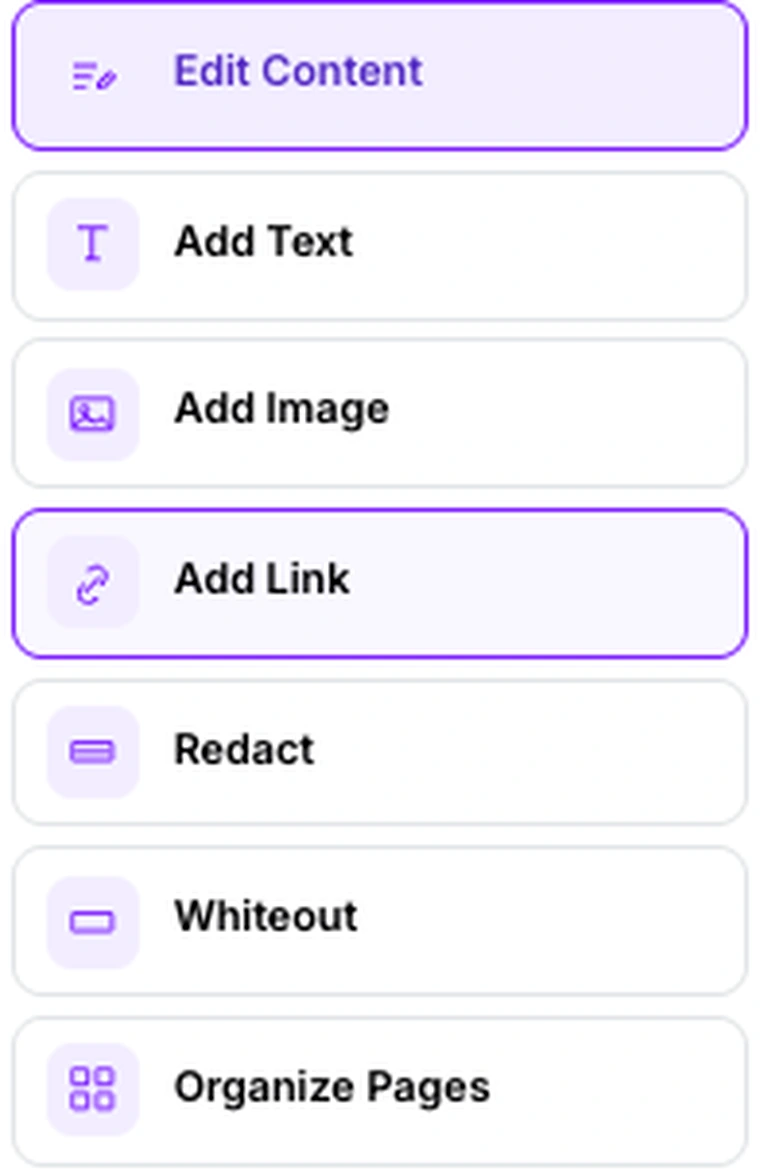
What you can add to a page
The panel repeats the main actions as buttons: rewrite existing content, add text, add an image, add a link, redact, whiteout, or open Organize Pages to reorder, rotate and remove whole pages.
Add Image is how you place a logo, a scanned signature or a stamp. Add Link is worth knowing about because the result is a real link annotation carrying a URI action rather than blue underlined text, so it behaves as a clickable PDF link. Organize Pages is the one to use when the problem is the document rather than the page — a scan in the wrong order, or a cover sheet that should not be there.
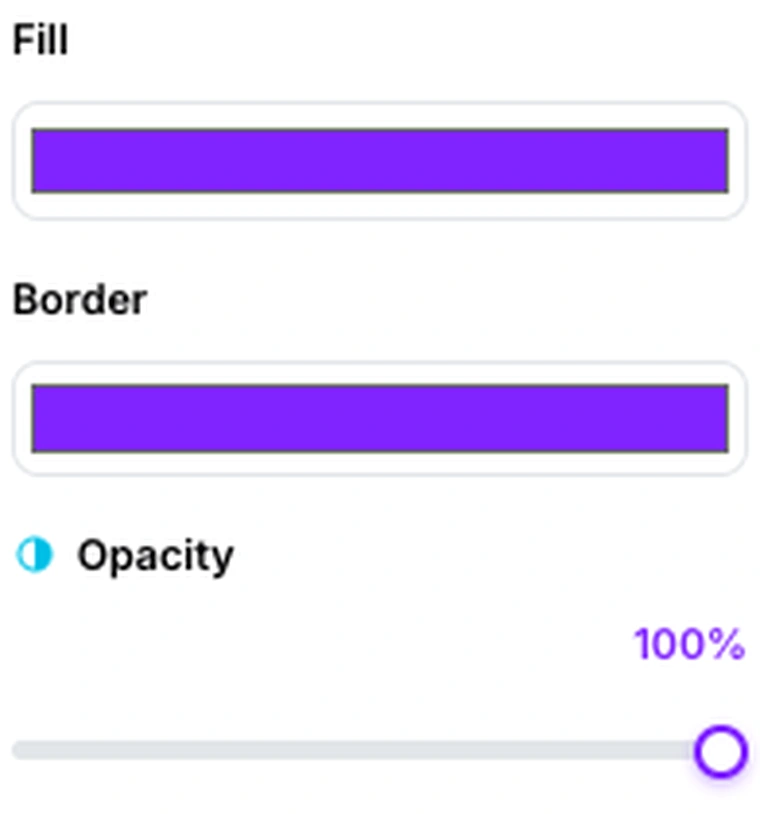
Redact and Whiteout
Redact draws a solid black box and Whiteout a white one; you drag on the page to size them. The Fill, Border and Opacity controls on the right restyle whatever is currently selected, including these boxes and any shape you have drawn.
Use Redact when the point is that something has been removed and it should be visible that it was, and Whiteout when you want the area to look blank. Because an edited page is written out as a flattened image, whatever was underneath the box is genuinely gone from the downloaded file rather than merely hidden behind it — the usual failure of black-box redaction does not apply here. Leave the opacity at 100% on a redaction box: a partially transparent one defeats the purpose.
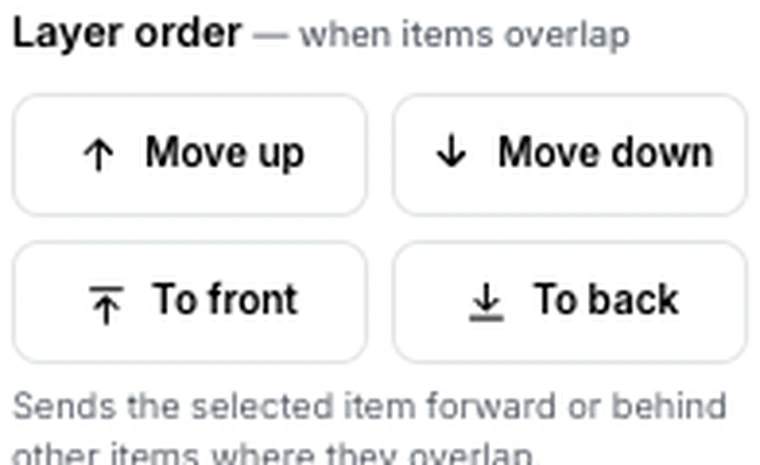
Layer order
Controls which item sits on top when two overlap. Move up and Move down shift the selection one step at a time; To front and To back send it all the way.
It matters as soon as you have more than one thing in the same spot — a highlight that should sit behind its text rather than over it, a logo that has landed under a whiteout box, a signature that needs to be on top of a line. If something you have just added seems to have vanished, it is usually behind something else rather than actually gone, and To front will bring it back.
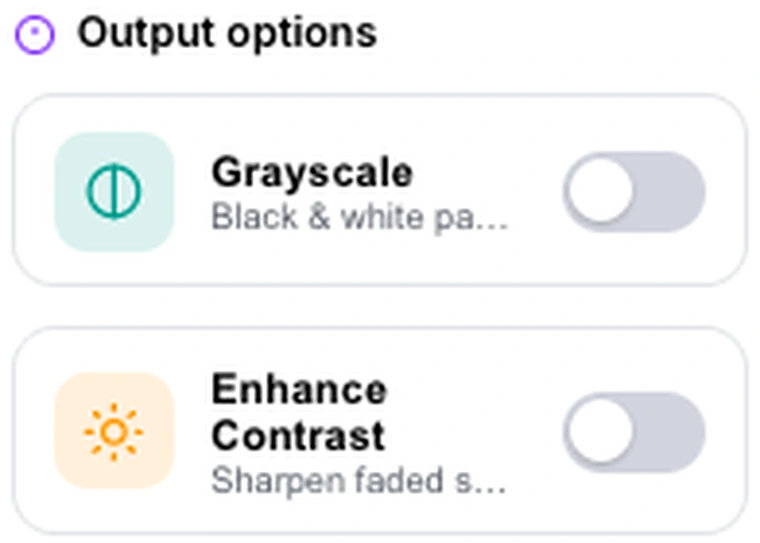
Grayscale and Enhance Contrast
Applied to the finished document as it is written out. Grayscale converts the pages to black and white; Enhance Contrast deepens the darks and lifts the lights.
Both are aimed at documents that started life as scans. Grayscale is worth it when the colour carries nothing and you want a smaller file, and Enhance Contrast when the original is faint and the point of the edit is to make it readable. Neither is worth using on a clean text PDF, where they cost quality without gaining anything.
Save Changes and Download
Both build the finished document from all your pages. The edited file is written as a new PDF and your original file on disk is never modified.
Worth doing once you are happy rather than after every small change, since the whole document is rebuilt each time. Pages you have not touched are copied out of the original untouched, so a fifty-page document with one edited page keeps forty-nine pages of real text. It is worth opening the result and checking the page you edited before you send it anywhere.
Why use Pixpoo for Edit PDF?
- Rewrite text already on the page, with the original font matched as closely as possible
- Redaction is genuinely permanent, because edited pages are flattened on export
- Pages you do not touch are copied out untouched and keep their text layer
- Links you add become real clickable PDF annotations, not just blue text
- Text, images, shapes, drawing, highlighting and page management in one place
- Every edit stays on your machine; nothing is transmitted to Pixpoo’s servers
Edit PDF features
Edit PDF limitations
PDF pages have no reflowing text, so edits are placed over the page rather than woven into it — changing a line does not push the following lines around. Replacement text is matched to one of a small set of web fonts, so it is a close visual match and not the original typeface, and it works best on plain, light backgrounds. Any page you edit is written out as an image, so that page loses its selectable and searchable text; pages you leave alone keep theirs. Links you add survive as real clickable PDF links, but not on a page you have also rotated. Password-protected PDFs must be unlocked before they can be edited.
Common Edit PDF questions
How do I edit a PDF?
Add your file, choose a tool from the toolbar, then click on the page. Edit Text rewrites a line that is already there; the other tools add text, images, shapes, links, highlights or cover boxes. When you are finished, download the edited PDF.
Can I edit the text that is already in my PDF?
Yes. Switch to Edit Text and the lines that can be rewritten are highlighted — click one and retype it. The replacement uses the closest available match to the original font, size and weight, and works best on plain, light backgrounds.
Why does the edited text look slightly different?
Because the original typeface is embedded in the PDF and cannot be reused directly, so the replacement is drawn in the nearest available web font at the same size and weight. It is a close visual match rather than an exact one, which is why the tool says so before you start.
Is the redaction actually permanent?
Yes. A redaction box is not simply drawn over the text and left there: any page you edit is written out as a flattened image, so the content underneath is not present in the downloaded file at all. This is the failure people rightly worry about with black-box redaction, and flattening is what avoids it.
What is the difference between Redact, Whiteout and Erase?
All three cover the page rather than deleting from it. Redact drags a solid black box, so it stays visible that something was removed. Whiteout drags a white one, so the area simply looks blank. Erase is a freehand white brush — the same idea as Whiteout but painted by hand for awkward shapes. Redact and Whiteout permanently cover the underlying page content once that page is exported. To remove something you added yourself, select it and use Delete Selected instead.
Will my PDF still be searchable after editing?
Partly. Any page you edit is flattened to an image and loses its text layer, but pages you did not touch are copied straight out of the original and keep theirs. So a long document with one corrected page stays searchable everywhere except that page.
Can I add a signature or a logo?
Yes, with Add Image. Place a scanned signature, a logo or a stamp anywhere on the page, then resize and position it, and use the layer controls if it needs to sit above or below something else.
Do the links I add actually work?
Yes. A link is written into the PDF as a real annotation with a URI action, so it behaves as a clickable PDF link rather than underlined text. One exception worth knowing: links are not written onto a page that you have also rotated, so add links after you have settled the page orientation.
Can I reorder or delete pages while editing?
Yes. Organize Pages handles the document itself — reordering, rotating, inserting and removing pages — so you do not need a separate tool when a scan came out in the wrong order or a cover sheet needs to go.
Does editing change my original file?
No. Your original PDF is only read. The edited version is built as a new file and downloaded, so the file on your device stays exactly as it was.
Can I edit a password-protected PDF?
Not directly — an encrypted file cannot be opened for editing. Take the password off with Unlock PDF, then load the unprotected copy here.
Is the Edit PDF tool free?
Yes. Edit PDF with Pixpoo is completely free — no sign-up, no watermark, no usage limits and no paid plan. It runs entirely in your browser, so there is nothing for us to meter.
Are my files uploaded to a server?
No. When you use Edit PDF, your files are processed in your browser and are not sent to Pixpoo’s servers — Pixpoo does not upload or store them.
Related tools: Sign PDF, Watermark PDF, Page Numbers. All PDF tools →