PDF to JPG
Convert each page of your PDF to high quality JPG images.
Drag & drop your PDF file here
or click to choose a file from your device
How to Convert PDF to JPG Online
- Open PDF to JPG and bring in the document you want rendered, by drag-and-drop or through the file picker.
- Choose which pages to convert: all of them, a typed range, or individual pages selected from the thumbnails.
- Pick an image quality. High at 300 DPI for printing, Medium at 150 for screens, Low at 96 for thumbnails.
- Adjust the pages if they need it — rotate a sideways scan, or switch on grayscale or contrast.
- Set a crop ratio if the images need a particular shape, or leave it on Original to keep the whole page.
- Check the preview, then click Convert to JPG. Every page is drawn locally, so nothing about the document reaches Pixpoo’s servers.
- Download the images individually, or take the whole set as a single ZIP archive.
Want a more detailed walkthrough? Read the full step-by-step guide →
PDF to JPG online — free, fast and private
Convert PDF pages to JPG images. With Pixpoo you can convert PDF to JPG online for free, right in your browser — no sign-up, no watermark, and your files are processed locally rather than sent to Pixpoo’s servers.
About PDF to JPG
Converting a PDF to JPG means rendering each page as a picture. Pixpoo draws every page at the resolution you choose and saves it as a JPEG image, so a ten-page document becomes ten image files. Nothing is extracted or interpreted — the page is simply drawn, exactly as a PDF reader would draw it, and captured as pixels.
That is useful whenever a PDF is the wrong container for where the content needs to go. Images can be dropped into a slide deck, posted to social media, embedded in a web page or a wiki, attached to a chat message, or opened on a device that has no PDF reader. A single page pulled out as a JPG is also far easier to share than a whole document when only one page matters.
The trade is that images have no text layer. Once a page is a JPG, the words on it cannot be selected, searched or read by a screen reader, and the file will usually be larger than the PDF page it came from — particularly at 300 DPI. That is fine for sharing and presenting, and wrong for archiving or for anything a reader needs to search.
When should you convert a PDF to JPG?
Turning pages into images is the right move when the destination expects a picture, not a document. Common cases:
- Dropping a page from a report into a slide deck or a document
- Posting a page, chart or certificate to social media, where PDFs are not supported
- Embedding a page in a web page, wiki or knowledge base
- Sharing a single page from a long document without sending the whole file
- Sending a page to someone whose device or app cannot open PDFs
- Creating thumbnails or preview images of a document
PDF to JPG options explained
The settings fall into two groups: what gets converted and at what quality, and how each page is adjusted before it is captured. Here is what each one does.
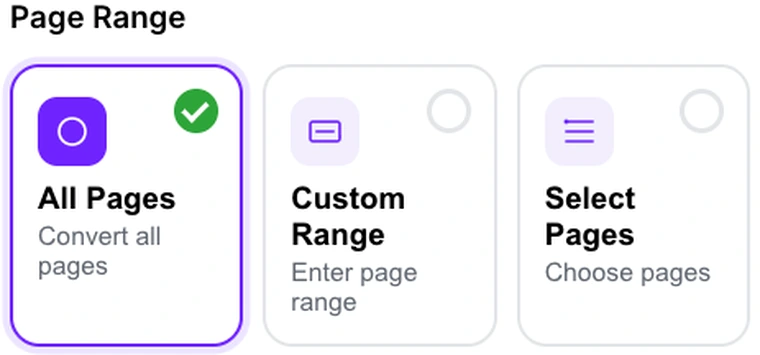
Page Range
Decides which pages are converted. All Pages does the whole document. Custom Range accepts a typed range — 2-4, 9, 15-18, for example. Select Pages shows page thumbnails you can click to pick them by eye.
All Pages is right when you want the document as a set of images. Use Custom Range when you already know the page numbers — it is quicker than clicking through a long document. Use Select Pages when you are choosing visually and do not know the numbers, which is usually the case with scans and reports. Duplicates in a typed range are removed and pages always come out in document order, so 5, 1, 5 gives you pages 1 and 5.
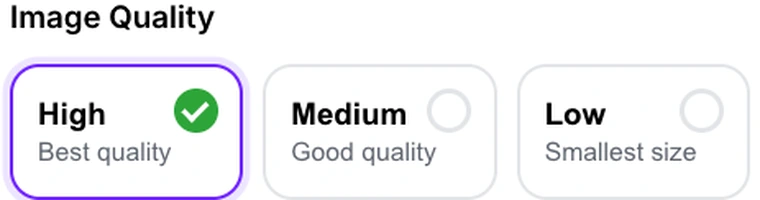
Image Quality
Sets the rendering resolution and JPEG quality together. High renders at 300 DPI with 92% JPEG quality, Medium at 150 DPI with 82%, and Low at 96 DPI with 60%.
High is the choice when the image will be printed, zoomed into, or used at full page size — 300 DPI is the traditional print standard. Medium suits screen use: slides, documents, web pages. Low is for thumbnails and previews where the file needs to be small and will only ever be seen at a reduced size. Resolution drives the file size far more than the compression setting does, so drop from High to Medium before you start lowering quality.

What the DPI note tells you
The panel under the quality options restates the resolution for whichever level is selected, so it changes as you switch between High, Medium and Low.
Worth a glance before converting, because DPI is the setting people most often get wrong in both directions. Converting a whole 50-page document at 300 DPI produces a very large set of files; converting a page you intend to print at 96 DPI produces something that looks soft on paper. The note is there so the number is in front of you at the moment you choose.

Rotate, Grayscale and Enhance Contrast
Rotate turns the page in 90-degree steps before it is captured. Grayscale converts it to shades of grey. Enhance Contrast deepens the darks and lifts the lights. All three are applied to the rendered pixels, so what you see in the preview is what the JPG will contain.
Rotate fixes pages that were scanned sideways, which is common with landscape spreadsheets captured on a portrait scanner. Grayscale is worth using when the colour adds nothing and you want smaller files. Enhance Contrast helps with faded scans and low-light photographs of documents, but it will crush the mid-tones in a photograph, so leave it off for pages that are mainly pictures.

Viewport / Crop
Crops each captured page to a fixed aspect ratio. Original keeps the page shape. 1:1, 4:3 and 16:9 crop to those ratios, and Custom takes a width and height you type in.
This exists because the places images go often expect a shape: 1:1 for many social profiles and grids, 16:9 for slides and video, 4:3 for older presentation templates. The crop is taken from the centre of the page, so anything near the edges is discarded — check the preview before converting a page whose content runs close to the margins, and leave it on Original whenever the whole page matters.

Previewing before you convert
The preview shows the current page with every adjustment already applied. You can page through the document, zoom in, and undo or redo changes. Preview All Pages shows the whole document as a grid with the same settings applied.
Use it before every conversion, and particularly before a long one. Rotation, cropping and contrast all change what ends up in the file, and checking one page takes a second where re-converting fifty takes considerably longer. The grid view is the quickest way to confirm that a rotation is right for every page and not just the one you were looking at.
Why use Pixpoo for PDF to JPG?
- Three quality levels tied to real resolutions — 300, 150 and 96 DPI, not vague labels
- Convert everything, a typed page range, or pages you pick from the thumbnails
- Rotate, grayscale and contrast applied before capture, with a live preview
- Aspect-ratio cropping for square, 4:3 and 16:9 destinations
- Download page by page, or take the whole set as one ZIP
- Rendering is done by your own browser — Pixpoo’s servers never receive the file
PDF to JPG features
PDF to JPG limitations
The output is images, so the resulting files have no text layer: nothing in them can be selected, searched or read by a screen reader. JPEG has no transparency, so pages are rendered onto a white background. At High quality a page is drawn at 300 DPI, which produces a large image — a single page can easily exceed the size of the PDF it came from. Aspect-ratio cropping is a centre crop, so content near the edges of a page can be cut off. Password-protected PDFs must be unlocked before they can be converted.
Common PDF to JPG questions
How do I convert a PDF to JPG?
Add your PDF, choose which pages you want and at what quality, adjust or crop them if needed, then click Convert to JPG. Each selected page becomes its own image, and you can download them individually or as one ZIP.
What resolution are the images?
It depends on the quality level: High renders at 300 DPI, Medium at 150 DPI and Low at 96 DPI. The panel beneath the quality options shows the figure for whichever level is selected, so the number is visible when you choose.
Which quality should I choose?
High if the image will be printed or zoomed into, since 300 DPI is the usual print standard. Medium for anything that will be viewed on a screen — slides, documents, web pages. Low for thumbnails and previews where small file size matters more than detail.
Can I convert only some pages?
Yes, in two ways. Custom Range takes a typed list such as 1-3, 5, 8-10. Select Pages lets you click individual thumbnails, which is easier when you are choosing by eye. Either way pages come out in document order with duplicates removed.
Will the text in the images still be searchable?
No. A JPG is a picture of the page, so the text is no longer text — it cannot be selected, copied, searched or read by a screen reader. If you need searchable output, keep the PDF, or run the images through the OCR PDF tool.
Why are the JPG files bigger than my PDF?
Because a rendered image stores every pixel of the page, while a PDF stores the instructions to draw it. A page of text is a few kilobytes of instructions but a multi-megapixel image at 300 DPI. Choosing Medium or Low quality reduces this considerably.
Can I rotate pages before converting?
Yes. The rotate controls turn the page in 90-degree steps, and the rotation is applied to the rendered image rather than only to the preview. This is the usual fix for landscape pages that were scanned sideways.
What does the crop setting do?
It trims each page to a fixed aspect ratio — 1:1, 4:3, 16:9 or a ratio you type — for destinations that expect a particular shape. The crop is taken from the centre of the page, so content near the edges is cut off. Check the preview first, and use Original when you need the whole page.
How do I download all the images at once?
Use the Download all as ZIP button after converting. It bundles every image into a single archive, which avoids a long document turning into dozens of separate browser downloads. Individual images can still be saved one at a time.
Can I convert a password-protected PDF?
Only after the password comes off, since a locked document cannot be drawn to a canvas. Use Unlock PDF first and convert the result.
Is the PDF to JPG tool free?
Yes. PDF to JPG with Pixpoo is completely free — no sign-up, no watermark, no usage limits and no paid plan. It runs entirely in your browser, so there is nothing for us to meter.
Are my files uploaded to a server?
No. When you use PDF to JPG, your files are processed in your browser and are not sent to Pixpoo’s servers — Pixpoo does not upload or store them.
Related tools: PDF to Word, JPG to PDF, Word to PDF, PDF to PNG. All PDF tools →