OCR PDF
Turn a scan into text you can select and edit.
Drag & drop your scanned PDF here
or click to choose a file from your device
How to turn a scanned PDF into text
- Upload the scanned PDF. The pages appear in a strip you can click through.
- Choose which pages to read, the output format and the language of the document.
- Press Convert to Text and watch the recognised words appear page by page.
- Copy the text for a single page, or download the whole document when it finishes.
Want a more detailed walkthrough? Read the full step-by-step guide →
OCR PDF online — free, fast and private
Convert scanned PDF into editable text. With Pixpoo you can OCR PDF online for free, right in your browser — no sign-up, no watermark, and your files are processed locally rather than sent to Pixpoo’s servers.
About OCR PDF
OCR PDF reads the words out of a scanned document. A scan is a photograph of a page: your reader shows it perfectly but cannot select a single word, search it or copy a paragraph, because as far as the file is concerned there is no text there at all. Optical character recognition looks at the shapes on the page and works out which letters they are.
What comes back is a text document rather than a PDF — Word, plain text or rich text — with the recognised words laid out page by page. You can read the text for each page in the middle panel as it is recognised, copy a single page from there, or download the whole thing when the run finishes.
The recognition happens on your own machine. The engine and the language model are downloaded from a public CDN the first time you use them, but your document is never uploaded anywhere — it is rendered and read inside the browser tab.
When you need OCR rather than a converter
The test is simple: open the PDF and try to select a line of text with your mouse. If nothing highlights, the page is a picture and you need OCR.
- A contract or certificate that was signed on paper and scanned back in.
- Photographed receipts or invoices whose figures you need in a spreadsheet.
- An old report or archive document that only exists as a scan.
- A fax or a photocopy that has been through a machine and lost its text layer.
- A page you photographed with your phone and now need to quote from.
OCR PDF options explained
A few of these settings change the result more than their labels suggest, so it is worth knowing what each one actually does.
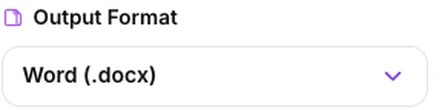
Output Format
Three choices. Word (.docx) is a real Word document, one page of recognised text after another. Plain Text (.txt) is the words and nothing else. Rich Text (.rtf) is a lightweight formatted document that opens in almost any word processor.
Word if you are going to edit the result, and it is the only format that can carry the page images as well. Plain text if you are feeding the words into something else — a spreadsheet, a search index, a script — because there is no formatting to strip out. Rich text for an older or unusual word processor that will not open .docx. Note that the output is a text document, not a searchable PDF: this tool reads a scan into words rather than putting an invisible text layer back over the original pages.
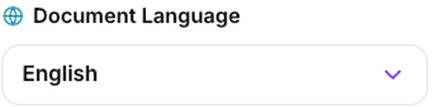
Document Language
Which language model to recognise with — English, Spanish, French, German, Italian, Portuguese, Dutch, Hindi, Chinese (Simplified), Japanese, Korean, Arabic or Russian. The model is downloaded the first time you pick a language and reused after that.
This is the single setting most worth getting right, and we measured how much. Reading a German page with the English model left about two characters in a hundred wrong; on Russian it was 83 per cent wrong, on Arabic 94, and on Hindi nothing usable at all — with the correct model, every one of those came back perfect. Set it to the language of the document, not your own. Only one language is applied per run, so for a document that mixes two, pick whichever carries the words you actually need. The first run in a new language takes a few extra seconds while the model downloads. One quirk to expect: Chinese and Japanese come back with a space between characters, which is how the engine reports them.
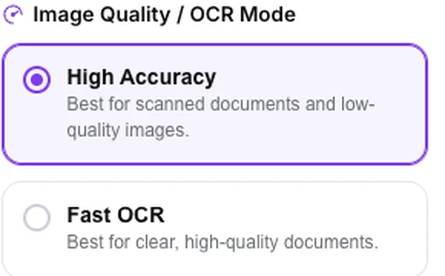
High Accuracy or Fast OCR
How finely each page is rendered before it is read. High Accuracy renders at about 166 dots per inch, Fast OCR at about 112 — so High Accuracy has roughly twice as many pixels to work from.
We measured both across four kinds of scan — clean, noisy, faded and speckled. High Accuracy read all four without a single error in 444 words. Fast OCR matched it on three of them and got one word wrong on the noisy scan, while running about a quarter quicker per page. On 7.5 point contract print the gap widened: High Accuracy was still perfect, Fast missed about one word in twenty. So Fast is a fair trade on crisp scans at ordinary type sizes; keep High Accuracy for small print, faded pages and anything where a wrong digit matters.
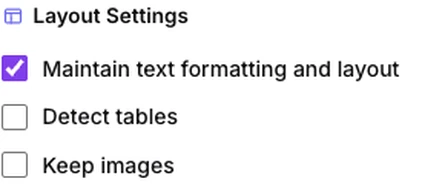
Layout Settings
Three switches that shape the recognised words rather than the recognition itself. "Maintain text formatting and layout" keeps the line breaks exactly as they fall on the page; untick it and lines are joined back into flowing paragraphs, broken only where the page had a blank line. "Detect tables" converts runs of two or more spaces into tab characters. "Keep images" adds a picture of each page above its text, and works only with Word output.
Leave the first one ticked for anything with a deliberate shape — an address block, a form, a list of figures. Untick it for ordinary prose you intend to edit, so paragraphs reflow properly instead of breaking mid-sentence. The two switches interact, and it is worth knowing before you tick them: with "Maintain" off, every line of a table is folded into the same running paragraph, so the columns are lost whether or not "Detect tables" is on. Use them together or not at all. Be realistic about what "Detect tables" does, too — it turns the gaps into tab characters so the columns line up and paste cleanly into a spreadsheet, but no actual table is built in the Word file.
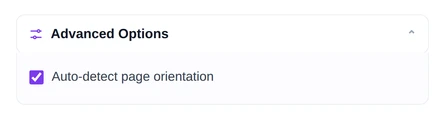
Advanced Options
One switch: auto-detect page orientation. With it on, the engine measures how far the text is tilted and straightens the page before reading it.
Leave it on unless you have a reason not to. Pages fed through a scanner or photographed by hand are rarely square, and the difference grows quickly with the tilt: on the same page we measured no difference at all at one degree, about one word in a hundred wrong at two degrees, and about one word in eight at four degrees — with the option on, every one of those came back clean. It genuinely rotates the page before reading rather than just reading at an angle, and it ignores tilts under about a third of a degree, so a straight page costs nothing.
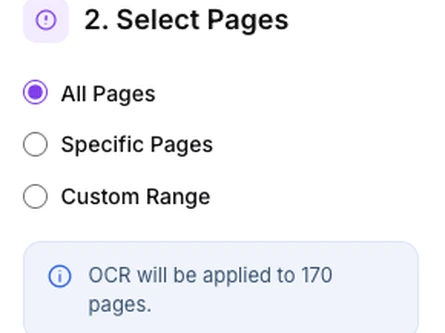
Select Pages
All Pages reads the whole document. Specific Pages and Custom Range behave identically — both open the same box and accept a list such as 1, 3, 5-8, 12 — so pick whichever label reads better to you. Pages are always processed in ascending order however you type them, repeats are ignored, and a number past the end of the document is silently dropped. The note underneath shows the count after all that, so it is a reliable check on what you actually typed.
This is the setting that decides how long you wait, because OCR is the slowest thing in the toolkit: it works page by page, at roughly a second each in our test environment, so a long document is minutes rather than seconds. If you only need the figures on page 40, ask for page 40. The thumbnail strip on the left is built for the first forty pages only, but that is a preview limit and nothing more: you can reach any page with the arrows above it, and recognition is not capped. We checked end to end on a 45-page file — pages 43 and 45 were read correctly, well past where the strip stops.
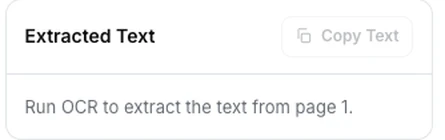
The extracted text panel
Shows the recognised words for whichever page you are looking at, with a Copy Text button for that page alone. It fills in as the run progresses rather than waiting until the end.
Use it as a spot check before you trust the whole document — read a page you know well and see whether the numbers came through. It is also the quickest route when you only wanted one paragraph: let the run reach that page, copy it, and skip the download entirely.
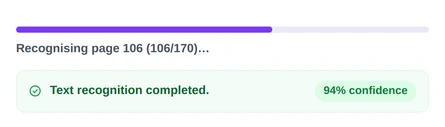
Progress and the confidence score
The bar tracks pages, not time, and the caption names the page being read. When the run ends, the panel reports a confidence figure. It is the engine’s own mean word confidence for each page, averaged across the pages processed — and averaged page by page rather than word by word, so a page carrying one line counts as much as a full one.
Read the confidence as a warning light rather than a score. A figure in the nineties means the engine found clean, familiar letter shapes; anything much lower usually points at a specific cause worth fixing — the wrong language selected, a very low-resolution scan, or a page that is mostly handwriting. It is not a measure of how many words are correct, so a good number is a reason to spot-check rather than a guarantee.
Why use Pixpoo for OCR PDF?
- Turns a scan into words you can search, copy and edit.
- Thirteen languages, including Hindi, Chinese, Japanese, Korean, Arabic and Russian.
- Shows the recognised text page by page while it works, with a confidence score at the end.
- Word, plain text or rich text out, and you choose which pages to process.
- Your document stays in the browser — nothing is uploaded to Pixpoo.
OCR PDF features
OCR PDF limitations
OCR is a best effort, not a transcription service, and it is worth going in with that in mind. Handwriting is the clearest boundary: the recognition models offered here are the standard printed-text models, and there is no handwriting model among them, so expect handwritten pages to come back as noise rather than words. Small print, heavy JPEG artefacts, shadows from a phone camera, coloured or patterned backgrounds and text printed over images all cost accuracy. Only one language is used per run, so a bilingual document will lose whichever language you did not choose. There are three things worth knowing about the output specifically: it is a text document rather than a searchable PDF, so the original pages are not given an invisible text layer; "Detect tables" aligns columns with tab characters rather than building a real table, and it is undone entirely if you also untick "Maintain text formatting"; and the page pictures added by "Keep images" go in at about 119 dots per inch, roughly a quarter of the pixels of a 300 dpi scan, at a cost of a few hundred kilobytes per page — enough to make a long document with images a very large file. Speed is the other honest limit. Recognition is heavy work and it happens one page at a time on your own machine, so a book-length file takes minutes rather than seconds and is better tackled in sections. Finally, if your PDF already has selectable text, this is the wrong tool: it never checks for an existing text layer, so it photographs the page and guesses at it regardless. At best that matches what was already there — on a 7.5 point contract page High Accuracy did — and at worst it introduces errors, with Fast OCR getting about one word in twenty wrong on the same page. Either way the formatting is discarded. Use PDF to Word instead, which takes the text straight out of the file.
Common OCR PDF questions
How does OCR turn a scanned PDF into text?
Each page you select is rendered as an image, and a recognition engine running inside your browser examines the shapes on it and works out which characters they are. The words it finds are shown in the middle panel page by page, and assembled into a Word, text or rich text file you can download at the end. Nothing is sent to a server — the engine and the language model are fetched from a public CDN, but your document is only ever read on your own machine.
Which languages are supported?
Thirteen in all — English, Spanish, French, German, Italian, Portuguese and Dutch, plus Hindi, Chinese (Simplified), Japanese, Korean, Arabic and Russian. Choose the language of the document rather than your own. We tested what the wrong choice costs: leaving it on English read a German page with about two characters in a hundred wrong, a Russian one 83 per cent wrong, and a Hindi one not at all — each of which was perfect once the right model was chosen. Only one language is applied per run, so with a bilingual document pick the one that matters and expect the other to come out poorly.
Do I get a searchable PDF back?
No, and this is the thing most worth being clear about. The tool reads a scan into words and hands you a Word, plain text or rich text document containing them. It does not put an invisible text layer back over your original pages, so the PDF you uploaded is unchanged. If what you want is the words — to search, quote, edit or paste into a spreadsheet — that is exactly what you get.
What is the difference between High Accuracy and Fast OCR?
How finely the page is rendered before the engine reads it: roughly 166 dots per inch against 112, which works out at 2.2 times the pixels to work from. Across four kinds of scan — clean, noisy, faded and speckled — the higher setting made no mistakes at all in 444 words, and the quicker one made a single mistake, on the noisy sample, while saving around a quarter of the time. Where they really part company is small type: on a 7.5 point contract page the difference was nothing against roughly one word in twenty. Choose the quicker setting for crisp scans at normal type sizes, and the careful one whenever the print is small or the page has faded.
Why is my accuracy poor?
Nearly always one of a handful of causes. The wrong language is the most common and the easiest to fix. After that: a scan made at genuinely low resolution; heavy JPEG compression around the text; a photograph with a shadow or a curve across the page; text sitting on a coloured background or over an image; or handwriting, which these models cannot read. Try High Accuracy mode and make sure the orientation option is ticked. If you are scanning the document yourself, the useful thing to know is that this tool re-renders every page to the same size whatever resolution you scanned at — so going above about 150 dpi gains nothing here, and greyscale against colour made no measurable difference in our tests. What does matter is not going too low: on 7.5 point print, a 120 dpi scan came back perfect, 90 dpi lost a word or two, and 50 dpi was unusable.
Does it fix a crooked scan?
Yes, as long as "Auto-detect page orientation" is ticked in Advanced Options — it is on by default. The engine measures the tilt and rotates the page before reading it, rather than simply reading at an angle. It matters more than it sounds. Tilting the same page further and further, the damage climbed from nothing at all, to a stray word at two degrees, to roughly an eighth of the page by four — while the straightened version stayed clean throughout. Anything under about a third of a degree is treated as square, so leaving the box ticked costs nothing on a page that is already straight.
Can it read handwriting?
No. The thirteen options here are all standard printed-text models; none of them is a handwriting model, and there is no setting that turns one on. A form filled in by hand will generally give you the printed labels and not the handwritten answers. If handwriting is the whole point of your document, this is not the tool for it.
How long does a long document take?
Longer than you might expect, because OCR is genuinely heavy work and it runs on your own machine one page at a time. A page took us about a second in High Accuracy mode and a little less in Fast, measured in our test environment; on a slower laptop expect more. A book-length file is therefore minutes rather than seconds. If you only need part of it, use Specific Pages or Custom Range — they are the same control under two labels — because reading ten pages instead of two hundred is the single biggest saving available.
Will tables come out as tables?
Not as real tables. Ticking "Detect tables" turns each gap of two or more spaces into a tab, which lines the columns up in the text and makes the result easy to paste into a spreadsheet, where the tabs become cell boundaries. What it does not do is build a formatted table in the Word document. It also depends on "Maintain text formatting" staying ticked: with that off, the rows are folded into one running paragraph and the columns disappear regardless. For anything with merged cells, ruled borders or columns that wrap, expect to tidy the result by hand.
My PDF already has selectable text — should I run OCR on it?
No. If you can highlight a word with your mouse, the text is already in the file. The tool does not look for it — it photographs every page you select and reads the picture, so a perfect text layer is replaced by a best guess. Sometimes the guess is just as good: on a 7.5 point contract page High Accuracy matched the original exactly. But Fast OCR got about one word in twenty wrong on that same page, and either way the formatting is thrown away. Use PDF to Word instead, which reads the existing text directly. OCR is for pages where selecting text does nothing at all.
Is the OCR PDF tool free?
Yes. OCR PDF with Pixpoo is completely free — no sign-up, no watermark, no usage limits and no paid plan. It runs entirely in your browser, so there is nothing for us to meter.
Are my files uploaded to a server?
No. When you use OCR PDF, your files are processed in your browser and are not sent to Pixpoo’s servers — Pixpoo does not upload or store them.
Related tools: PDF to Word, JPG to PDF, PDF to JPG, Word to PDF. All PDF tools →