Protect PDF
Add a password and set permissions to protect your PDF file.
Drag & drop your PDF file here
or click to choose a file from your device
How to password-protect a PDF
- Drag your PDF into the upload panel, or click Choose File. Pixpoo reads it in your browser and shows the file size and page count.
- Type a Document Open Password. This is the password someone will need to open the file at all — use the eye button to check it before you commit.
- Optionally set a different Permissions Password, then switch the six permissions on or off to decide what a reader is allowed to do.
- Pick the encryption level and decide whether document metadata should be encrypted along with the pages.
- Click Protect PDF, then download the new _protected file. Test it once before you send it — there is no way to recover a password you have forgotten.
Want a more detailed walkthrough? Read the full step-by-step guide →
Protect PDF online — free, fast and private
Add a password and protect PDF files. With Pixpoo you can protect PDF online for free, right in your browser — no sign-up, no watermark, and your files are processed locally rather than sent to Pixpoo’s servers.
About Protect PDF
Protect PDF encrypts the document’s page content and other protected data so it cannot be read without the password. A reader can only turn it back into readable text and images by supplying the password you chose, so someone who copies the file onto a USB stick, forwards it to the wrong person or finds it in an old email archive has a file they cannot read.
There are two separate passwords, and understanding the difference is the whole tool. The Document Open Password is the one that encrypts the file — without it the PDF will not open at all. The Permissions Password is a second, different password that controls who is allowed to change the restrictions afterwards. You can set either one on its own, or both together.
The restrictions themselves — printing, copying text, editing and so on — are a separate layer, and they work differently from the password. They are flags stored inside the file that ask the PDF reader to disable those features. A well-behaved reader like Acrobat or Preview honours them. They are a courtesy, not a lock, and the section below is honest about where that line falls.
When should you password-protect a PDF?
Encryption is worth the small inconvenience whenever the file will travel somewhere you do not control.
- Sending a payslip, tax document, medical letter or bank statement as an email attachment, where a forwarded message or a shared mailbox would otherwise expose it.
- Sharing a contract, valuation or board pack with an external party before it is public.
- Putting a document on a USB stick, a shared drive or a cloud folder that other people can browse.
- Distributing a report, template or piece of paid material you want read but not copied and re-published.
- Meeting an internal or client requirement that files containing personal data are encrypted at rest.
Protect PDF options explained
The Protect PDF screen is split into two passwords, six permissions and a small set of encryption choices. Here is what each control actually writes into the file.
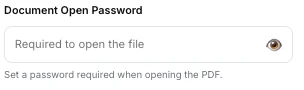
Document Open Password
This is the password that encrypts the document. Set it and the PDF cannot be opened, previewed, indexed or printed by anyone who does not type it. In PDF terms it becomes the file’s user password, and it is the only control on this screen that provides real cryptographic protection.
Use it whenever the content itself is confidential. Test the result before you send it, and send the password by a different channel from the file — a password in the same email as the attachment protects nothing. Pixpoo cannot recover or reset a lost password, because the key never existed anywhere but your browser.
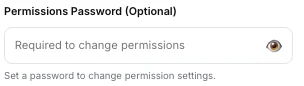
Permissions Password (Optional)
A second password that governs who may change the restrictions. It becomes the file’s owner password. There is one behaviour here worth knowing: if you leave this box empty, Pixpoo reuses your Document Open Password as the owner password, so anyone you give the open password to can also lift every restriction you set.
Fill it in whenever the permissions matter as much as the password — give the reader the open password, keep the permissions password to yourself. You can also fill in only this field and leave the open password blank: the PDF then opens for anyone, but the restrictions are attached to a password only you hold.
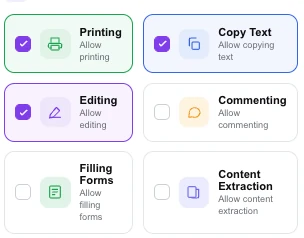
Set Permissions
Six switches that ask the reader application to allow or disable printing, copying text, editing, commenting, filling in form fields and extracting content. Two of them are linked: Copy Text and Content Extraction control the same underlying PDF permission, so turning on either one allows text to be copied. Editing also covers rearranging, inserting and deleting pages.
Use them to shape how a document is consumed — a price list that may be printed but not copied into a competitor’s spreadsheet, or a policy that may be read but not quietly edited. Treat them as a strong hint rather than a guarantee, for the reason set out under Limitations.
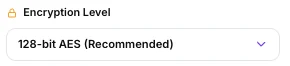
Encryption Level
128-bit AES is the default and offers broad compatibility with modern and older PDF readers. 256-bit AES uses a newer PDF encryption revision and provides a larger key: it offers stronger cryptographic parameters, but can have lower compatibility with older PDF readers.
Stay on 128-bit unless something specifically asks for more — it is the safer choice for compatibility, and 128-bit AES is not a weak setting. Choose 256-bit when a policy, a client or a compliance checklist names it, and when you know the recipient is on current software.

Encrypt all document contents / Don’t encrypt metadata
These are two views of one setting. Left as it is, the document’s metadata — title, author, subject and keywords — is encrypted along with the pages, so none of it is readable without the password. Tick "Don’t encrypt metadata" and that block is written in plain text inside the encrypted file instead.
Leave it alone in almost every case. The one reason to change it is a document library or search index that needs to catalogue the file by title and author without being handed the password — and you should only do that when the title itself is not sensitive, because it becomes readable to anyone holding the file.
Why use Pixpoo for Protect PDF?
- The password is applied with AES, the same family of encryption used to protect files at rest across the industry — not a simple "hide the pages" trick.
- Encryption happens inside your browser using a WebAssembly build of qpdf, so the file and both passwords stay on your device. One thing to know about the timing: encrypting costs time in proportion to the number of internal objects in a document rather than its size, so an ordinary file finishes in about a second while a scanned, OCR’d one holding tens of thousands of them takes minutes. The tool works that out before you start and tells you what the wait will be.
- You choose between 128-bit and 256-bit AES, so a document that has to satisfy a specific policy can be matched to it.
- Six separate permissions can be set independently of the password, which lets you hand someone a document they can read and print but not copy or alter.
- The original file on your device is untouched — you get a new file named after it with _protected added.
Protect PDF features
Protect PDF limitations
Three things are worth being straight about. First, permissions are not encryption: printing, copying and editing are flags that ask a reader to disable those features, and software that chooses to ignore them can still read a file you have unlocked with the open password — only the open password itself provides real protection. Second, if you leave the Permissions Password blank, your open password doubles as the permissions password, so a recipient can lift the restrictions themselves; set both if that matters. Third, a password cannot be recovered — the encryption happens on your own machine and Pixpoo never receives the password, so a forgotten password means a file nobody can open, including us. One more thing: a file that already carries a password cannot be opened here, and dropping one in produces a notice pointing you at Unlock PDF. Encrypting a heavily object-dense scan takes minutes in a browser; the tool estimates that before you start.
Common Protect PDF questions
What is the difference between the two passwords?
The Document Open Password encrypts the file — nobody can open it without typing that password. The Permissions Password does not affect opening at all; it controls who is allowed to change the printing, copying and editing restrictions afterwards. You can set one, the other, or both.
What happens if I leave the Permissions Password blank?
Pixpoo uses your Document Open Password as the permissions password as well. The file is still encrypted, but anyone you give the open password to can also remove the restrictions you set, because they hold both passwords without realising it. Set a separate Permissions Password if you want the restrictions to hold.
Can someone get around the printing and copying restrictions?
Yes, and it is worth understanding why. Those restrictions are flags stored in the file that ask the reader application to disable a feature; Acrobat, Preview and other mainstream readers respect them, but software written to ignore them can. The open password is different — that is real encryption, and it cannot be bypassed by ignoring a flag. If content must not be read, use the open password.
Should I choose 128-bit or 256-bit AES?
128-bit AES is the default and is the right choice for most files: it is strong, and it offers broad compatibility with modern and older PDF readers. Pick 256-bit when a specific policy or client asks for it and you know the recipient has current software.
Why does a scanned PDF take so much longer to encrypt?
Because the cost tracks the number of internal objects in the document rather than its size. Most files hold a few hundred and finish in about a second. A scanned and OCR’d one can hold ninety thousand — an object for every recognised word — and each is encrypted separately, so the same job takes minutes. The tool counts them when you load the file and tells you what to expect before you start.
Can I recover a PDF if I forget the password?
No, and neither can anyone else. Pixpoo keeps no copy of your password — the browser never sends it anywhere. There is no reset link. Save the password somewhere safe — a password manager is ideal — before you send the file.
Can I protect a PDF that already has a password?
Not directly. Pixpoo needs to read the document before it can re-encrypt it, so a file that already asks for a password is turned away with a notice offering to hand it to the Unlock PDF tool. Remove the existing password there, then come back and apply the new one.
Does the protected file work everywhere?
Password-protected PDFs are part of the PDF standard, and major PDF readers such as Acrobat, Preview, Chrome, Edge and common mobile readers generally support them. Very old or minimal readers may not support 256-bit AES, which is the main reason 128-bit is the default.
Is the Protect PDF tool free?
Yes. Protect PDF with Pixpoo is completely free — no sign-up, no watermark, no usage limits and no paid plan. It runs entirely in your browser, so there is nothing for us to meter.
Are my files uploaded to a server?
No. When you use Protect PDF, your files are processed in your browser and are not sent to Pixpoo’s servers — Pixpoo does not upload or store them.
Related tools: Unlock PDF. All PDF tools →