Compress PDF
Reduce PDF file size while keeping the best possible quality.
How it works
Compress PDF
Reduce PDF file size while keeping the best possible quality
Drag & drop your PDF file here
or click to choose a file from your device
How to Compress PDF online
- Open Compress PDF and load the oversized file, dropping it onto the upload panel or browsing for it.
- Pick a compression level. Recommended suits most documents; Extreme when size is critical; Low when the file will be printed.
- If you need something the presets do not offer, choose Custom and set the Image Quality and Resolution sliders yourself.
- Optionally tick Grayscale conversion for colour scans that only need to be legible.
- Leave Remove metadata ticked unless you specifically need the document properties preserved.
- Click Compress PDF. The rebuild happens on your own machine, so the file is not sent to Pixpoo’s servers.
- Check the size saving, then download the file. Compare it against the original before you discard anything.
Want a more detailed walkthrough? Read the full step-by-step guide →
Compress PDF online — free, fast and private
Reduce PDF file size while keeping the best possible quality. With Pixpoo you can compress PDF online for free, right in your browser — no sign-up, no watermark, and your files are processed locally rather than sent to Pixpoo’s servers.
About Compress PDF
Compressing a PDF means rebuilding it so that it takes up less space. Pixpoo does this by rendering each page at a chosen resolution and storing it as a JPEG image inside a new PDF. Everything that was not visible on the page — unused objects, embedded font programs, leftover editing history — is simply not carried over, which is often where a surprising amount of the size was hiding.
This is a genuinely lossy process, and it is worth being clear about the trade-off before you use it. Because pages are rebuilt as images, the finished PDF has no text layer: you cannot select, copy or search the text, and a screen reader cannot read it. What you get in return is a file that is frequently a fraction of its original size and looks essentially the same on screen. For a scanned document that was already a stack of images, you lose nothing you had. For a text-based PDF exported from Word, you are trading something real away.
How much smaller the file gets depends almost entirely on what is inside it. Scans and image-heavy documents compress dramatically, because photographs are exactly what JPEG is good at. Documents that are mostly text and vector diagrams compress far less, and were often small already. If the rebuilt file would end up larger than the original — which can happen with an already-optimised PDF — Pixpoo detects that and gives you back the smaller of the two, so you are never handed a bigger file than you started with.
When should you compress a PDF?
Compression is the right tool when size is the problem and a text layer is not needed. Common cases:
- Getting a scanned document under an email or upload size limit
- Reducing a photo-heavy portfolio, brochure or catalogue before sharing it
- Shrinking a batch of scanned receipts or invoices before archiving them
- Making a large document practical to send over a slow or metered connection
- Cutting storage for documents you need to keep but rarely open
- Preparing a file for a portal that rejects anything above a fixed size
Compress PDF options explained
Compression is a trade between file size and image detail, and every control below moves that trade in one direction or the other. Here is what each one does and when to change it.
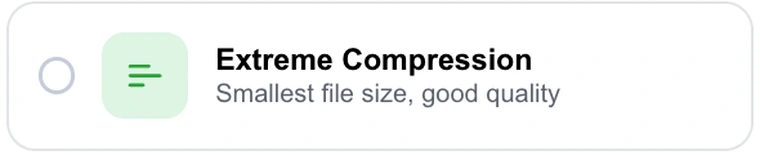
Extreme Compression
Renders pages at 72 DPI with JPEG quality set to 50%. This is the smallest output the tool produces.
Choose it when size is the only thing that matters and the document only needs to be readable on a screen — a scan you are archiving, or a file that has to squeeze under a stubborn upload cap. At 72 DPI the result is screen resolution, so it will look soft if anyone prints it, and small type may lose definition. Check the result before sending it on.

Recommended Compression
Renders pages at 110 DPI with JPEG quality at 72%. This is the default and the setting most documents should use.
It is the balance point: a substantial size reduction on image-heavy files while keeping pages sharp enough to read comfortably on any screen and acceptable on paper. Start here, look at the result, and only move to another level if the size or the sharpness is not what you needed.

Low Compression
Renders pages at 150 DPI with JPEG quality at 88% — the highest-fidelity preset, and the largest output of the three.
Use it when the document will be printed, or when it contains fine detail that matters: small print, engineering drawings, tables of figures, photographs someone will look at closely. 150 DPI is a reasonable print resolution, so pages hold up on paper rather than only on screen. Expect a more modest size reduction in exchange.

Custom Compression
Unlocks the Image Quality and Resolution sliders so you can set the two values yourself rather than taking a preset.
Worth using when you have a specific target to hit — a hard size limit, or a print requirement the presets bracket but do not match. Adjusting either slider switches the level to Custom automatically, so you can start from a preset and tune from there rather than beginning from scratch.
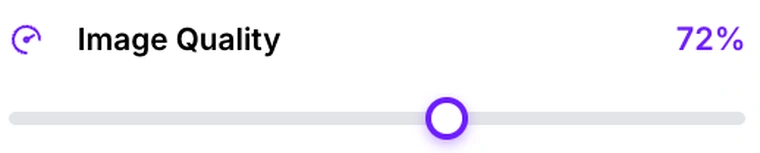
Image Quality
Sets the JPEG quality used for each rebuilt page, from 30% to 100%. Lower values discard more detail and produce a smaller file.
This is the control to reach for when the file is close to the size you need. Quality behaves non-linearly: dropping from 90% to 70% usually saves a lot and costs little visibly, while going below about 50% starts to show as blocky patches around text edges and in flat areas of colour. Photographs tolerate low quality better than pages of small type do.
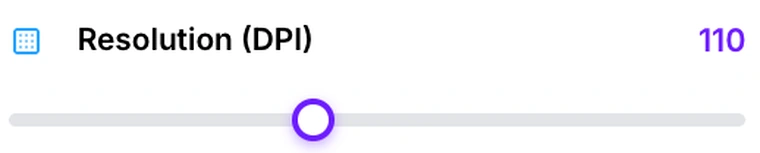
Resolution (DPI)
Sets how many pixels per inch each page is rendered at, from 48 to 200. It has a larger effect on file size than quality does, because halving the DPI quarters the pixel count.
Match it to where the document is going. Around 72 DPI is screen-only. 100 to 120 reads well on screen and is passable on paper. 150 and above is genuinely printable. Going beyond roughly 200 rarely helps, since you are then storing more pixels than the original page contained. If one control is going to fix an oversized file, it is usually this one.

Grayscale conversion and Remove metadata
Grayscale conversion converts each page to shades of grey before it is compressed. Remove metadata clears the document title, author, subject and keywords from the output.
Grayscale is worth ticking for colour scans that only need to be legible — discarding the colour channels reduces size further on top of whatever the quality and DPI settings already save. Remove metadata is on by default and is about tidiness rather than protection: because the compressed file is built as a new document, the original’s author, title and software details are already left behind whether the box is ticked or not. What the option adds is blanking those fields in the new file and naming Pixpoo as the producer. Note that a creation timestamp is still written into the output.
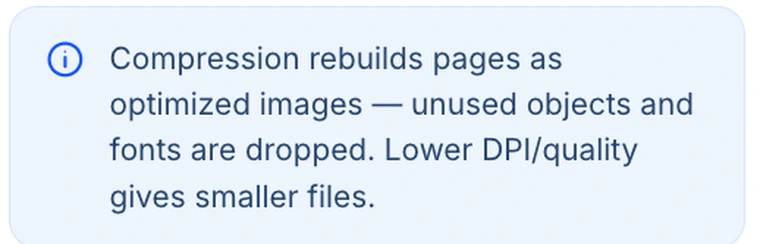
How compression rebuilds the file
The panel in the tool states the mechanism plainly: pages are rebuilt as optimised images, and unused objects and embedded fonts are dropped.
It is worth reading before you compress something irreplaceable. Because the page is rebuilt rather than edited, the text layer, bookmarks, form fields, annotations and links do not survive into the new file. Always compress a copy and keep the original — compression cannot be undone, and there is no way to recover the text layer from the compressed result.
Why use Pixpoo for Compress PDF?
- Four levels from screen-only to print-ready, with sliders when the presets do not fit
- Separate control over image quality and resolution, rather than one vague slider
- Never returns a file larger than the one you started with
- The whole rebuild is local; nothing about your file reaches Pixpoo’s servers
- Free with no account or email required, and no branding added to the smaller file
- Optional metadata removal, so document properties are not passed on with the file
Compress PDF features
Compress PDF limitations
Compression in Pixpoo is lossy by design: every page is re-rendered as a JPEG image, so the output has no selectable, searchable or screen-reader-accessible text, and any bookmarks, form fields, annotations and hyperlinks are not carried into the new file. Pages are flattened onto a white background, so transparency is lost. Text-based PDFs generally compress far less than scans and may not be worth compressing at all. If the rebuilt file would be larger than the original, Pixpoo returns the smaller file instead. Password-protected PDFs must be unlocked first. Metadata is not fully stripped: the output carries a creation timestamp even with Remove metadata ticked.
Common Compress PDF questions
How do I compress a PDF?
Add your PDF, choose a compression level, then click Compress PDF. The file is rebuilt on your own machine and the result downloads immediately, with the size saving shown so you can judge whether it was worth it.
Will compressing reduce quality?
Yes, and deliberately so — that is how the size comes down. Detail is discarded at the resolution and quality you pick, which is why the presets are framed around where the document is going rather than around a percentage. Recommended is tuned so the loss is hard to spot on a screen; Low keeps enough for paper.
Does the compressed PDF still have selectable text?
No — the output is a stack of page images, so there is nothing left to highlight, copy, search or read aloud. This is the trade that matters most, and it is worth checking before you compress anything someone else will need to work with. If the text layer has to survive, this is not the right tool for the file.
How much smaller will my PDF get?
It depends almost entirely on what the document contains. Scans and image-heavy files usually shrink a great deal, because photographs are what JPEG compresses well. Text and vector-based PDFs shrink far less and were often small to begin with. The tool shows the actual saving after it runs, so you can decide from the real number rather than an estimate.
Which compression level should I use?
Start with Recommended — 110 DPI at 72% quality suits most documents. Choose Extreme (72 DPI, 50%) only when size matters more than appearance and the file will only be read on screen. Choose Low (150 DPI, 88%) when the document will be printed or contains fine detail.
What is the difference between image quality and DPI?
DPI sets how many pixels each page is rendered at; quality sets how hard those pixels are compressed afterwards. DPI has the bigger effect on file size, because halving it quarters the pixel count. Quality is the finer control for nudging a file under a limit once the resolution is right.
Why did my PDF barely get smaller?
Almost certainly because it was already mostly text and vector graphics rather than images, so there was little for image compression to remove. Some PDFs are also already optimised. If rebuilding would produce a larger file, Pixpoo returns the smaller one, which is why the size can come back unchanged.
Do bookmarks, form fields and links survive compression?
No. The compressed file is built from freshly rendered page images, so bookmarks, form fields, annotations and hyperlinks are not carried over. If you need those, compress a copy and keep the original intact.
Can I undo compression?
No. The discarded detail and the text layer cannot be recovered from a compressed file. Always work on a copy and keep your original, particularly for documents you cannot obtain again.
Can I compress a password-protected PDF?
Not while it is still encrypted — the pages have to be readable before they can be rebuilt. Strip the password using Unlock PDF, then bring the open file back here.
Is the Compress PDF tool free?
Yes. Compress PDF with Pixpoo is completely free — no sign-up, no watermark, no usage limits and no paid plan. It runs entirely in your browser, so there is nothing for us to meter.
Are my files uploaded to a server?
No. When you use Compress PDF, your files are processed in your browser and are not sent to Pixpoo’s servers — Pixpoo does not upload or store them.
Related tools: Merge PDF, Split PDF, Rotate PDF, Delete Pages. All PDF tools →