PDFs resist editing on purpose. The format stores positioned marks on a page rather than flowing paragraphs, which is exactly why a PDF looks the same on every machine and exactly why you cannot rewrite a sentence in one the way you would in a word processor.
What you can do is work on top of the page: correct a figure, fill a field, add a note, cover something, drop in an image. That is what Edit PDF is for, and it does one clever thing with the finished file that is worth knowing about.
Edit a PDF nowText, images, shapes, highlights and redaction. Free, nothing uploaded.Open Edit PDF →
Only the pages you touch are rebuilt
Here is the design decision that matters most, and most tools do not make it.
When you save, pages you never edited are copied straight across, untouched — their text stays selectable, their images keep their quality, nothing is recompressed. Only the pages you actually changed are flattened into images so your edits become part of the page.
So editing page 4 of a 30-page contract gives you a document where 29 pages are still fully searchable and one is a picture. Compare that with compressing, which rebuilds every page whether it needed it or not. The practical advice follows directly: make your edits on as few pages as possible, and the rest of the document comes through intact.
What you can put on a page

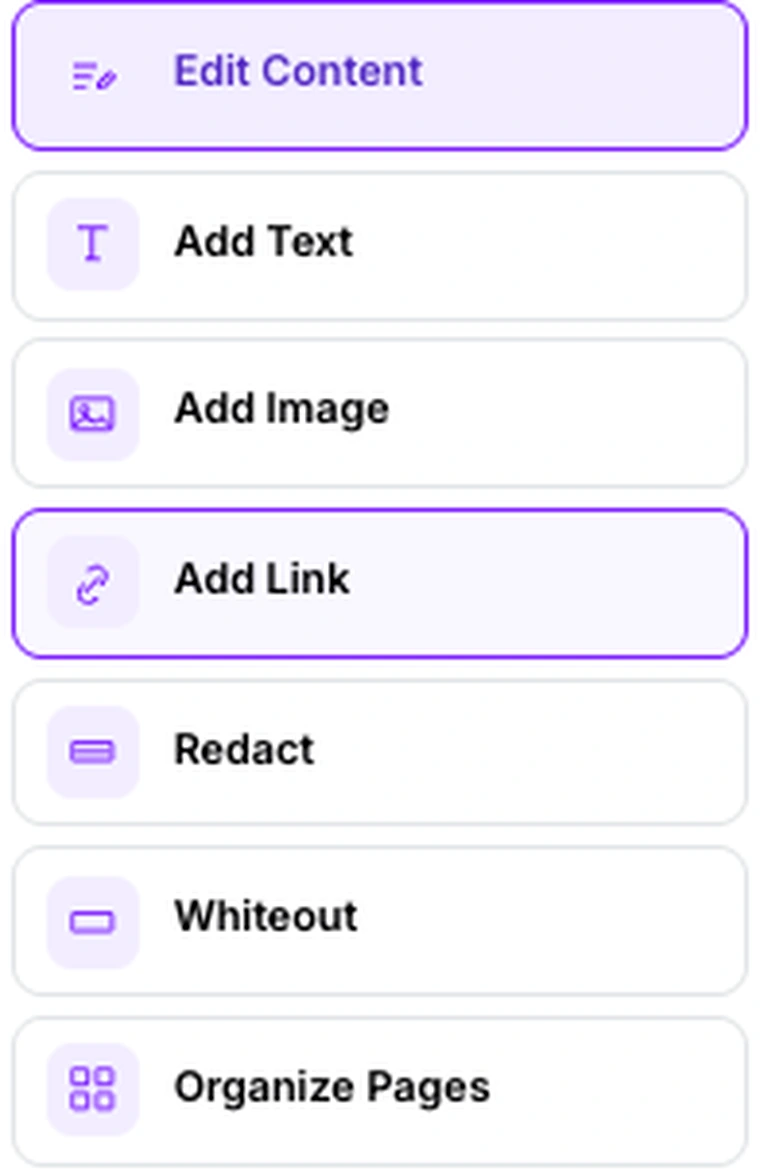
The toolbar covers the things people actually need:
- Text in six fonts, sized and coloured — for filling a form, adding a reference number, or annotating.
- Images, dragged and scaled — a logo, a stamp, a photograph.
- Shapes and freehand drawing, for circling a clause or pointing at something.
- Highlighting, in the ordinary sense of a marker over a line.
- Whiteout, a white box for covering something tidily.
- Redaction, a black box — and see below, because it works properly.
- Links, which become real clickable annotations in the finished PDF.
- Page-level actions: rotate, insert and delete.
Redaction that actually redacts
This deserves its own section, because in most tools it is a trap.
Drawing a black rectangle over a paragraph in a typical PDF editor hides it from your eyes and nothing else. The text is still in the file, underneath the box, and anyone can select it, copy it, or open the document in something that ignores the rectangle. Redactions of this kind have leaked genuinely sensitive material more than once.
Because an edited page here is flattened into an image before it is saved, that does not happen. The box is composited into the pixels and the text beneath it ceases to exist in the file. There is nothing left to select, because the page is no longer text at all.
Two caveats worth keeping. First, the effect only applies to the pages you edited — a redaction on page 4 does not protect anything on page 5. Second, this is genuine but it is not a formal redaction workflow with audit trails; for legally regulated disclosure, use the process your organisation requires.
Editing existing text

There is a mode for changing words already on the page. Click a line and the editor reads back what font, size and weight it appears to use, so a replacement can be styled to match.
Be realistic about how far this goes. It works well for short corrections — a wrong date, a misspelled name, a figure that changed — where the replacement is about the same length as what it replaces. It is not a word processor: text will not reflow, a longer replacement will not push the following line down, and paragraphs do not rewrap. For a substantial rewrite, PDF to Word, edit properly, and Word to PDF back is the better route.
Layers and styling
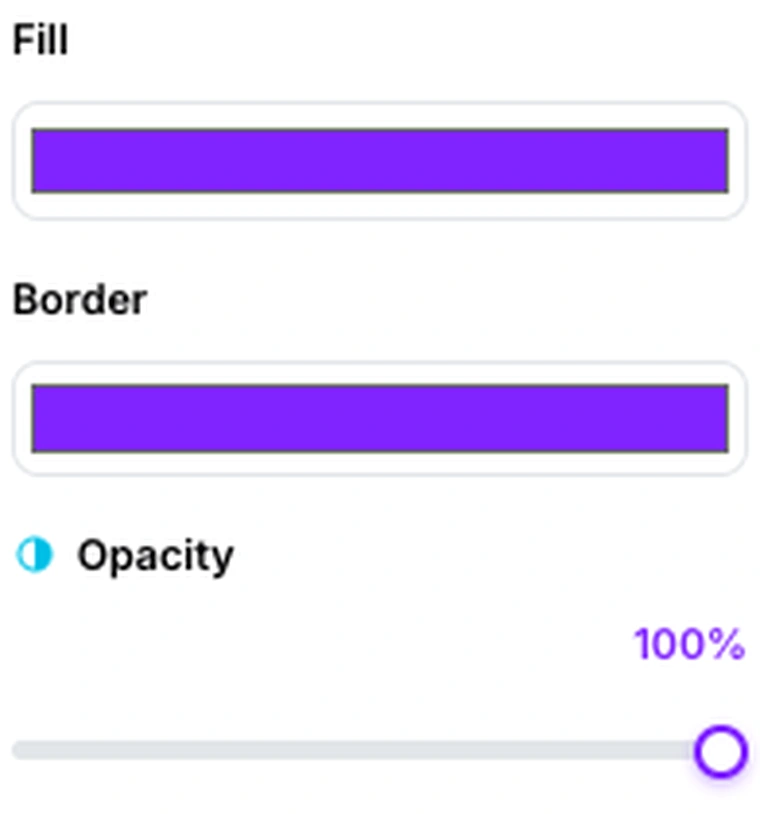
Anything you add can be restyled after the fact — colour, size, font, opacity — and everything sits on a stack you can reorder.
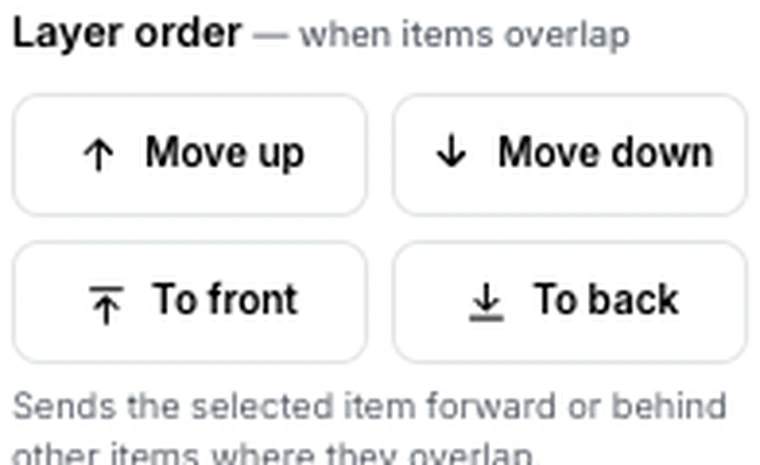
Layer order is what stops a highlight from covering the words it was meant to mark, or a signature from disappearing behind a white box. If something you added has vanished, it is almost always underneath something else rather than gone.
Edit your own documentEverything happens on your machine — the file is never uploaded.Open Edit PDF →
Getting a better result
Touch as few pages as you can
Every page you edit becomes an image; every page you leave alone keeps its text. Making one small change on six pages costs you six text layers, so consolidate where you can.
Match the font before adding text
Click an existing line first to see what it uses, then style your addition to match. An obviously different typeface is the giveaway that a document has been altered.
Redact, do not whiteout, for anything sensitive
Both cover; only redaction is the black-box convention people recognise. Whiteout is for tidying a blank area, not for hiding a name.
Know when to leave
If you are changing more than a few lines, you are fighting the format. Convert to Word, edit there, and convert back.
Check the finished file
Open the download and try selecting text on an edited page — you should not be able to. That is your confirmation that a redaction went through as intended.
What it will not do
- It does not reflow text — edits do not push following lines around.
- It does not keep edited pages searchable — those become images.
- It does not fill interactive form fields as form data — text is drawn onto the page.
- It does not embed arbitrary fonts — you choose from the built-in list.
- It cannot open an encrypted document — unlock it first.
Common questions
Can I edit the existing text in a PDF?
Short corrections, yes. Whole paragraphs, no — a PDF has no concept of a paragraph that rewraps, so replacements do not reflow. For anything substantial, go via Word.
Will my whole document lose its text layer?
No. Only pages you actually edited are flattened; every untouched page is copied across exactly as it was, still selectable and searchable.
Is a black box really enough to hide something?
Here, yes, because the edited page is rebuilt as an image and the text underneath stops existing in the file. That is not true of PDF editors generally — in most of them the text survives under the box, which is how redaction failures happen.
Is my document uploaded?
No. Rendering, editing and writing the finished PDF all happen in your browser, so a contract or a medical record never leaves your machine.
Can I fill in a form?
Yes, by placing text where the fields are. It produces a completed-looking document, though the values are drawn onto the page rather than stored as form data — fine for a form you are printing or emailing back, not for one that feeds a system expecting field values.
Why did my highlight cover the text?
Layer order. Move the highlight behind the text, or reduce its opacity, and the words come back.
The rest of the PDF toolkit
- PDF to WordThe right route for a substantial rewrite.
- Sign PDFA dedicated screen when signing is the whole job.
- Organize PDFPage-level changes without rebuilding any page.
- Delete PagesSometimes removing a page beats redacting it.
- Protect PDFRestrict what readers can do with the edited copy.