Splitting is the question “which pages do I actually need?” answered with a file rather than a highlighter. A 200-page report where a colleague wants chapter four. A bank statement where only two pages go to the accountant. A scanned bundle that should have been six documents all along.
Pixpoo’s Split PDF has five modes, and picking the right one is most of the work. This article covers what each one produces, how the page-range syntax behaves, and the details that are easy to get wrong.
Split a PDF nowFive modes, page previews, nothing uploaded. Free and no sign-up.Open Split PDF →
Which mode do you want?
| Mode | You get | Reach for it when |
|---|---|---|
| Single pages | One file per page | Every page is its own document — a batch of scanned receipts |
| Page range | One file per range you list | A bundle has known sections you want separated |
| Extract pages | One file containing your chosen pages | You want a few pages kept together, not scattered |
| Bookmarks | One file per top-level bookmark | The document already has chapter structure |
| Equal chunks | N files of the same page count | A long file needs to fit a per-upload size limit |
The distinction people miss is between Page range and Extract. Both take the same input. Range treats each comma-separated group as its own output file; Extract flattens everything into a single document. Type 1-3, 8-10 into Range and you get two files. Type it into Extract and you get one file of six pages.
Splitting into single pages
The blunt instrument, and exactly right when a scanner has already decided your document is a stack rather than a whole. A 40-page file becomes 40 PDFs, delivered as a ZIP.
Be a little careful with long documents: this mode produces one file per page whether that makes sense or not, and unpacking 200 loose PDFs into a folder is its own kind of mess. If the pages have any grouping at all, Range or Bookmarks will serve you better.
Splitting by page range
The syntax is ordinary and forgiving. Commas separate groups; a hyphen makes a span:
1-4, 5-9, 10-14— three files, four or five pages each2, 7, 11— three single-page files1-3, 12— one three-page file and one single page
Two behaviours worth knowing. A backwards range like 9-5 is quietly read as 5-9 rather than rejected. And anything outside the document is ignored — asking for pages 1–50 of a 20-page file gives you pages 1–20, not an error. That is forgiving when you are guessing at a length, and slightly risky if you meant a different file, so glance at the page count first.
Extracting specific pages
Same input, one output. Duplicates are removed and the result comes back as a single PDF rather than a ZIP, which also means it can be handed straight to another tool without a download-and-re-upload round trip.
This is the mode for “send me the signature page and the schedule” — the recipient wants one attachment, not two.
Splitting at bookmarks

When a document carries top-level bookmarks, they usually mark exactly the boundaries you were about to find by hand. Each bookmark starts a new file, running to the page before the next one, and the bookmark title becomes part of the filename — so you get 1_Introduction.pdf rather than report_page_1.pdf.
Only top-level bookmarks count. A document with chapters and nested sub-sections splits at chapters, not at every heading, which is almost always what you want. If a file has no bookmarks at all, this mode has nothing to cut on and returns the document whole — a sign to use Range instead.
Equal chunks
Say how many files you want and the pages are dealt out evenly, with the remainder landing in the last file. Nine pages into four parts gives you three, three, three — and then nothing left for the fourth, so you get three files rather than four. Nine into three gives three files of three.
This mode ignores meaning entirely, so it is the wrong choice for anything with structure. Its real use is mechanical: getting a 300-page scan under a portal that refuses anything above a certain size.
The page preview is a working set, not a picture

This is the part most people skip. The thumbnails are editable before the split runs — you can rotate a page that was scanned sideways, drop pages you do not want, and insert blanks. Every mode then works on that edited set rather than on the original file.
Which means page numbers refer to what you see now. If you delete two pages and then ask for pages 5–8, you get the fifth through eighth pages of the edited document, not of the file you opened. Do your deletions first and read the numbers off the preview.
Naming your output
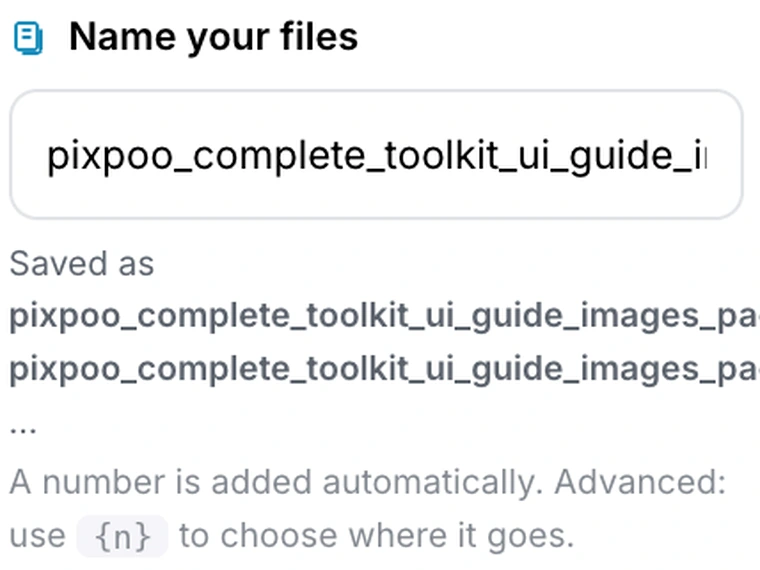
The filename template accepts a {n} placeholder that becomes the file number. Invoice_{n} produces Invoice_1.pdf, Invoice_2.pdf and so on. Leave {n} out and the number is appended anyway, so nothing ever overwrites anything.
Worth thirty seconds when the files are going to someone else. Contract_Schedule_2.pdf tells a recipient what they have; document_page_7.pdf makes them open it to find out.
One file or a ZIP
The delivery depends on the count. A single output file downloads as a PDF. Two or more are packaged into a ZIP, which every desktop operating system opens without extra software — though on a phone it is worth checking you have somewhere to unpack it before you split a document into forty pieces.
Split your own documentPick a mode, check the preview, download.Open Split PDF →
Getting a better result
Look at the page count before typing ranges
Out-of-range numbers are silently dropped rather than flagged, so a typo produces a smaller file instead of a complaint. The count sits above the preview.
Prefer Extract when the recipient is a person
People want one attachment. Range mode is for when the sections genuinely need to be separate documents — different destinations, different filing.
Let bookmarks do the work
If the document has them, splitting on bookmarks is both faster and better named than anything you would type by hand.
Leave Grayscale alone unless the pages are scans
The enhancement toggles here re-render pages as images at 150 DPI, which removes the text layer. On a scan you lose nothing you had. On a text document you are trading away search and copy for a smaller file — usually a bad deal, and Compress PDF is the honest way to ask for that trade.
Rotate in the preview, not afterwards
A sideways page fixed before the split comes out right in every output file. Fixed afterwards, it means opening Rotate PDF on each piece.
What it will not do
- It cannot split an encrypted PDF — clear the password with Unlock PDF first.
- It does not split at headings — only at real bookmarks stored in the file.
- It does not shrink anything — each output carries its pages at full weight.
- It does not read text to find boundaries — you choose the pages, or the bookmarks do.
Common questions
Will splitting lose quality?
No. Pages are copied into the new files as they are, so text stays selectable and images are untouched. The only exception is the Grayscale and Enhance Contrast toggles, which redraw pages as images by design.
Can I split a 500-page document?
Yes, though it is worth thinking about which mode. Single-page mode on 500 pages produces 500 files and will take a while, since the work happens on your own machine. Chunks or Range will be faster and much easier to handle afterwards.
Are my files uploaded?
No. Splitting happens entirely in your browser. The document is read from your disk, cut up in memory on your device, and saved back — nothing is transmitted, so a confidential bundle stays confidential.
How do I get just one page?
Extract mode with a single number. It downloads as a PDF rather than a ZIP.
Why did I get fewer files than I asked for?
Usually chunk arithmetic — asking for more parts than the pages divide into leaves the last part empty, and empty files are not created. Occasionally it is a range that fell outside the document.
The rest of the PDF toolkit
- Extract PagesThe same job with a simpler screen when you only want a few pages.
- Delete PagesSay what to drop instead of what to keep.
- Merge PDFPut the pieces back together in a different order.
- Organize PDFRearrange rather than divide.
- Unlock PDFClear a password so a protected bundle can be split.