Delete Pages
Remove unwanted pages from your PDF easily.
Drag & drop your PDF file here
or click to choose a file from your device
How to delete pages from a PDF
- Drop your PDF into the upload panel and wait for the page thumbnails to render.
- Click any page you want to remove. It turns red and appears in the list on the right.
- Check the running total and the "After deletion" figure to confirm you are removing what you meant to.
- Use Preview PDF to open the trimmed document in a new tab if you want to be sure.
- Click Delete Pages and download the result, saved with _pages_removed added to its name.
Want a more detailed walkthrough? Read the full step-by-step guide →
Delete Pages online — free, fast and private
Remove pages from a PDF. With Pixpoo you can delete pages online for free, right in your browser — no sign-up, no watermark, and your files are processed locally rather than sent to Pixpoo’s servers.
About Delete Pages
Delete Pages removes the sheets you do not want and hands back the rest as a new PDF. Blank separators from a scanner, a cover page you do not need, the terms and conditions at the back of a quote — click them and they are gone.
You work from thumbnails of the real pages rather than from a list of numbers, which matters when what you are removing is "the blank ones" or "the duplicated scan" rather than a range you already know. Clicking a page marks it in red, and a running panel shows exactly which pages are going and what the page count will be afterwards.
The pages you keep are copied across rather than rebuilt. We compared the page content of a document before and after removing pages from the middle, and every kept page came through byte-identical, with its size, orientation and links intact. There is one thing the operation does not carry over, and the Limitations section is specific about it.
What usually needs deleting?
Almost always something that came along with the document rather than something written into it.
- Blank pages a scanner inserted between double-sided sheets.
- A duplicated page from a batch scan where a sheet went through twice.
- The cover sheet, fax header or compliment slip at the front of a received document.
- Standard terms, appendices or price lists at the back of a quote you only need the first pages of.
- Internal notes or draft pages that should not go to the recipient of the final file.
Delete Pages options explained
There are no settings to configure here — the whole tool is about choosing pages accurately and being able to check that choice before you commit.
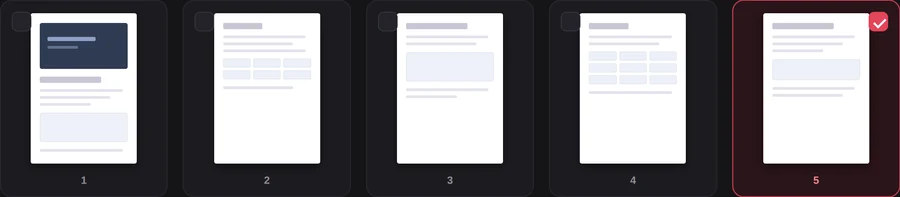
Marking pages for deletion
Every page is shown as a thumbnail. Clicking one marks it for removal: the card turns red and a tick appears in the corner. Clicking it again puts the page back. Nothing happens to your file until you press Delete Pages, so the marking stage is entirely reversible.
Work visually whenever the pages you are removing are recognisable — blanks, duplicates, a cover sheet. It is far more reliable than working from remembered page numbers, because a scanned blank looks obviously blank in the grid and easy to miscount in a list.
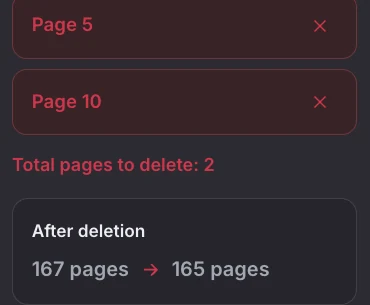
The deletion list
Every page you mark appears here as a chip, in order, with the running total underneath and an "After deletion" line showing the before and after page counts. The small cross on any chip takes that page off the list without hunting for its thumbnail again.
Use the "After deletion" figure as your check. If you meant to remove four blanks and it says the document is dropping by six pages, something is selected that you did not intend — and this is where you will notice, rather than after downloading.

Select All and Clear Selection
Select All marks every page in the document for deletion. Clear Selection unmarks everything and starts you over.
Clear Selection is the useful one — it resets a selection that has got away from you. Select All is worth understanding rather than using: marking every page leaves nothing to keep, so the tool refuses with "You can’t delete every page". If you want a handful of pages out of a long document, Extract Pages is the tool that keeps what you choose instead of removing it.

Long documents
The line under the grid shows the document’s full page count next to how many pages you have marked. Thumbnails are shown twelve at a time, with a pager underneath, and your selection is kept as you move between batches.
Worth knowing for long files: thumbnails are rendered for the first 100 pages only, so a page beyond that cannot be clicked in the grid. Deleting is not limited in the same way, but since selection here is visual, the practical route for a page past the hundredth is to split the document first, or use Extract Pages to pull out the range you want to keep.
Why use Pixpoo for Delete Pages?
- Thumbnails of every page, so you can see what you are removing instead of trusting a page number.
- A live tally of the pages marked for deletion and the resulting page count, before anything is generated.
- Kept pages are copied whole — no re-compression, so text stays selectable and image quality is untouched.
- Mixed page sizes and existing page rotations survive, so a document with a landscape insert stays correct.
- Preview the trimmed document in a new tab before downloading, and remove a page from the deletion list with one click if you change your mind.
- Runs on your own machine — the file is not sent to Pixpoo’s servers.
Delete Pages features
Delete Pages limitations
The important one is that the result is written as a new document rather than an edit of the old one, and two parts of the original document-level information do not survive that: the PDF’s outline and its document properties. Bookmarks disappear — we tested a six-chapter document and the finished file had none — and title, author, subject and keywords arrive blank. Page content itself is unaffected, and so are links, page sizes and rotations; it is the document-level layer that is dropped. You also cannot remove every page, since a PDF must keep at least one, and thumbnails stop at the first 100 pages of a long document, so pages beyond that cannot be clicked in the grid. Finally, a password-protected file has to go through Unlock PDF before its pages can be removed.
Common Delete Pages questions
Does deleting pages reduce the quality of the pages I keep?
No. The pages you keep are copied across whole rather than re-rendered, so their content is transferred unchanged — in testing, every kept page came out byte-identical to the original. Text stays selectable, images keep their exact quality and page sizes are preserved.
Do bookmarks and document properties survive?
No, and this is worth knowing before you trim something important. The trimmed file is built as a new document, so the PDF outline is not carried over — a document with chapter bookmarks comes back with none — and the title, author, subject and keywords are cleared. If those matter, keep the original alongside the trimmed copy.
Can I delete every page?
No. A PDF has to contain at least one page, so selecting everything and pressing Delete Pages returns "You can’t delete every page". If what you actually want is a small part of a long document, Extract Pages is the better tool — it keeps what you select rather than removing it.
What happens to pages that are already rotated or a different size?
They come through exactly as they were. We tested a document mixing A4 portrait, A4 landscape and US Letter, with rotation already applied to some pages, and every kept page arrived with its original dimensions and rotation value intact.
Can I undo a deletion?
Before you generate the file, yes — click the thumbnail again or use the cross beside the page in the list on the right. After you download, no: the trimmed PDF is a new file, so keep your original until you have checked the result. Preview PDF exists so you can check first.
Why can’t I click pages past number 100?
Only the first 100 pages get previews, to keep a large file from bogging the browser down. Selection here is entirely visual, so that cap also decides which pages you are able to mark. For a page further in, split the file first or use Extract Pages to keep the range you want.
Do the remaining pages get renumbered?
The pages are simply written out in order, so the third page of the finished file is the third page you kept. If your document prints its own page numbers as part of the page content, those are part of the artwork and will not change — a document that keeps pages 1, 3 and 4 will still show "2" printed on nothing, because page 2 is gone. Use Page Numbers afterwards if you need a fresh sequence.
Is the Delete Pages tool free?
Yes. Delete Pages with Pixpoo is completely free — no sign-up, no watermark, no usage limits and no paid plan. It runs entirely in your browser, so there is nothing for us to meter.
Are my files uploaded to a server?
No. When you use Delete Pages, your files are processed in your browser and are not sent to Pixpoo’s servers — Pixpoo does not upload or store them.
Related tools: Merge PDF, Split PDF, Compress PDF, Rotate PDF. All PDF tools →