Rotate PDF
Rotate one or more pages in your PDF file.
Drag & drop your PDF file here
or click to choose a file from your device
How to rotate pages in a PDF
- Drop your PDF into the upload panel. Pixpoo renders a thumbnail of each page so you can see which way up they currently are.
- Pick a direction: Rotate Left, Rotate Right, Rotate 180° or Custom.
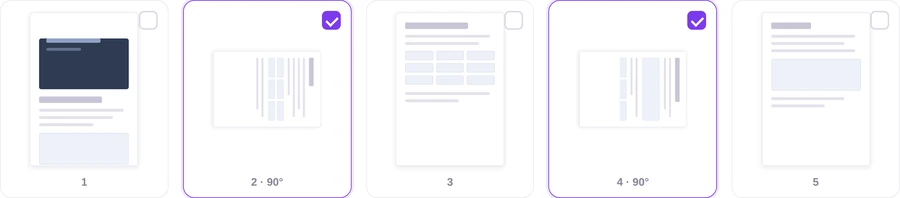
- Tick the pages you want to turn — or use Select All for the whole document. The thumbnails rotate as you go, showing you the result before you commit.
- Use Preview PDF to open the rotated file in a new tab if you want to check it properly.
- Click Rotate PDF and download the file, saved with _rotated added to its name.
Want a more detailed walkthrough? Read the full step-by-step guide →
Rotate PDF online — free, fast and private
Rotate pages in your PDF. With Pixpoo you can rotate PDF online for free, right in your browser — no sign-up, no watermark, and your files are processed locally rather than sent to Pixpoo’s servers.
About Rotate PDF
Rotate PDF turns pages the right way up. A scan fed into the tray sideways, a phone photo saved at ninety degrees, a spreadsheet exported landscape into a portrait document — all of it can be fixed here, page by page or all at once.
What makes this different from most PDF editing is how little it touches. Every PDF page carries a rotation value in its own dictionary, a number that tells a reader which way up to display it, and rotating a page here changes only that number. The page content itself is never redrawn or re-compressed — we compared the content streams before and after, and they are byte-for-byte identical.
That has a practical consequence worth knowing: rotation is a display instruction, not a change to the artwork. Text stays selectable, images keep their exact quality, links keep working, and the page keeps its original dimensions in the file even though a reader will now show it the other way round.
When do pages need rotating?
Almost always because of how a document was captured rather than how it was written.
- A batch scan where some sheets went through the feeder the wrong way round.
- Photographed documents from a phone, which often arrive rotated depending on how the handset was held.
- A report where a wide table or chart was exported landscape and now sits sideways among portrait pages.
- A file received from someone else that opens upside down, usually a scan that was fed in backwards.
- Preparing a document for print or for signing, where every page needs to be the same way up before it goes out.
Rotate PDF options explained
There are only a few controls here, but the difference between the three fixed directions and Custom mode changes how the whole screen behaves.

Rotation Options
Rotate Left turns pages 90° anticlockwise, Rotate Right 90° clockwise, and Rotate 180° flips them end over end. Whichever you choose applies to every page you tick. Custom works differently: the tick boxes disappear and each thumbnail gets its own pair of arrows, so you can give every page its own angle in one pass.
Use one of the three fixed directions when the pages that are wrong are all wrong in the same way, which is the usual case with a batch scan. Switch to Custom when a document is a mixture — some pages sideways one way, some the other — because it saves running the tool three times. Note that Select All is disabled in Custom mode, since there is no single angle to apply.
Choosing pages
Each page is shown as a thumbnail with a tick box in the corner. Ticking a page marks it for rotation and immediately turns the thumbnail, so the grid always shows what the finished document will look like. The page number underneath gains the angle — "7 · 90°" — once a rotation applies to it.
Work straight from the thumbnails rather than from a list of page numbers: a sideways page is obvious at a glance and easy to miss in a range like 4, 9, 22-24. The live preview is the real safeguard here, because 90° left and 90° right are easy to confuse until you see the result.

Select All and Clear All
Select All ticks every page in the document, including any beyond the thumbnails that were rendered. Clear All unticks everything and also resets any per-page angles you set in Custom mode.
Select All with Rotate 180° is the fix for a document that opens entirely upside down, which happens when a whole stack is scanned back to front. It is also the quickest route for a long file: rotate everything, then untick the few pages that were already correct.

Paging through a long document
Thumbnails are shown twelve at a time, with the pager moving between batches. Your ticks are kept as you move around, so a selection spanning several batches survives.
Worth knowing for long documents: Pixpoo renders thumbnails for the first 100 pages only, to keep a large file responsive. Rotation itself is not limited — Select All still covers every page — but a page past the hundredth cannot be ticked individually, so for those use Select All and untick what you do not want, or split the file first.
Why use Pixpoo for Rotate PDF?
- Genuinely lossless — only the page’s rotation value changes, so nothing is re-encoded and nothing degrades, however many times you rotate.
- A thumbnail of every page, so you can see which ones are the wrong way up instead of guessing from page numbers.
- Rotate one page, a handful, or the whole document, and Custom mode lets each page take a different angle in a single pass.
- Rotations add to whatever the page already had, so a page that was already sideways ends up where you expect.
- Preview the rotated file in a new tab before you commit to downloading it.
- Runs on your own machine — the document is not sent to Pixpoo’s servers.
Rotate PDF features
Rotate PDF limitations
This tool supports four right-angle orientations: 0°, 90°, 180° and 270°. It does not straighten arbitrary skew, so a page that went through the scanner a few degrees crooked cannot be corrected here. Thumbnails are generated for the first 100 pages of a document, so pages beyond that cannot be ticked one by one, although Select All still applies a rotation to all of them. A rotated page keeps its original dimensions inside the file and only the displayed orientation changes, which is normal and what every reader expects, but it means the page size shown in a file inspector will not swap round. In Custom mode the Select All button is switched off, since there is no single angle to apply to everything. And a password-protected file cannot be opened for rotation until the password is removed with Unlock PDF.
Common Rotate PDF questions
Does rotating a PDF reduce its quality?
No, and this is the one PDF operation where that is unambiguous. Rotating changes a single number in the page dictionary and leaves the page content completely alone — we compared the content streams before and after and they are identical byte for byte. You can rotate the same file as many times as you like without any degradation.
Can I rotate only some pages?
Yes. Tick just the pages you want and leave the rest alone, or use Custom mode to give different pages different angles in a single pass. Pages you do not select are written out completely unchanged.
What happens if a page is already rotated?
The new rotation is added to the existing one rather than replacing it. A page already at 90° that you rotate right again ends up at 180°, and one at 270° rotated right returns to upright. Four right-rotations bring any page back to where it started.
My whole document is upside down — what is the quickest fix?
Choose Rotate 180°, click Select All, then Rotate PDF. That is the usual result of a stack going through a scanner back to front, and one pass corrects the lot.
Why can I only tick the first 100 pages?
Thumbnails are rendered for the first 100 pages so that a long document stays responsive — rendering several hundred previews in a browser would be slow. The rotation itself has no such limit, so Select All covers every page. To rotate specific later pages, either select everything and untick the ones you want left alone, or split the document first.
Can I straighten a page that is slightly crooked?
No. The tool works in four right-angle orientations — 0°, 90°, 180° and 270° — and does not correct arbitrary skew. Straightening a page that is a few degrees off means re-rendering it as an image, which is a different job from turning it.
Will the rotation stick when I open the file elsewhere?
Page rotation is part of the PDF specification and is supported by mainstream PDF readers, so the rotated orientation should remain when you open the file elsewhere.
Is the Rotate PDF tool free?
Yes. Rotate PDF with Pixpoo is completely free — no sign-up, no watermark, no usage limits and no paid plan. It runs entirely in your browser, so there is nothing for us to meter.
Are my files uploaded to a server?
No. When you use Rotate PDF, your files are processed in your browser and are not sent to Pixpoo’s servers — Pixpoo does not upload or store them.
Related tools: Merge PDF, Split PDF, Compress PDF, Delete Pages. All PDF tools →