Organize PDF
Reorder, rotate, delete and rearrange your pages.
Drag & drop your PDF file here
or click to choose a file from your device
How to reorganise a PDF
- Add your PDF and wait for the page cards to appear.
- Drag cards into the order you want. Tick pages to act on several at once, and use the toolbar to rotate, delete, duplicate or insert a blank.
- Set the page size and, if you only want part of the result, a page range.
- Use Download Sample to check the first three pages if the document is long.
- Press Organize PDF and download the finished file.
Want a more detailed walkthrough? Read the full step-by-step guide →
Organize PDF online — free, fast and private
Reorder, rotate, delete and rearrange pages. With Pixpoo you can organize PDF online for free, right in your browser — no sign-up, no watermark, and your files are processed locally rather than sent to Pixpoo’s servers.
About Organize PDF
Organize PDF is the workbench version of the page tools. Instead of doing one job at a time, you get every page as a draggable card and can reorder, rotate, delete, duplicate and insert blanks in a single pass, then generate the finished document once at the end.
That matters when a document needs several fixes at once — a scan that came out of the feeder in the wrong order, with two sheets upside down and a blank between every page. Doing that with separate tools means three round trips and three intermediate files. Here it is one session, with undo and redo covering every step.
Nothing is committed until you press Organize PDF. Everything before that is a working arrangement you can rearrange, undo, or abandon by reloading the file — your original document on disk is never modified.
When is a full reorganise the right tool?
Whenever a document needs more than one kind of fix, or the correct order is something you have to see rather than calculate.
- A batch scan that came back shuffled, with some sheets upside down and blanks between them.
- Assembling an appendix or evidence bundle where the running order is decided as you look at the pages.
- Moving a signature page or summary to the front of a document before sending it.
- Duplicating a form page so the same blank can be filled in several times.
- Standardising a document built from mixed sources so every page prints on the same paper size.
Organize PDF options explained
The toolbar acts on the pages you have ticked; the Options panel decides how the finished document is built. One setting there changes the whole mechanism, so it is worth reading.

The page workbench
Each page is a card you can drag to a new position. The tick box marks it for a toolbar action, and the small menu in the corner holds per-page commands including duplicate. Cards update as you work, so the grid always shows the running order.
Drag when you can see where a page belongs; tick and use the toolbar when the same change applies to several pages. Reordering by dragging is the reason to use this tool rather than the single-purpose ones — nothing else lets you decide the order by eye.

The toolbar
These act on the ticked pages. Move sends them to the front of the document. Rotate Left and Right turn them ninety degrees. Delete removes them. Insert adds a blank page after the last one ticked, or at the end if nothing is ticked. Extract builds a separate PDF from just the ticked pages, leaving your arrangement alone.
Move is the fastest way to promote a signature page or executive summary to the front without dragging it past a hundred cards. Extract is useful mid-session when you realise you also want the selected pages as their own file. Note that Delete refuses to remove everything, since a PDF must keep at least one page.
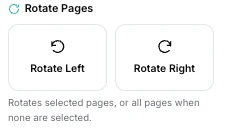
Rotate Pages
The same rotation controls as the toolbar, with one behaviour spelled out in the hint underneath: with pages ticked they rotate only those, and with nothing ticked they rotate every page in the document.
The nothing-ticked behaviour is the shortcut for a document that is entirely the wrong way up — deselect everything, press Rotate Right twice, done. It is also the thing to watch for: if you meant to turn one page and forgot to tick it, you will turn all of them. Undo puts it back.

Page Size
This changes how the file is built, not just how it looks. Same as original copies each page across untouched — we compared the page content before and after and it is byte-identical, with each page keeping its own dimensions. Choosing A4 or Letter instead places every page onto a new sheet of that size, scaled to fit and centred. Text stays selectable either way, but the pages are re-laid out rather than copied.
Leave it on Same as original unless you specifically need one paper size — it is the lossless path, and it preserves a document that mixes portrait and landscape. Switch to A4 or Letter when the file will be printed and every sheet has to match. Scaling goes both ways: we measured a landscape A4 page dropping to 71 per cent on portrait A4, leaving deep white bands above and below, while a small 400-point-wide page was enlarged to 130 per cent to fill the height. Nothing is cropped, but relative sizes change.
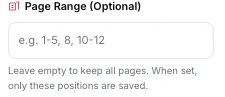
Page Range
An optional filter applied at the very end. The numbers refer to positions in the arrangement you have just built, not to the original page numbers — so after moving page 40 to the front, "1-5" saves that page and the four now behind it.
Useful when you have arranged a long document and only want to save part of it. Because it counts positions rather than original pages, do the arranging first and type the range last, and read the hint under the field as the reminder it is meant to be.
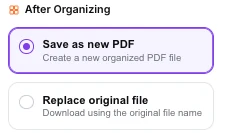
After Organizing
Two naming choices for the download. Save as new PDF adds _organized to the filename. Replace original file gives the download your document’s original name instead.
Worth being precise about what the second option does: it changes the name of the file you download, it does not touch the file on your computer. Your browser will either save it alongside the original or ask about overwriting, depending on your download settings — nothing is replaced without you agreeing to it.
Why use Pixpoo for Organize PDF?
- Every page is a card you can drag into position, so reordering is direct rather than described in page numbers.
- Reorder, rotate, delete, duplicate and insert blank pages in one session, then build the file once.
- Full undo and redo, on the toolbar or with the usual keyboard shortcuts.
- Keep the original page sizes and the pages are copied across untouched, or standardise everything onto A4 or Letter.
- A Download Sample button builds a three-page taster so you can check the result before committing to a long document.
- Everything runs locally; the document is not sent to Pixpoo’s servers.
Organize PDF features
Organize PDF limitations
The one to know about before you start: this tool works on the first 80 pages of a document. A longer file is loaded, but only those first 80 pages appear as cards — the Pages panel will show 80 rather than the document’s real length — and the file you generate contains only those pages. On a 167-page document that means the finished PDF has 80 pages and the rest are gone, with no warning. Check the Total Pages figure against your document before organising anything long, and use Split PDF first if you need to work on a big file. Beyond that: choosing A4 or Letter re-lays pages onto new sheets rather than copying them, so it is the one setting that is not lossless; the page range counts positions in your new arrangement rather than original page numbers; and a password-protected PDF has to go through Unlock PDF first. Two things do not make it into the finished file. Bookmarks and the document properties are dropped, as they are whenever a PDF is rebuilt. Internal links are the subtler one: a cross-reference that jumped to another page of the original loses its target and lands on the first page instead — and we found this happens even when you change nothing about the order. Web links are unaffected, keeping both their address and their clickable area, and every other page-level annotation survives.
Common Organize PDF questions
Why does it say my document has fewer pages than it does?
Because the tool only loads the first 80 pages. The Pages panel reports what it loaded, not the length of your file, so a 167-page document shows as 80. This matters: the PDF you generate will contain only those 80 pages. For anything longer, split the document first, or use the single-purpose tools — Rotate PDF, Delete Pages and Extract Pages all read further into a file.
Does reorganising reduce quality?
Not with Page Size on Same as original. Pages are copied across whole, and we compared the page content before and after — it is identical byte for byte, with each page keeping its own size. Choosing A4 or Letter is different: each page is placed onto a new sheet and scaled to fit, so text stays selectable but the pages are rebuilt rather than copied.
What does Replace original file actually do?
It only changes the filename of the download, so the file arrives with your document’s original name instead of one with _organized added. Nothing on your computer is overwritten by Pixpoo — your browser decides whether to save alongside the original or ask you first.
Can I undo a mistake?
Yes. Undo and redo are on the toolbar and respond to the usual keyboard shortcuts, and they cover every action — reordering, rotating, deleting, duplicating and inserting. Nothing is written to a file until you press Organize PDF, so the whole session is reversible until then.
How do I duplicate a page?
Open the small menu in the corner of a page card and choose the duplicate command. The copy is inserted directly after the original, which is handy for a form page you need several blank copies of.
Does the page range use my original page numbers?
No, it uses positions in the arrangement you have just built. If you move page 40 to the front and then type 1-5, you save that page and the four now sitting behind it. Arrange first, then set the range.
What is Download Sample for?
It builds a short PDF from the first three pages of your current arrangement, using the same settings as the real output. On a long document it is the quick way to confirm the page size and rotation are what you want before generating the whole thing.
Do links still work after organising?
Web links survive intact — address and clickable area both came through unchanged in our testing. Cross-references inside the document are a different story: their destination is not rebuilt alongside the new file, so following one drops you on page one. Notably this occurs even when the running order is untouched, so check any document that carries a linked contents page.
What survives on the pages themselves?
With Page Size on Same as original, essentially everything. We checked page by page: content streams are byte-identical, embedded images and fonts come across unchanged, page dimensions and existing rotations are preserved, and every page-level annotation is still there. It is the document-level layer — the outline and the title, author, subject and keywords — that is lost, not anything on the page.
Is the Organize PDF tool free?
Yes. Organize PDF with Pixpoo is completely free — no sign-up, no watermark, no usage limits and no paid plan. It runs entirely in your browser, so there is nothing for us to meter.
Are my files uploaded to a server?
No. When you use Organize PDF, your files are processed in your browser and are not sent to Pixpoo’s servers — Pixpoo does not upload or store them.
Related tools: Merge PDF, Split PDF, Compress PDF, Rotate PDF. All PDF tools →