Extract Pages
Pull the pages you need into a new PDF.
Drag & drop your PDF file here
or click to choose a file from your device
How to extract pages from a PDF
- Load your PDF — drop it on the panel or browse for it — and wait while the thumbnails appear.
- Tick the pages you want, use the All, None, Odd or Even shortcuts, or type numbers into the Page Range box — you can mix all of these.
- Choose whether the pages you picked are the ones to keep, or the ones to leave out.
- Name the output file if you want something more descriptive than the default.
- Click Extract Pages, or use Preview Selected to open the result in a tab and check it first.
Want a more detailed walkthrough? Read the full step-by-step guide →
Extract Pages online — free, fast and private
Pull selected pages into a new PDF. With Pixpoo you can extract pages online for free, right in your browser — no sign-up, no watermark, and your files are processed locally rather than sent to Pixpoo’s servers.
About Extract Pages
Extract Pages pulls the pages you want out of a PDF and saves them as a document of their own. The file you started with is never modified — what you get is a second, smaller PDF containing only the pages you chose.
It is the mirror image of deleting pages, and which one to reach for depends on the ratio. Pulling four pages out of two hundred is an extraction; removing four from two hundred is a deletion. This tool can do both, because an option lets you invert the selection and keep everything except what you ticked.
There are two ways to say which pages you want, and they work together rather than competing: tick thumbnails in the grid, and type page numbers into the range box. Whatever you tick and whatever you type are combined into one set, which matters for long documents where some pages are easier to find by eye and others by number.
When is extracting the right move?
Whenever a few pages of a long document need to travel on their own.
- Sending one signed page of a contract to someone who does not need the other forty.
- Pulling a single invoice or statement out of a combined monthly download.
- Taking one chapter or section out of a manual to share with a colleague.
- Separating a double-sided scan into odd and even pages when the feeder captured them in two passes.
- Splitting the useful pages out of a long report so a size-limited upload form will accept them.
Extract Pages options explained
Two panels decide the outcome: how you pick pages, and whether that pick means "keep these" or "keep the rest".
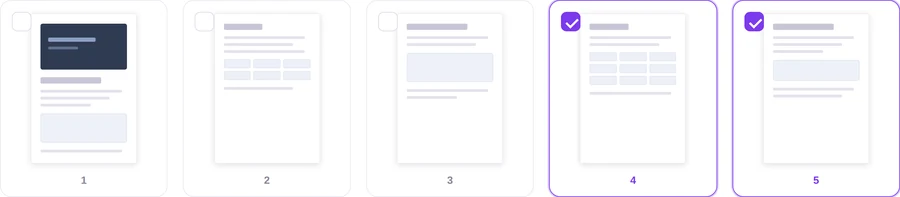
Selecting pages by eye
Each page appears as a thumbnail with a tick box. Ticked pages are outlined and counted, and the panel on the right shows how many will end up in the finished file. Clicking a page again removes it from the selection.
Best when you recognise the pages you need — a signature page, a particular table, the one photo in a report. It is also the safer method when the page numbering printed on the page does not match its position in the file, which is common in documents with a cover sheet or roman-numbered front matter.

All, None, Odd and Even
Four shortcuts that set the whole selection at once. They apply to the entire document, not just the thumbnails currently on screen — on a 167-page file, Odd Pages selects all 84 odd-numbered pages.
Odd and Even are the reason this row exists. Scanning a double-sided stack in two passes gives you all the fronts then all the backs, and these two buttons separate them again in one click. None is the quickest way to start over after a selection has drifted.
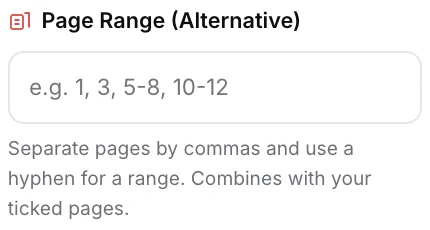
Page Range
A text box taking single pages and ranges — 1, 3, 5-8, 10-12. It does not replace your ticked pages, it adds to them: the final selection is everything you ticked plus everything you typed. Numbers beyond the document are ignored, duplicates collapse, and a backwards range like 12-8 is read as 8-12.
This is the field to use for anything past the first hundred pages, because thumbnails are only rendered that far and a page beyond them cannot be clicked. Typing 140-142 selects those pages perfectly well even though you cannot see them. It is also faster than clicking for any long run of consecutive pages.
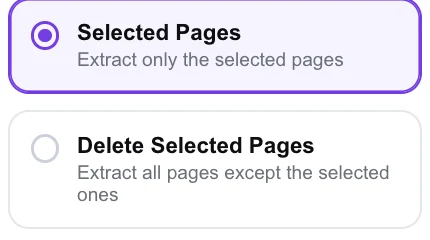
Selected Pages or Delete Selected Pages
This inverts what your selection means. Selected Pages keeps only what you picked. Delete Selected Pages keeps everything else, so ticking three pages of a 167-page file produces a 164-page document instead of a 3-page one.
Switch to Delete Selected Pages when the pages you can identify are the ones you want gone — blanks, duplicates, an appendix — and everything else should stay. It saves ticking 164 pages to remove three. You cannot select every page in this mode, since that would leave an empty document, and the tool will say so.
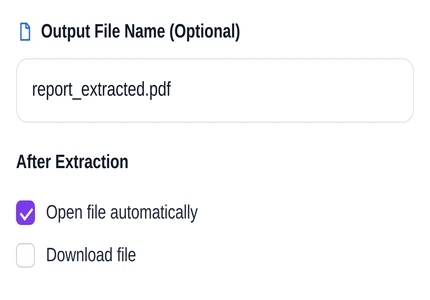
Output name and what happens next
The filename box is pre-filled from your document with _extracted added, and the .pdf ending is supplied if you leave it off. Underneath, two checkboxes decide what happens when the file is ready: open it in a new tab, download it, or both.
Name the file when it is going to someone else — "Contract - signature page.pdf" is more use to a recipient than a default. Leave Open file automatically ticked to check the result before saving; tick Download file as well if you want it kept without a second click. If nothing seems to happen when the file is ready, a popup blocker is the usual cause, so tick Download file instead.
Why use Pixpoo for Extract Pages?
- Two ways to choose — click thumbnails you recognise, or type numbers and ranges like 1, 3, 5-8, 10-12 — and the two combine into a single selection.
- One-click shortcuts for all pages, none, odd only or even only, useful for separating a double-sided scan into fronts and backs.
- A single switch inverts the whole selection, so the same ticks can mean "keep only these" or "keep everything but these".
- Extracted pages are copied whole rather than rebuilt, so text stays selectable, embedded fonts stay embedded and images keep their exact quality.
- Name the output file before you generate it, and choose whether it opens in a tab, downloads, or both.
- The whole operation is local; nothing about the file reaches Pixpoo’s servers.
Extract Pages features
Extract Pages limitations
Because the result is assembled fresh, two categories of document-level information are left behind: the outline and the document properties. Any bookmarks are gone, and the title, author, subject and keywords fields come back empty. Page content itself is untouched — text, images, embedded fonts, page dimensions and rotation all come through exactly — and web links keep their address and their clickable area. Internal links are the exception: a cross-reference that jumped to another page of the original does not find its target in the extracted file, so it lands on the first page instead. Anything relying on internal navigation is worth checking after extraction. Thumbnails are rendered for the first 100 pages only, so later pages have to be chosen through the Page Range box rather than by clicking. In Delete Selected Pages mode you cannot select everything, because a PDF has to keep at least one page. And a password-protected document cannot be opened for extraction until the password is removed with Unlock PDF.
Common Extract Pages questions
Does the original PDF change?
No. Extraction always produces a separate file and never writes back to the document you uploaded — the original stays exactly as it was on your device.
Can I use the tick boxes and the range field together?
Yes, and that is the intended way to work. The two are combined rather than one overriding the other: ticking pages 4, 5 and 10 and typing "1, 3, 20-22" gives you pages 1, 3, 4, 5, 10, 20, 21 and 22. Duplicates between the two are collapsed automatically.
How do I extract a page past number 100?
Type it into the Page Range box. Thumbnails stop at the first hundred pages to keep long documents responsive, but the range field works across the whole file, so "140-142" selects those pages even though you cannot see them in the grid.
What does Delete Selected Pages actually do?
It inverts your selection. Instead of building a file from the pages you ticked, it builds one from all the pages you did not tick. It is the right choice when the pages you can point at are the ones you want removed — ticking three unwanted pages in a 167-page document gives you a 164-page result.
What happens if I type a range bigger than the document?
The parts that fall outside the document are ignored rather than causing an error. On a 167-page file, typing "160-200" selects pages 160 to 167 and stops there. A backwards range such as "12-8" is read as 8 to 12.
Do bookmarks and document properties come across?
No. Building a fresh document means the outline does not travel with it, and the four document properties arrive empty. The pages themselves are unaffected — text stays selectable, embedded fonts remain embedded, and sizes and rotations are preserved. Web links keep working too; internal cross-references do not, because their target page is no longer where it was.
How do I split a double-sided scan into fronts and backs?
Use Odd Pages, extract, then come back and use Even Pages and extract again. Those two shortcuts cover the whole document rather than just the visible thumbnails, so a long scan takes two clicks each way.
Nothing opened when my file was ready — what happened?
Open file automatically opens the result in a new tab, which browsers sometimes block as a popup. Tick Download file as well and the finished PDF is saved directly instead, or allow popups for the site.
Do links still work in the extracted file?
Web links do — we checked the address and the clickable area in the finished file and both are unchanged. Links that pointed to another page of the original document are different: their destination is not carried into the new file, so clicking one takes you to the first page rather than where it used to go. If your document has a linked contents page or cross-references, extract the pages they point at as well, or expect that navigation to be broken.
Is the Extract Pages tool free?
Yes. Extract Pages with Pixpoo is completely free — no sign-up, no watermark, no usage limits and no paid plan. It runs entirely in your browser, so there is nothing for us to meter.
Are my files uploaded to a server?
No. When you use Extract Pages, your files are processed in your browser and are not sent to Pixpoo’s servers — Pixpoo does not upload or store them.
Related tools: Merge PDF, Split PDF, Compress PDF, Rotate PDF. All PDF tools →