Sideways pages are one of those problems that feel like they should not exist. Somebody fed a landscape sheet into a portrait scanner, or a phone recorded the wrong orientation, and now half a document arrives on its side while the rest is fine. Turning your head works. Sending it to somebody else does not.
Rotating in Pixpoo is quick, and the way it works underneath is worth a paragraph, because it explains why this is one of the few PDF operations that costs you absolutely nothing.
Rotate a PDF nowWhole document or single pages. Free, and nothing is uploaded.Open Rotate PDF →
Nothing is redrawn
Every PDF page carries a rotation value alongside its content — an instruction telling any reader which way up to display it. Rotating here changes that number. The page content itself is never re-rendered, re-compressed or touched in any way.
The consequences are all good ones. Text stays selectable and searchable. Images keep the exact quality they had. Vector graphics stay sharp. The file size barely moves. And because the new angle is added to whatever the page already had, rotating a page that was already turned 90 degrees gives you 180 rather than starting over from zero.
This makes rotation different from almost everything else in a PDF toolkit. Compression trades quality for size and conversion trades structure for editability, but rotation trades nothing at all. Fix a sideways page and there is no reason to hesitate about it.
The four modes

| Mode | Turns by | Use for |
|---|---|---|
| Rotate Right | 90° clockwise | The usual fix for a scan lying on its left side |
| Rotate Left | 90° anticlockwise | The other one — try this if Right made it worse |
| Rotate 180° | Half turn | Pages fed into a scanner upside down |
| Custom | Per page | A document where different pages are wrong differently |
Do not spend time working out which of Left or Right you need. Pick one, watch the thumbnails, and switch if they went the wrong way — the preview updates live and nothing is committed until you press the button.
Choosing which pages
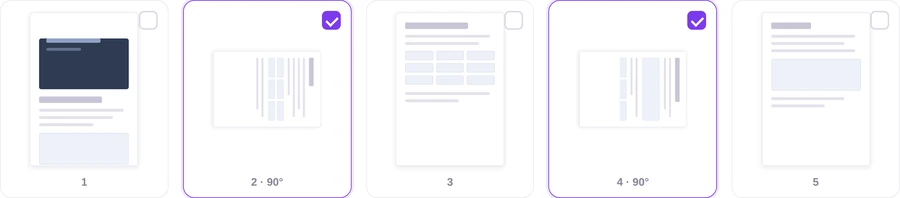
Pages appear as a grid of thumbnails, twelve to a screen, with pagination underneath for longer documents. Tick the ones you want turned, or use Select All when the whole file went in the wrong way — a common outcome when someone rotated the original stack of paper rather than the scanner setting.

The thumbnails show the rotation you are about to apply, not the current state, so you are always looking at the result rather than imagining it.
Custom mode, for the messy documents
The other three modes apply one angle to everything you selected. Custom drops that assumption and gives each page its own pair of turn buttons, which you click until that thumbnail looks right.
This is the mode for the genuinely awkward files: a bundle assembled from three different scanners, where some pages are fine, some are on their left and one is upside down. Working page by page is slower, but it is the only way through a document where no single angle is correct.
One thing to know: Select All is switched off in Custom mode, because there is no single rotation for it to apply. Each page carries whatever you gave it.
Check before you commit
A preview option opens the rotated document in a new tab before you download it. On a long file this is worth the extra click — scrolling through and finding page 47 still on its side is much better before you have sent it than after.
Fix your own documentPick the pages, watch the thumbnails, download.Open Rotate PDF →
Getting a better result
Rotate before anything else
Do this first in any sequence of operations. A page fixed here is upright for every tool downstream — converting to images, running recognition, printing. Fixing it afterwards means repeating work on every output.
It matters more than it looks for recognition
Text recognition reads horizontally. A sideways page is, to that software, a column of unreadable marks. Rotating before OCR PDF is the difference between a searchable document and a page of nonsense.
Landscape content is not necessarily wrong
A spreadsheet export or a wide chart is often meant to be landscape. Before turning it, check whether the page is misoriented or simply wide — rotating a correctly landscape page makes it worse, and readers can turn their own screens.
Fix the scanner, not just the file
If every batch comes out sideways, the setting is in the scanner. Two minutes there saves this step forever.
Rotate rather than re-scan
Because nothing is re-rendered, rotating an existing scan is strictly better than scanning it again the right way round — the second scan will be a fresh set of compression artefacts, and the rotation is free.
What it will not do
- It does not straighten a slightly tilted scan — only quarter turns, not arbitrary angles.
- It does not change page dimensions — a portrait page displayed sideways is still a portrait page underneath.
- It cannot open an encrypted document — remove the password with Unlock PDF first.
- It does not rotate the content within a page — the whole page turns together.
Common questions
Will rotating reduce quality?
No, and this is the unusual part. Only the page’s rotation instruction changes; the content is copied untouched. Text, images and vector art come through identically, and the file size is essentially unchanged.
Can I rotate one page and leave the rest?
Yes. Tick only that page in the grid. For several pages needing different angles, switch to Custom mode and set each one individually.
My rotation did not save. What happened?
Almost always this is a viewer rotating the display rather than the file. Some readers let you turn a page on screen without changing anything on disk, so the next person to open it sees the original. Rotating here writes the change into the document itself.
Is my file uploaded?
No. The document is read from your disk, altered in your browser’s memory, and saved back by the browser. Nothing is transmitted at any point.
Can I rotate by 45 degrees?
No. PDF page rotation is defined only in quarter turns, so 90, 180 and 270 are the available angles. A scan that came out slightly skewed needs re-scanning or an image editor, not this tool.
Why is a page still sideways after I rotated everything?
Because it started at a different angle from its neighbours, and one blanket rotation moved them all by the same amount. Custom mode handles this correctly.
The rest of the PDF toolkit
- Organize PDFRotate as part of a bigger rearrangement.
- OCR PDFRun this after rotating, never before.
- Delete PagesDrop the blank sheets a scanner picked up along the way.
- Merge PDFCombine the corrected files into one document.
- PDF to JPGExport upright images once the pages are the right way up.