The other page tools each answer one question — which pages go, which stay, which way up. Organize PDF is the workbench where you answer all of them at once, against thumbnails you can drag.
It is the right tool when a document is not wrong in one specific way but simply in a mess: pages out of sequence, a couple upside down, a duplicate somewhere in the middle, and a section that belongs at the front.
Organize a PDF nowDrag, rotate, duplicate, delete — then save. Free, nothing uploaded.Open Organize PDF →
Everything happens to the board, not the file

Your document opens as a board of thumbnails. Every action — dragging a page somewhere else, turning one, removing one, duplicating one, inserting a blank — changes that board and nothing else. The PDF is only built when you save, from whatever arrangement is on screen at that moment.
That is what makes it worth experimenting in. Undo covers every step, so you can try an order, look at it, and take it back. Nothing is committed until you ask for it, and your original file on disk is never modified.
What the toolbar gives you

- Drag to reorder. Pick a thumbnail up and drop it where it belongs. This is the tool’s reason to exist — no other page tool lets you move a page rather than only keep or lose it.
- Rotate left and right, on one page or on everything you have selected, in quarter turns.
- Duplicate, which copies a page in place. Genuinely useful for a form page somebody needs to fill in twice, or a separator sheet you want between several sections.
- Insert a blank page, for a break before a new section or space for something to be added later.
- Delete what you do not need.
- Extract, which pulls the selected pages out into a document of their own without disturbing the board.
Grid and list views are both available, along with pagination for long documents. Grid is better for arranging by eye; list is easier when you are checking a sequence rather than composing one.
Unifying page sizes

Three choices, and the default is the conservative one.
Original copies every page across exactly as it is. Nothing is scaled, nothing is padded, and mixed sizes stay mixed — the right choice when the physical dimensions matter or the document is going nowhere near a printer.
A4 and Letter place each page onto a uniform sheet, scaled to fit and centred, with nothing distorted. This is what you want when a bundle assembled from several sources is heading to a printer or a portal that expects one paper size throughout. The pages remain vector content either way — text stays selectable, nothing is turned into an image.
Saving: two options, one of which is misleadingly named
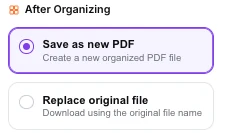
You can save as a new PDF, which downloads with _organized added to the name, or choose Replace original file.
That second label promises more than it delivers, and it is worth being clear about: nothing on your disk is overwritten. The option simply downloads the result using the original filename instead of adding a suffix. Your browser will then do whatever it normally does with a name collision, which on most systems means saving a second copy with a number after it.
The practical effect is a tidier filename, not a replacement. If you genuinely want one file, delete the old one yourself after checking the new one.
Narrowing to a range first
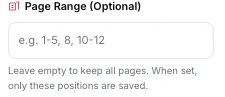
A range field limits the save to a slice of the board. Typing 1-20 produces a document of the first twenty pages as currently arranged, leaving the rest behind.
Note that the numbers refer to positions on the board, not to the original document. After you have dragged pages around, position five is whatever is fifth on screen now — which is exactly what you want, as long as you read the numbers off the thumbnails rather than remembering them from the file you opened.
Rearrange your own documentTry an order, undo it, try another. Nothing commits until you save.Open Organize PDF →
Getting a better result
Delete first, then arrange
Removing the pages you do not want before you start dragging means fewer thumbnails to work among and no risk of carefully positioning something you are about to throw away.
Rotate before you judge the order
A sideways thumbnail is hard to identify at a glance. Turning the odd pages upright first makes the arranging much faster, because you can actually see what each page is.
Use it after merging
Merge PDF joins documents end to end. When the finished order needs to interleave — a covering letter, then each invoice with its receipt behind it — merge first and arrange here.
Fix a two-pass scan here
A double-sided document scanned in two passes gives you all the fronts followed by all the backs. This is the tool that puts them back in sequence, and duplicate detection by eye is easier in list view.
Open the result before sending it
Page order is the kind of mistake that is invisible until somebody else finds it. Thirty seconds scrolling the saved file is cheap insurance.
What it will not do
- It does not modify your file on disk — every save is a download, whatever the option is called.
- It does not edit page content — for text and images on a page, see Edit PDF.
- It does not combine documents — one file at a time; use Merge PDF first.
- It does not preserve bookmarks that pointed at moved pages, since their targets have changed.
- It cannot open an encrypted document — clear the password first.
Common questions
Does rearranging reduce quality?
No. On the Original page-size setting pages are copied exactly as they are. Choosing A4 or Letter scales them onto a uniform sheet, but they stay vector content — text remains selectable and nothing is converted to an image.
Can I undo a change?
Yes, every step. The board holds a history, so you can try an arrangement and walk it back if it does not read well.
Why is my original still on my computer?
Because the tool never touches it. Even the “replace” option only changes the name of the file it downloads — deleting the old one is your decision to make.
Can I combine pages from two PDFs here?
Not directly. Join them with Merge PDF and then arrange the combined document here, which also gives you page-level control over the interleaving.
Is my document uploaded?
No. Rendering the thumbnails and building the finished PDF both happen in your browser, on your own machine.
What happens to a blank page I inserted?
It becomes a real empty page in the saved document, at the size the page-size setting specifies.
The rest of the PDF toolkit
- Merge PDFBring the documents together before arranging them.
- Rotate PDFA simpler screen when turning pages is the whole job.
- Delete PagesTrim the document down before you start dragging.
- Add Page NumbersNumber the pages once the order is settled.
- Split PDFBreak the arranged document into separate files.