A scanned page is a photograph of words. Your eyes read it fine; your computer sees a grey rectangle. That is why searching a scanned contract finds nothing, why you cannot copy a paragraph out of it, and why a screen reader has nothing to say about it.
Optical character recognition closes that gap by looking at the picture and working out which letters are in it. Here is how Pixpoo does it, what to expect from the result, and one thing about the output that you should know before you start.
Read a scanned PDF now13 languages, running on your own machine. Free, nothing uploaded.Open OCR PDF →
What you get back
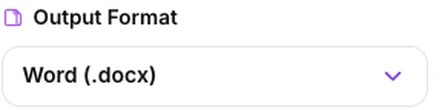
Set expectations here first, because the name invites the wrong one. This tool reads your scan and hands you the words as a document — Word, plain text or rich text. It does not give you back a searchable version of your PDF with an invisible text layer over the original pages; your uploaded file is returned unchanged.
Which is right depends on what you are actually after:
| Format | Choose it when |
|---|---|
| Word | You will edit the text, or want the page pictures alongside it |
| Plain text | The words are feeding something else — a spreadsheet, a script, a search |
| Rich text | An older or unusual word processor has to open it |
If what you wanted was a PDF that looks the same but can be searched, the place to get one is Word to PDF with its OCR option, which renders a document visually and writes an invisible recognised layer behind it.
Accuracy against speed
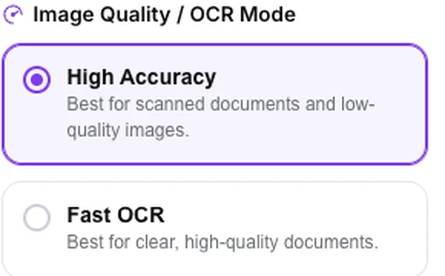
Two modes, and the difference is how large the page is rendered before it is read. High Accuracy renders at roughly half again the resolution of Fast, which gives the recogniser more pixels per letter to work from.
On clean, large print the two are close. On small type the gap opens quickly — on a contract set in seven and a half point, High Accuracy matched the original while Fast got roughly one word in twenty wrong. One word in twenty sounds tolerable until you are reading a page of it.
Use Fast for a quick look at what a document says. Use High Accuracy for anything you intend to keep, quote or rely on. The extra time is worth it.
Choosing the language
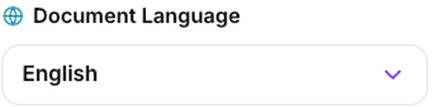
Thirteen are available: English, Spanish, French, German, Italian, Portuguese, Dutch, Hindi, Chinese, Japanese, Korean, Arabic and Russian.
Pick correctly, because the language does more than switch an alphabet — the recogniser uses it to decide between letterforms that look alike. Reading French with the English model produces plausible-looking nonsense around every accent.
One at a time, though. A genuinely bilingual document will lose whichever language you did not choose, and the practical answer is to run it twice and keep the good half of each.
Shaping the text
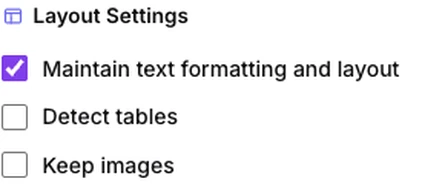
Maintain text formatting keeps every line from the page as its own line. Leave it on for anything where line structure carries meaning — addresses, numbered clauses, tables, forms. Turn it off for flowing prose, and consecutive lines are joined into paragraphs that behave properly when you edit them.
Detect tables converts runs of spaces into tab characters, which lines columns up when you paste the result somewhere that understands tabs. It aligns rather than builds — you get tab-separated text, not a real table object — and it depends on the line structure, so it is undone entirely if you also turn off Maintain text formatting. Use the two together or not at all.
Keep images puts a picture of each page into the Word file above its text, which is useful when you want to check the recognition against the original. It costs a few hundred kilobytes per page, at roughly a third of the resolution of a 300 DPI scan, so a long document becomes a very large file.
Auto-rotate lets the recogniser correct a page that went in sideways. Leave it on; it costs nothing and saves the occasional disaster.
Read the confidence figure
The text appears page by page as it is recognised, and an average confidence percentage is reported at the end. It is worth a glance, because it tells you roughly how much proofreading you are about to do.
Above ninety and the result is generally sound with occasional slips. Down in the seventies, the scan is fighting you and re-scanning will do more good than any setting on this page.
When this is the wrong tool
Two cases worth naming.
The PDF already has text. The tool does not check — it photographs each page and guesses at it regardless, discarding the real text that was already there in favour of a recognised approximation. If you can select words in your PDF, use PDF to Word, which takes them straight out of the file with no guessing at all.
The page is handwritten. The models here are printed-text models; there is no handwriting model among them. Handwriting comes back as noise, not as words.
Read your own scanWatch the text appear page by page, then download it.Open OCR PDF →
Getting a better result
The scan matters more than the settings
Recognition works from what is there. A page scanned flat at 300 DPI in good contrast reads close to perfectly; a phone photograph taken at an angle in a dim room does not, and nothing here can rescue it. Where you can rescan, rescan.
Straighten pages first
Auto-rotate handles quarter turns. A page that is merely skewed by a few degrees is harder, and Rotate PDF only helps with the obvious cases.
Do a page before you do a book
Run one representative page, look at the confidence and read the output. Two minutes there tells you whether the whole document is worth the wait.
Work in sections
Recognition is heavy work, and each page waits its turn on your hardware, so a whole book is a matter of minutes rather than seconds. Extract Pages into chunks and do them in turn.
Always proofread names and numbers
Recognition errors cluster exactly where they hurt: a zero for an O, a one for an l, a decimal point that moved. Prose errors are obvious; a wrong digit in an account number is not.
What it will not do
- It does not return a searchable PDF — the output is a text document.
- It does not read handwriting.
- It does not build real tables — columns are aligned with tabs.
- It does not handle two languages in one pass.
- It does not check for text that is already there — it will re-recognise a perfectly good PDF.
Common questions
Do I get a searchable PDF back?
No, and this is the thing most worth being clear about. You get the words as a Word, text or rich text file. Your original PDF is untouched and no invisible layer is added to it. If the words are what you needed, that is exactly what arrives.
How accurate is it?
On a clean scan of ordinary print, high enough to be genuinely useful. The confidence figure reported after each run is your guide, and the honest expectation is a good draft that needs proofreading rather than a finished transcription.
Is my document uploaded?
No. The recognition engine is downloaded to your browser and runs on your own machine, which is why a long document takes real time — and why a confidential scan never leaves your device.
Why is it so slow?
Because it is genuine computation happening on your hardware rather than on a server farm. That is the trade for privacy. Fast mode and working in sections both help.
Can it read a photograph of a document?
It will try. Results depend on how flat, even and sharp the photograph is. A page held flat under good light does reasonably; one photographed at an angle with a shadow across it does not.
What about tables and columns?
Detect tables aligns columns with tabs, which is enough to paste into a spreadsheet. Multi-column layouts are harder, and reading order can interleave the columns.
The rest of the PDF toolkit
- PDF to WordThe right tool when the PDF already has real text.
- Rotate PDFGet pages upright before recognition runs.
- Extract PagesBreak a long scan into manageable sections.
- Word to PDFIts OCR option is where a searchable PDF comes from.
- Compress PDFShrink the scan once you have the words out of it.