“Can you send me just the schedule?” is one of the most common requests in working life, and the honest answer is usually that the schedule lives on pages 34 to 39 of a document nobody wants to scroll through. Extracting turns those six pages into a file of their own.
The tool has a couple of behaviours that are not obvious from looking at it, and knowing them turns a fiddly job into a fast one.
Extract pages nowClick pages, type ranges, or both. Free, and nothing leaves your device.Open Extract Pages →
Two ways to choose, and they add up
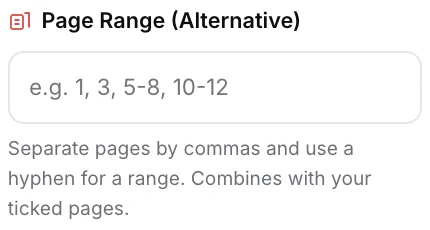
You can tick pages in the thumbnail grid, or type a range like 4, 12-18, 27. What is easy to miss is that these are not alternatives — they combine. Whatever you have ticked and whatever you have typed are added together, and duplicates are collapsed.
That makes an awkward selection much less tedious. Type the long run you can name, then click the two extra pages you spotted while scrolling, instead of working out the full expression in your head. It also means a forgotten range left in the box will quietly add pages to a selection you thought was just your ticks — so clear the field when you change your mind.
Odd, even, and double-sided scans

Alongside All and None there are Odd and Even buttons, and they exist for one specific and very common mess: a double-sided document run through a single-sided scanner. You end up with every front, then every back, or with alternating pages of content and blank versos.
Even is how you delete the blank backs of a double-sided original in one click. Odd and Even together are how you separate a stack that was scanned in two passes, ready to interleave properly in Organize PDF. Working through 60 thumbnails by hand to achieve the same thing is a genuinely miserable ten minutes.
The switch that reverses the question
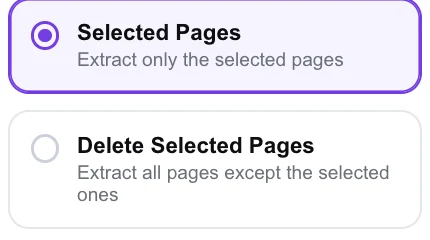
Your selection can mean one of two opposite things, and a pair of options decides which: keep only the pages you chose, or keep everything except them.
Choose whichever needs less clicking. Wanting pages 34 to 39 out of a 200-page report is obviously the first. Wanting to lose the three-page disclaimer at the end is the second — select three pages and invert, rather than selecting 197.
Do glance at which option is active before downloading, because the two produce almost exactly opposite documents from an identical selection. The page count on the result is the quickest way to tell you got the one you meant.
What comes out
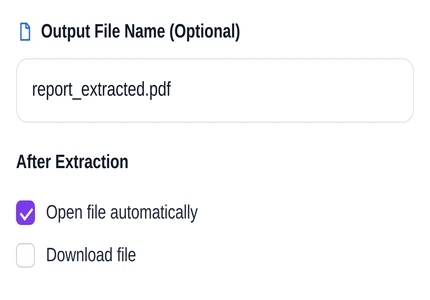
One PDF, containing your pages in their original order, with everything about them preserved. The pages are copied rather than rebuilt, so text is still selectable, images keep their quality and nothing is re-compressed. You can name the file before downloading, and choosing something descriptive is worth the five seconds when it is about to be emailed to somebody.
There are also toggles for what happens when it is ready — open it automatically in a new tab, download it straight away, or neither. Opening automatically is the safer habit: you see what you made before it goes anywhere.
Extract or split?
The two tools overlap and people pick the wrong one regularly. The distinction is only about how many files you want at the end.
| You want | Tool |
|---|---|
| Chosen pages together in one document | Extract Pages |
| Each section as its own separate document | Split PDF |
| Most of the document, minus a few pages | Extract Pages, inverted |
| Every page as its own file | Split PDF |
One file is almost always what a person on the other end of an email wants. Several files are what a filing system wants.
Pull out what you needName the file, check the count, download.Open Extract Pages →
Getting a better result
Name the output before you download
Lease_Schedule_A.pdf tells the recipient what they have. The default name tells them nothing, and renaming a file after it is in a downloads folder is a job everybody postpones.
Clear the range box when you change approach
Because ticks and typed ranges combine, a leftover entry silently adds pages. If the result has more pages than you expected, look there first.
Extract before converting or compressing
Six pages convert to Word, run through recognition, or compress far faster than two hundred. Narrow the document first and every later step gets cheaper.
Use invert for the long tail
Terms, disclaimers and appendices usually sit at the end. Selecting them and inverting is quicker and less error-prone than selecting everything before them.
Check the page count against the request
If somebody asked for pages 34 to 39, the result should have six pages. Counting takes a second and catches the off-by-one that ranges invite.
What it will not do
- It does not reorder — extracted pages keep their original sequence regardless of the order you selected them.
- It does not produce several files — that is Split PDF.
- It does not let you extract nothing, or invert away every page.
- It cannot read a protected document — use Unlock PDF first.
Common questions
Will the extracted pages lose quality?
No. They are copied across as they are, so text stays selectable and searchable, images keep their original quality, and nothing is re-encoded.
Can I extract pages that are not next to each other?
Yes — that is what the tool is for. Tick them individually, or type something like 3, 9, 14-16, or do both.
How do I keep the extracted pages in a different order?
Extract them first, then reorder the result in Organize PDF. Selection order is ignored here by design, so that a careless click does not scramble a document.
Is my document uploaded?
No. Reading the file and building the new one both happen in your browser, on your own machine. Nothing is transmitted.
Does the original change?
No. You get a new file as a download; the document you opened is untouched on your disk.
What is the largest document I can work with?
There is no fixed limit, because there is no server imposing one. The constraint is your device’s memory — a several-hundred-page scan is more comfortable on a computer than a phone.
The rest of the PDF toolkit
- Delete PagesThe same idea when you are keeping most of the file.
- Split PDFWhen each section should become its own document.
- Organize PDFPut the extracted pages into the order you want.
- Merge PDFJoin extracts from several documents into one.
- Sign PDFSign the one page that needed signing.