Most PDFs are made by exporting from whatever produced the content. But there is a recurring situation that no export handles: you have a pile of assorted things — a couple of photographs, a spreadsheet, a Word file, some typed notes, an existing PDF — and they need to become one document.
Create PDF is built for that job specifically. It takes mixed sources and assembles them into a single file, and knowing how it treats each kind of input is the difference between a good result and a surprising one.
Create a PDF nowImages, documents, typed text — assembled in your browser. Free.Open Create PDF →
What each kind of input becomes
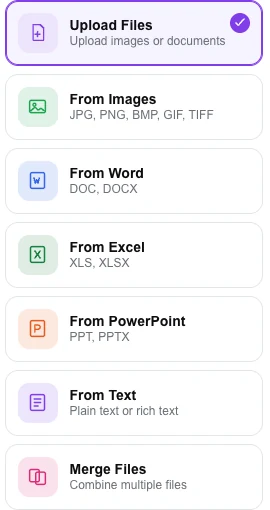
This table is the most useful thing on this page, because the treatments differ a great deal.
| You add | You get |
|---|---|
| Images | One page per picture, at the quality you choose |
| An existing PDF | Its pages copied in exactly as they are |
| Word, Excel or PowerPoint | The text only, as plain typed pages |
| Plain or rich text | Typed pages with automatic wrapping |
| Text you type in | The same, straight from the box |
The third row is the one to internalise. Office documents are read for their words, not rendered — you get the text without the fonts, the colours, the tables, the charts or the images. That is genuinely useful when you want the content of a spreadsheet in a bundle, and quite wrong if you wanted the spreadsheet to look like a spreadsheet.
If appearance matters, do the conversion properly first. Word to PDF renders a document visually; add the resulting PDF here instead of the .docx, and its pages come through untouched.
Arranging the pieces
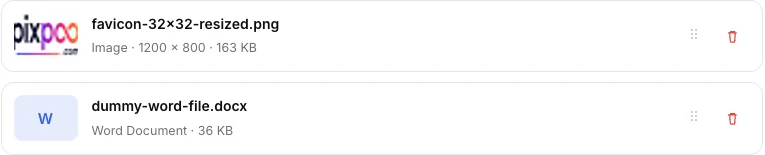
Everything you add appears in a list you can reorder by dragging, and the finished document follows it from top to bottom. Grid and list views are both available — grid is easier when you are arranging images by eye, list when you are checking a sequence of documents by name.
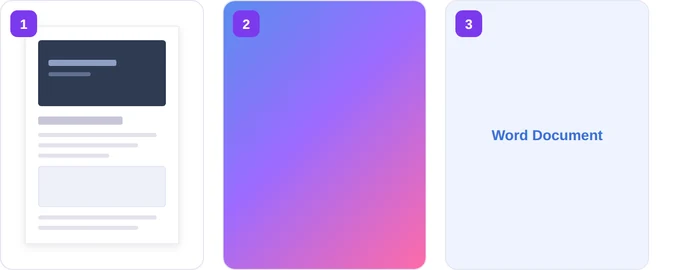
Legacy Office formats are flagged rather than silently failing. A .doc, .xls or .ppt gets a notice asking you to save it in the modern format first, which takes fifteen seconds in any word processor and is worth doing anyway.
Page setup and image quality
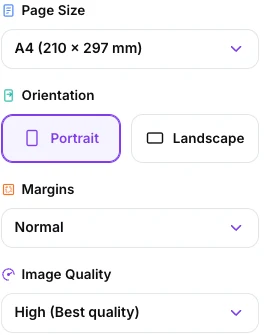
A4, Letter, Legal, A3 or A5, portrait or landscape, with four margin widths. Straightforward, and worth matching to wherever the document is going.
The quality setting is more interesting than it looks. On High, a JPG or PNG you add is embedded exactly as it is — not re-encoded, not resized, pixel-identical to your file. Medium and Low re-encode everything to JPEG at progressively smaller dimensions, which shrinks the document substantially and cannot be undone.
So: High when the pictures matter, Medium when the document has to travel by email and the images are illustrative rather than the point. Or leave it on High and run the finished file through Compress PDF, where you can see the size before committing.
Footers and finishing options
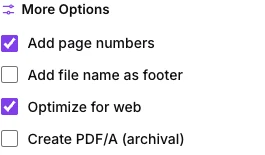
Page numbers are added by default, in the form 3 / 12 at the foot of each page — sensible for a bundle assembled from many sources, where a reader needs to know where they are. For more control over position, style and starting number, turn it off here and use Add Page Numbers afterwards.
A source-filename footer can also be printed on each page, which is genuinely helpful in an evidence bundle or a submission where somebody may need to trace a page back to the file it came from.
There is a PDF/A option for archival use. Be aware of what it is: the tool says so itself — the tagging is best-effort, and what you get is a standard PDF carrying archival metadata rather than a validated PDF/A file. If you are submitting to an archive that runs a compliance checker, that is unlikely to be enough.
The character-set limitation
Worth knowing before you paste anything in. Text pages are drawn with a standard PDF font, which covers the Latin-1 range — English and Western European languages, accents included. Characters outside it are replaced with question marks.
In practice that means Hindi, Chinese, Japanese, Korean, Arabic, Russian and similar scripts will not survive as text here, whether typed into the box or read out of a Word file. Smart quotes and dashes are converted to their plain equivalents, which is harmless. For a document in a non-Latin script, render it visually with Word to PDF and add that PDF instead.
Assemble your own documentAdd the pieces, arrange them, download one file.Open Create PDF →
Getting a better result
Convert before you assemble
Anything whose appearance matters should arrive here as a PDF already. Convert it properly, then add the PDF — its pages are copied in exactly, with nothing lost.
Photograph documents squarely
If images are paperwork rather than pictures, shoot from directly above in even light. A skewed photograph makes a skewed page and there is no fixing it afterwards.
Leave quality on High and compress at the end
One informed compression beats degrading every image on the way in, and the compressor shows you what you are buying.
Use the filename footer for bundles
In anything assembled from many sources, being able to trace page 34 back to its original file saves a real argument later.
Consider whether you want Merge instead
If every input is already a PDF, Merge PDF is the more direct tool, with page-level arranging that this one does not offer.
What it will not do
- It does not render Office documents visually — only their text comes through.
- It does not support legacy .doc, .xls or .ppt — save them in the modern format first.
- It does not handle non-Latin scripts in text pages.
- It does not produce validated PDF/A — the tagging is best-effort metadata.
- It does not arrange at page level — you order the sources, not their pages.
Common questions
Can I turn a Word document into a PDF here?
You can bring its text in, but not its appearance. For a PDF that looks like the document, use Word to PDF — and if it is going into a bundle, add the converted PDF here afterwards.
Can I combine photos and documents in one file?
Yes, and that is what the tool is best at. Add them all, drag them into order, and each contributes its pages in place.
Will my images lose quality?
Not on High, where JPGs and PNGs are embedded exactly as they are. Medium and Low re-encode them deliberately, to make a smaller document.
Is anything uploaded?
No. The document is assembled in your browser on your own machine, so a bundle of personal paperwork stays where it is.
Why did my spreadsheet lose its table?
Because Excel files are read for their text rather than rendered. If the layout matters, export the sheet as a PDF from your spreadsheet application and add that instead.
Can I add pages later?
Not to a finished file from here, but Merge PDF will join the new material to it, and Organize PDF will put everything in the right order.
The rest of the PDF toolkit
- Merge PDFThe better choice when every input is already a PDF.
- Word to PDFConvert documents properly before assembling them.
- JPG to PDFMore layout control when the inputs are all images.
- Add Page NumbersProper control over position, style and starting number.
- Compress PDFShrink the assembled bundle in one informed pass.