Create PDF
Turn images, documents and slides into one PDF.
Drag & drop your files here
images, Word, Excel, PowerPoint, text or PDFs
How to create a PDF from mixed files
- Pick a source on the left, then add your files — or choose From Text and type the content directly.
- Add as many items as you need; they collect in one list which you can reorder by dragging.
- Set the page size, orientation, margins and image quality on the right.
- Tick page numbers or the filename footer if the finished document needs them.
- Press Download PDF, or use Preview PDF to open it in a tab and check it first.
Want a more detailed walkthrough? Read the full step-by-step guide →
Create PDF online — free, fast and private
Build a PDF from images, Office files and text. With Pixpoo you can create PDF online for free, right in your browser — no sign-up, no watermark, and your files are processed locally rather than sent to Pixpoo’s servers.
About Create PDF
Create PDF builds one document out of whatever you have — photos, an existing PDF, a Word file, a spreadsheet, a deck, or text you type straight in. Everything is added to a single list, dragged into the order you want, and written out as one file.
The mixing is the point. Merge PDF joins PDFs to PDFs and JPG to PDF joins images to images; this is the tool for the awkward job where a claim or a submission needs a scanned receipt, a covering letter written in Word and two photos, all in one document and in a particular order.
How faithfully each item arrives depends on what it is, and the difference is large. Images and PDF pages come through as they are. Office documents do not: their text is read out and re-set as plain type, without the original layout. The option cards below are specific about which is which, so nothing surprises you after you download.
What is worth building this way?
Anything that has to arrive as one document but starts life as several unrelated files.
- An insurance or warranty claim: the receipt, photographs of the damage and a written explanation.
- An expense report combining scanned receipts with a summary you type in.
- A job application where a CV, a covering letter and a certificate all need to go in one attachment.
- A handover pack pulling together notes, screenshots and an existing reference PDF.
- A submission to a portal that accepts a single PDF and nothing else.
Create PDF options explained
The panels run left to right: choose what you are adding, collect and order it, then decide how the finished document is put together.
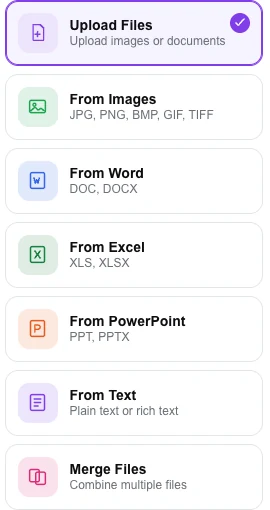
Choose Source
Seven entry points. Six of them open a file picker filtered to that type — choosing From Word shows only .doc and .docx, From Images only picture files, and so on. Upload Files and Merge Files accept everything. From Text is the one that behaves differently: it gives you a box to type or paste into instead of a file picker.
The filtered pickers are a convenience rather than separate machinery — each file is handled by what it actually is once added, so a Word file added through Upload Files is treated exactly the same as one added through From Word. Use the specific entries to cut down a cluttered folder; use Upload Files when you are adding several kinds at once.
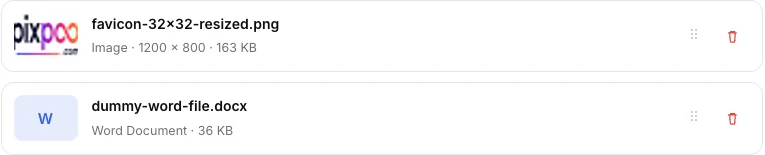
The file list
Everything you add lands here with what Pixpoo made of it — the type, the page count for a PDF, the pixel dimensions for an image, the file size. Each row has a handle for dragging and a bin for removing it, and Add More Files keeps appending to the same list.
Read the type label as a check on your file rather than decoration: if something you expected to be recognised as a Word document shows up as another type, that is where you will see it. An item that cannot be read at all is not silently dropped — it becomes a page in the finished PDF explaining what failed, so you know which file to fix.
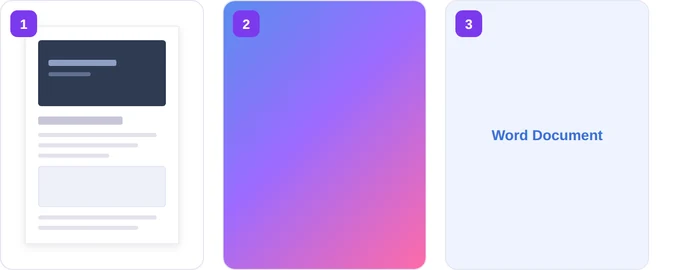
Arrange Files
A numbered card for each item, in the order they will appear. Drag a card to move it. A PDF contributes all of its pages at that position, an image becomes one page, and an Office or text item becomes as many pages as its text needs.
Set the order here before building rather than reorganising afterwards. The numbers are positions in the final document, which is what matters when a covering letter has to come before the evidence rather than after it.
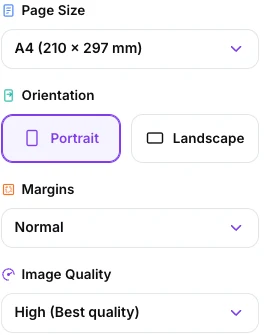
Page Size, Orientation, Margins and Image Quality
The first three set the sheet every generated page is written onto, and images are scaled to fit inside the margins. Image Quality decides how pictures are stored: on High a JPG or PNG is embedded exactly as it is, while Medium and Low redraw it as a JPEG and cap its longest side at 2200 and 1400 pixels respectively.
Leave Image Quality on High unless the file has to be small — we confirmed it passes JPGs and PNGs through byte for byte, and the reduction on the lower settings cannot be undone. Two things to watch on Medium and Low: everything becomes JPEG, so a transparent PNG is flattened onto white, and a small transparent PNG can actually come out larger than it started. Note that page size applies to the pages Pixpoo generates; pages taken from an existing PDF keep their own dimensions, so a mixed document can end up with more than one sheet size.
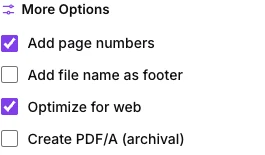
More Options
Add page numbers puts a centred "3 / 12" at the foot of every page. Add file name as footer prints the name of the source file each page came from, which is genuinely useful in a bundle assembled from many documents. Optimize for web packs the PDF’s internal objects more tightly. How much that saves depends entirely on the document: on a text-only test file we measured about 40 per cent, but on a realistic mix of an image and a Word import it was closer to 4. It does not enable the progressive loading the phrase sometimes implies — we checked the output and it carries no linearisation.
The filename footer earns its place in evidence bundles and expense claims, where someone later needs to know which page came from which original. Page numbers are worth adding to anything that will be printed or referred to by page. Leave Optimize for web ticked if you want the smaller output; it does not change the page content — we compared the rendered pages with it on and off and they are identical.
Why use Pixpoo for Create PDF?
- One list takes images, PDFs, Word, Excel, PowerPoint and plain text together, in any combination.
- Type or paste text directly into the tool when what you need is a covering note rather than a file.
- Drag the items into order before building, so the finished document reads the way you intend.
- Existing PDF pages are copied across rather than rebuilt, so they keep their quality.
- Optional page numbers, and a footer that records which source file each page came from.
- Nothing leaves your machine — the whole document is assembled in your browser.
Create PDF features
Create PDF limitations
The important one concerns Office files. A Word, Excel or PowerPoint document is not converted visually here — its text is extracted and re-set as plain type, so headings, bold and italic, colours and any embedded images are lost. We tested a Word file containing a heading, styled runs, a bordered table and a picture: the text arrived, the picture did not, and the table came through as its cell contents on separate lines. The other two formats fare better in their own way. PowerPoint gives one page per slide with titles and bullet text in order, though slide images are dropped. A spreadsheet gives one page per sheet with the cells of each row spaced out across the line, so the columns stay readable even though the grid, the formatting and any charts do not survive. If a Word document needs to look like itself, use Word to PDF and add the resulting PDF here. Text is drawn with a standard font, so characters outside the Latin range — Greek, Cyrillic, Chinese, Japanese — become question marks, while accented Latin such as é and ü comes through. The Create PDF/A checkbox does not currently produce a PDF/A file. The page size you choose governs only the pages Pixpoo generates, so pages copied from an existing PDF keep whatever size they already had. And when you add an existing PDF, its web links survive but any internal cross-references do not: their targets are not rebuilt into the new document, so following one lands on the first page.
Common Create PDF questions
What can I build a PDF from?
Images, existing PDFs, Word documents, Excel spreadsheets, PowerPoint decks, plain text files, and text you type into the tool. They can be mixed freely in one document — a scanned PDF, two photographs and a typed note is a perfectly normal combination here.
Will my Word document look the same in the PDF?
No. This tool reads the text out of an Office file and re-sets it as plain type; the layout, styling and any images do not come with it. Each format keeps a little of its shape — a spreadsheet gets one page per sheet with the row values spaced across the line, and a deck gets one page per slide — but none of them is a visual conversion. That is a deliberate difference from Word to PDF, which renders the document properly. If appearance matters, convert it there first and add the resulting PDF to this list.
What does Create PDF/A (archival) do?
Nothing at present. PDF/A is a strict archival profile with requirements about embedded fonts and colour that this tool does not currently apply, and ticking the box does not change the file you get. If you need genuine PDF/A for a legal or records-management requirement, use software built for it.
What does Optimize for web actually change?
It packs the PDF’s internal objects more compactly. The saving varies a lot with content — about 40 per cent on a plain text document in our testing, but under 5 per cent on one mixing an image with an imported Word file. It is a compression setting rather than the "fast web view" linearisation the name suggests: we inspected the output and there is no linearisation, so pages will not start appearing before the download finishes. It does not alter the page content — the rendered pages are identical with it on and off.
Does adding an existing PDF reduce its quality?
No. We compared the pages before and after: content, images, page sizes and rotations all arrive identical, and the text stays selectable. What does not travel is the document-level layer of that file — its bookmarks and properties are dropped, and links that pointed to another page within it lose their target and land on page one. Web links are unaffected.
Why do my pages have different sizes?
Because the page size setting applies to the pages Pixpoo creates — image pages and text pages. Pages taken from an existing PDF keep their own dimensions. A document built from a mix of both can therefore contain more than one sheet size, which is normal but worth knowing before printing.
One of my files could not be read — what happens?
Usually the build carries on and a page is added in that file’s place explaining what went wrong, so you still get the rest of your document and can see which item needs attention. We tested corrupt .docx, .xlsx and .pptx files, a malformed PDF and an unrecognised file type, and all five produced an explanatory page rather than stopping the build. Legacy .doc, .xls and .ppt files are the common real-world cause; re-saving them in the modern format normally fixes it.
Is the Create PDF tool free?
Yes. Create PDF with Pixpoo is completely free — no sign-up, no watermark, no usage limits and no paid plan. It runs entirely in your browser, so there is nothing for us to meter.
Are my files uploaded to a server?
No. When you use Create PDF, your files are processed in your browser and are not sent to Pixpoo’s servers — Pixpoo does not upload or store them.
Related tools: PDF to Word, JPG to PDF, PDF to JPG, Word to PDF. All PDF tools →