Signing a document used to mean printing it, signing it, scanning it and emailing back a crooked grey photograph of a page. Nobody misses that. Adding a signature directly to the PDF takes about a minute and produces a cleaner document than the printer ever did.
This covers the three ways to make a signature in Pixpoo, where to put it, and — the part worth reading before you sign anything that matters — what kind of signature this actually is.
Sign a PDF nowType, draw or upload a signature and place it. Free, nothing uploaded.Open Sign PDF →
What kind of signature this is
Worth settling first, because the word covers two quite different things.
This tool produces an electronic signature: a picture of your signature placed onto the page. For the overwhelming majority of everyday documents — a rental agreement, a consent form, a supplier contract, a school letter — that is what everyone means by signing, and it is what a scanned wet signature amounts to as well.
It is not a digital signature in the cryptographic sense. There is no certificate, no identity verification, and no tamper-evident seal that would show if the document were altered afterwards. Anyone who receives the file can copy the signature image out of it. If you are dealing with something that specifically requires a certified or qualified electronic signature — certain property, court or regulated financial documents — you need a service that issues certificates, not this.
For everything else, the honest position is that a signature here is exactly as strong as the scanned one it replaces, and considerably tidier.
Three ways to make one

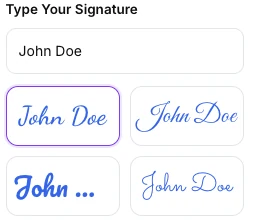
Type it. Enter your name and pick from four handwriting faces. It is quick, always legible, and looks like what it is — a typed name in a script font. Perfectly normal on routine paperwork.
Draw it. Sign with a mouse, a trackpad or a finger. A finger on a phone or a stylus on a tablet gives a far better result than a mouse, which produces the wobbly line everybody recognises. If a document is going somewhere it will be looked at closely, this is worth doing on a touchscreen.
Upload it. The best-looking option: sign a blank sheet with a dark pen, photograph it in good light, crop it tight in Crop Image, and upload it. A photograph taken on white paper against even light needs very little tidying. Do it once, keep the file, and every document from then on gets your real signature.
Size and colour
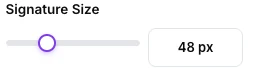
A size slider and five colours. Blue is the conventional choice for signatures on printed documents, for the old and still useful reason that it distinguishes an original from a photocopy — a habit worth keeping even when nothing will be photocopied.

On size: match it to the line you are signing on. A signature noticeably larger than the space provided reads as careless, and one that is too small looks tentative. Drag it into position over the page preview and adjust until it sits naturally.
Which pages get signed

Three choices: every page, the last page only, or a range you type.
Last page is the common case for a contract with the signature block at the end. Every page is for the documents that ask you to initial each one — and here is the thing to know before you use it: the signature lands in the same position on every page. That works when you have placed it in a corner as an initial. It does not work if you were expecting it to find each page’s signature line, because it will happily stamp your name over the middle of the text.
For a document with signature blocks in different places, sign the pages in separate passes with the range option, or use the range field one page at a time.
Adding the date

A checkbox adds a date alongside the signature. Useful when the document has no date field of its own, and one less thing to fill in by hand. Where the form already has a dated line, leave it off and complete that field instead — two dates in different places invites a question.
Sign your own documentPlace it on the page, choose the pages, download.Open Sign PDF →
Getting a better result
Make a signature file once
Ten minutes producing a good transparent PNG of your real signature pays for itself over years. Sign several times on one sheet, photograph it in daylight, pick the best one, and keep it somewhere you will find it.
Sign on a touchscreen if you are drawing
The difference between a finger and a mouse is not subtle. If you only have a computer to hand, typing looks better than a badly drawn line.
Check the placement at full size
A signature that looked right on a zoomed-out preview can sit slightly over the printed line. Open the finished PDF before sending it.
Fill the form first, sign last
Complete any fields with Edit PDF before signing, so you are not re-signing a document you had to correct.
Consider protecting it afterwards
A signed document that should not be altered can be given permission restrictions with Protect PDF. It is a deterrent rather than a guarantee, but it signals intent.
What it will not do
- It does not create a certified digital signature — no certificate, no cryptographic seal.
- It does not verify who you are — anyone using the tool can type any name.
- It does not detect signature fields — you place the signature yourself.
- It does not vary the position across pages — one placement is applied to every page you selected.
- It cannot sign an encrypted document — unlock it first.
Common questions
Is an electronically signed PDF legally binding?
In most countries, for most ordinary agreements, an electronic signature is recognised — the same status a scanned signature has. But requirements vary by country and by document type, and some categories demand a certified signature or a witness. This is general information rather than legal advice; if the document is significant, ask someone qualified in your jurisdiction.
Can somebody copy my signature out of the PDF?
Yes. It is an image on a page, and that is true of every scanned signature ever emailed. Treat a signed PDF as you would a signed letter: send it to the person who needs it and no further.
Is my document uploaded?
No. The preview, the placement and the writing of the signed file all happen inside your browser. Your contract never leaves your machine, which is a meaningful difference from services that ask you to upload it.
Can I sign a document someone else already signed?
Yes. Signatures are added to the page, so a second one goes on without disturbing the first. Open the file they returned and add yours.
Will the rest of the document still be selectable?
Yes. Only the signature is added as an image; the page content underneath is untouched, so text stays selectable and searchable.
Can I remove a signature afterwards?
Not from the signed file. Keep the unsigned original until you are sure — the download is a separate document, so it will still be there.
The rest of the PDF toolkit
- Edit PDFFill in the form fields before you sign.
- Protect PDFRestrict editing on the signed copy.
- Merge PDFAttach the signed page back to its bundle.
- Extract PagesPull out just the page that needs signing.
- Crop ImageTidy a photographed signature before uploading it.