Let us deal with the title first, because it promises something no compressor can fully deliver. Making a PDF smaller means throwing information away. The honest question is not how to avoid that, but how to spend the loss where nobody will notice it — and, just as often, whether compression is the right tool at all.
This walks through how Pixpoo’s Compress PDF actually works, what each level costs, and the two situations where you should close the tool and do something else instead.
Compress a PDF nowFour levels, a size estimate before you commit, nothing uploaded.Open Compress PDF →
What the tool actually does
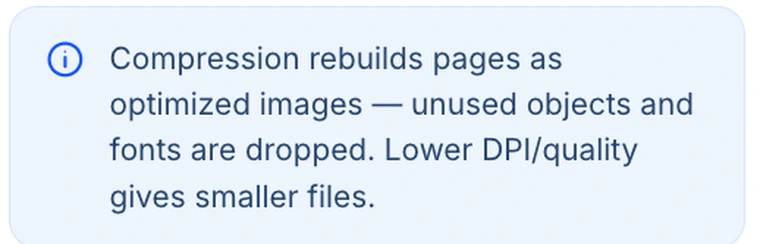
Each page is drawn at a chosen resolution, stored as a JPEG, and placed into a brand new PDF at the original page dimensions. Everything that was not visible on the page — unused objects, embedded font programs, leftover editing history — is simply never copied across, and that discarded baggage is frequently where a surprising share of the size was hiding.
The consequence is unavoidable and worth stating plainly: the finished file has no text layer. You cannot select, copy or search the words, and a screen reader cannot read them. Every page is a picture of a page.
Whether that matters depends entirely on what you started with. A scanned document was already a stack of images and loses nothing it had. A report exported from Word is giving up something real.
The four levels, and what they are made of
| Level | Resolution | JPEG quality | Suits |
|---|---|---|---|
| Low | 150 DPI | 0.88 | Anything that will be printed |
| Recommended | 110 DPI | 0.72 | Reading on screen, sending by email |
| Extreme | 72 DPI | 0.5 | Getting under a hard limit |
| Custom | You choose | You choose | Hitting a specific target |
The names are a little misleading in the usual way: Low means low compression, so the largest file and the best quality. Extreme means the opposite. Recommended sits in the middle and is where most documents should stay.
Of the two numbers behind each level, resolution matters more. Quality controls how hard JPEG squeezes each pixel; resolution controls how many pixels there are to squeeze, and it falls off quadratically — halving DPI leaves a quarter as many pixels. That is why 72 DPI produces such dramatic savings and why small text starts to crumble there.
Reading the numbers as physical detail
DPI is only meaningful against page size. On A4, 150 DPI gives roughly 1240 pixels across the page, 110 DPI about 910, and 72 DPI about 595. Eleven-point body text occupies an em box about 17 pixels tall at 110 DPI — legible on screen, visibly soft in print. At 72 DPI that drops to roughly 11 pixels, which is where the strokes of small letters begin to merge.
The practical rule: choose 150 if it will be printed, 110 if it will be read on a screen, and 72 only when a size limit is forcing your hand.
Use the estimate before you commit
The tool can sample your document and predict the output size for the current settings, which turns a guessing game into a decision. When a portal demands under five megabytes, this is how you find the gentlest setting that gets you there rather than reaching straight for Extreme and degrading the file more than the limit required.
Work downward: try Recommended, read the estimate, and only step up the compression if the number is still too high.
The two extra switches

Grayscale converts every page to shades of grey before the JPEG is made. On a colour scan this often saves a great deal, because colour information is a real part of what JPEG is storing. Leave it off if colour carries meaning anywhere — a chart with a colour key, a highlighted clause, a signature you want visibly in blue ink.
Remove metadata is on by default and clears the title, author, subject and keyword fields, replacing the producer and creator entries. It is worth knowing what it does not do: the output still carries a creation timestamp. If a document must be genuinely anonymous, check the finished file rather than assuming the checkbox handled everything.
You will never get a bigger file back
An already-optimised PDF can come out larger after being rebuilt as images — a common and counter-intuitive outcome for text documents. The tool checks for this: if the compressed result would exceed the original, it tries a plain lossless re-save, and if that is still no better it hands back your original file unchanged.
So a compression that appears to have done nothing has usually done something useful: it has told you this document had nothing to give.
Two times to close the tool and do something else
When pages are the real problem
Weight is roughly proportional to page count, so dropping the pages nobody reads takes the same proportion off the file — and costs nothing in quality. Before compressing, look at whether every page needs to be there. Delete Pages or Extract Pages is very often the bigger and cheaper win, and can be combined with a gentle compression afterwards.
When the text layer matters
If the document needs to stay searchable — a contract someone will Ctrl-F through, a reference you will come back to, anything going to a reader using assistive technology — compression here is the wrong trade at any level. A text-heavy PDF is usually small already. If it is not, the weight is in embedded images, and it may be worth going back to whatever produced the file and exporting it more sensibly.
Try it on your own documentCheck the estimate first, then decide how much to spend.Open Compress PDF →
Getting a better result
Start gentle and step down
Recommended first, estimate, then harder only if you must. Compression cannot be undone, and going straight to Extreme spends quality you may not have needed to spend.
Compress last, not first
If you are merging, splitting or rotating as well, do all of that on the original and compress the finished document once. Compressing an input and then processing it means every later step works on degraded pages.
Try grayscale before Extreme
On a colour scan, dropping to grey often saves more than a level of compression does, and grey text at 110 DPI reads better than colour text at 72.
Open the result before you send it
Look at the smallest text on the busiest page, at 100%. That is where compression shows first, and it takes five seconds to check.
Consider OCR for scans
Compression leaves a scan just as unreadable to a search box as it was. If what you actually need is the words, OCR PDF reads them out into a Word or text file \u2014 often worth more than the last few hundred kilobytes. It does not alter your PDF; it produces a separate document containing the text.
What it will not do
- It cannot keep your text selectable — every page becomes an image.
- It does not preserve bookmarks, form fields, annotations or links — none of them survive the rebuild.
- It does not keep transparency — pages are flattened onto white.
- It cannot hit an exact target size — the estimate guides you, but the result depends on the content.
- It cannot open an encrypted file — clear the password with Unlock PDF first.
Common questions
How much smaller will my file get?
It depends almost entirely on the contents. Scans and photo-heavy documents shrink dramatically, because photographs are precisely what JPEG handles well. Text and vector diagrams shrink far less and were often small to begin with. The estimate is the only reliable answer for your particular file.
Why did nothing happen to my file?
Because rebuilding it would have made it bigger, so you were given the smaller version back. That happens with PDFs that are already efficient — a sign the document has no easy weight to lose.
Can I undo it?
Not from the compressed file. Keep the original until you have checked the output, because the discarded detail is genuinely gone.
Is my document uploaded?
No. The rendering, the JPEG encoding and the rebuilding all happen inside your browser on your own machine. Nothing is transmitted, which is why a confidential file can go through this tool safely.
Does compressing affect print quality?
Yes, and this is where it shows most. Screens are forgiving because they display far fewer dots per inch than a printer does. If the document is destined for paper, use Low at 150 DPI and check a test page.
What about compressing images rather than a document?
Different job, different tool. Compress Image works on a single picture and shows the weight falling as you adjust. A photograph you are about to place into a document is better compressed first, as an image.
The rest of the PDF toolkit
- Delete PagesOften the bigger saving, and it costs no quality at all.
- OCR PDFPull the words out of a scan into an editable file.
- Split PDFBreak a long file into parts that each fit the limit.
- Merge PDFCombine first, then compress the finished document once.
- Compress ImageFor a single picture rather than a document.