Putting a password on a PDF is one of the few security measures that is both easy and genuinely effective — provided you understand which half of it is real encryption and which half is a polite request.
Pixpoo does this with qpdf, a long-established PDF library, compiled to run inside your browser. The encryption is the real thing. This article covers how to set it up, and where the honest limits sit.
Protect a PDF nowReal AES encryption, applied on your own machine. Free, nothing uploaded.Open Protect PDF →
Two passwords that do different jobs
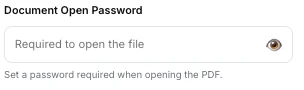
A PDF can carry two separate passwords, and confusing them is the most common mistake people make with this feature.
The document password — the one most people mean — is required to open the file at all. Without it the contents are encrypted and unreadable. This is real cryptography, and it is what protects a document that might end up in the wrong inbox.
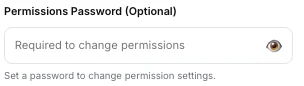
The permissions password is required to change the restrictions. It lets you produce a document that anyone can open and read, but that declares itself not-for-printing or not-for-copying. That is a different kind of protection, and a weaker one — see below.
You can set either, or both. Setting only a document password means that same password also governs the permissions, so anyone who can open the file can also lift its restrictions. When the restrictions matter, give them their own separate password.
What the permissions actually do
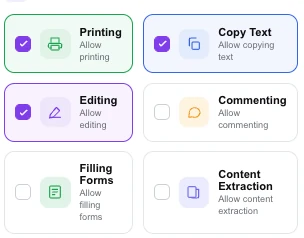
Printing, copying text, editing, commenting, filling forms and content extraction can each be allowed or refused. The flags are written into the document properly, and every mainstream PDF reader honours them.
Here is the part that is rarely said plainly: permissions are advisory. They are a request the file makes of the software opening it, not a lock. A reader that chooses to ignore them can, and tools exist — including this site’s own Unlock PDF — that will strip restrictions from a document that opens without a password.
So permissions are the right tool for signalling intent to reasonable people: this is a read-only copy, please do not print it, do not lift the text. They are the wrong tool for stopping a determined one. If the content genuinely must not reach someone, a document password is what does that, because without it there is nothing to read in the first place.
One quirk to know: the Copy Text and Content Extraction toggles both control the same underlying permission, so enabling either allows text to be extracted. Setting one and not the other will not give you a half-measure.
128-bit or 256-bit
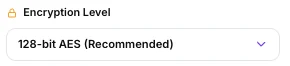
Both options are AES, and both are far beyond anything that gets broken by brute force in practice. The difference that matters is compatibility rather than strength: 128-bit is understood by essentially every PDF reader in existence, while 256-bit requires a reasonably modern one.
Choose 128-bit when the document is going to someone whose software you do not know about — a client, a government portal, an office with a decade-old installation. Choose 256-bit for archives and for recipients you know are current.
Either way, the encryption is only ever as good as the password. A 256-bit cipher protecting the word password1 is not protecting anything, because nobody attacks the cipher when they can guess the passphrase. Length beats complexity: four unrelated words are both stronger and easier to remember than a short string of symbols.
The metadata option

By default everything in the document is encrypted, metadata included. The option here leaves the metadata readable without the password.
That sounds like a step backwards, and usually it is — leave it alone. It exists for document management systems that need to index a file by its title and author without being able to open it. Unless you are feeding an archive that specifically requires it, encrypting everything is the right default.
There is also a setting for refusing screen-reader access. It is best left alone in nearly every case: it blocks assistive technology from reading the document to people who need it, which is a real harm to a real person, and it stops almost nobody else.
Protect your own documentSet a password, choose what readers may do, download.Open Protect PDF →
Why a small scan can take longer than a huge report
Worth knowing before you wonder whether something has hung. The time encryption takes depends on how many internal objects a document is built from, not on its size in megabytes. Every object is encrypted separately, so the count is what matters.
Measured on the same engine, encrypting in a browser:
| Document | Objects | Time |
|---|---|---|
| 15.7 MB, exported from a word processor | a few hundred | 1.6 seconds |
| 15.7 MB, scanned and OCR’d | tens of thousands | 115 seconds |
| 70.4 MB, scanned and OCR’d | 93,123 | 110–128 seconds |
Two files of identical size, seventy times apart. The reason is the invisible text layer OCR adds: an object for every recognised word. A 70 MB photo album built from a handful of large images encrypts almost instantly, while a 15 MB scanned contract does not.
When a document is dense enough for this to matter, the tool works it out before you start and tells you what the wait will be, rather than leaving the page apparently frozen. Encryption runs in a background worker, so the page stays responsive while it works.
Getting a better result
Write the password down somewhere real
Nobody can recover it — not you, not us, not any legitimate service. A password manager is the right answer. An encrypted document whose password is lost is an encrypted document forever.
Never send the password the same way as the file
Putting both in one message defeats the whole exercise, since whoever sees the attachment sees the key beside it. Send the file by email and the password by message, or say it on the phone.
Use a passphrase
Four ordinary words are harder to guess than eight mixed characters and enormously easier to convey to a colleague over a phone line.
Do the other work first
Merging, compressing, signing and page removal all need to read the document, and an encrypted file has to be unlocked before any of them will touch it. Protect last, once the document is final.
Test it before you send it
Open the protected file and check that the password works and the restrictions look right. Ten seconds now beats a confused reply tomorrow.
What it will not do
- It cannot recover a password you forget — nothing can.
- It cannot stop someone re-typing or photographing your text.
- It cannot enforce permissions against software that ignores them.
- It does not track or expire the document — once sent, it is out there.
- It cannot protect an already-encrypted file — remove the existing password first.
Common questions
Is this real encryption?
Yes. The file is encrypted with AES by qpdf, a well-established PDF library running inside your browser, and the result is a standard encrypted PDF that any reader will demand a password for. It is not a viewer trick or a wrapper.
Is my document uploaded to be encrypted?
No, and this matters more here than anywhere else on the site: the encryption engine runs on your own machine, so a confidential document is not transmitted to be protected. Uploading a sensitive file to a server in order to secure it has always been a slightly odd bargain.
What if I forget the password?
The document is unrecoverable. That is what encryption means. Store it in a password manager before you close the tab.
Can someone remove the protection?
Permission restrictions on a file that opens freely, yes — any capable tool can lift those. A document password, no: without it there is nothing to decrypt, which is why the two are worth distinguishing.
Will the password stop it being printed?
Turning off printing asks readers not to print, and mainstream ones comply. It is a request, not a barrier. Someone determined can find software that ignores it.
Can I protect several documents at once?
One at a time here. If they belong together, Merge PDF first and protect the combined file — one password instead of several.
The rest of the PDF toolkit
- Unlock PDFThe reverse, for a password you know.
- Watermark PDFMark a copy as confidential as well as restricting it.
- Sign PDFSign before you protect, not after.
- Merge PDFCombine first so one password covers everything.
- Delete PagesRemove what should not be shared at all.