Converting a Word file to PDF is the step that turns a working document into a finished one. The layout stops depending on which fonts the recipient has installed, the page breaks stay where you put them, and nobody can accidentally edit a paragraph while reading it.
Pixpoo does this in your browser, and it offers a choice most converters hide from you: whether the output should look like your document or whether its text should stay selectable. Understanding that trade is the whole article.
Convert Word to PDF nowYour .docx never leaves your device. Free and no account needed.Open Word to PDF →
The one setting that changes everything
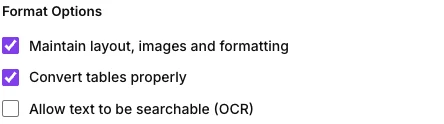
Maintain formatting is on by default, and it selects between two genuinely different conversions.
With it on, your document is laid out visually and rendered, then sliced into pages. Headings keep their sizes, lists keep their indents, tables keep their grids and images stay where you put them. The pages are pictures of your document, which means the PDF looks right and its text cannot be selected, copied or searched.
With it off, the words are extracted and drawn onto the page as real text in a standard font. Everything is selectable and searchable and the file is much smaller — but all formatting is gone. No headings, no bold, no tables, no images. Just paragraphs.
| Maintain formatting on | Maintain formatting off | |
|---|---|---|
| Looks like your document | Yes | No |
| Text selectable and searchable | No (unless OCR is on) | Yes |
| Tables and images | Kept | Lost |
| File size | Larger | Much smaller |
For almost everything people send — a CV, a proposal, an invoice, a report — appearance is the point and the default is right. Turn it off when the content matters and the look does not: a draft going for comment, a long text you want to search, a plain document where a small file is worth more than a typeface.
Getting a searchable PDF that still looks right
There is a way to have both, and it is easy to miss. Leave formatting on and enable OCR. The pages are still rendered as images, but the text is then read back and written invisibly behind the picture, at the position each word occupies.
The result is what a scanning department would call a searchable image PDF: it looks exactly like your document, and Ctrl-F finds words in it. Two things to expect — it is much slower, because recognition is real work done page by page on your own machine, and the recognition is set to English, so a document in another language will produce nonsense behind an otherwise perfect-looking page.
Page setup

A4, Letter, Legal, A3 and A5, in portrait or landscape, with four margin widths from none to wide. These describe the PDF you are producing rather than being read from the Word file, so if the document was written for Letter and you leave this on A4, the proportions shift slightly.
Margins do more than add white space here. Because the document is laid out to the width between them and then sliced, a wider margin means a narrower text column, which means more lines, which means more pages. Setting a wide margin on a long document can add several pages you did not expect.
Where the page breaks land
This is the honest limitation of the visual conversion, and it is worth knowing before you send something important.
The document is rendered as one continuous column and then cut into page-sized pieces. The cuts fall at regular intervals down that column — not at the page breaks you inserted in Word, and not necessarily between paragraphs. A heading can end up alone at the foot of a page, and a table can be sliced across two.
On a short document this rarely shows. On a long structured one it can, so open the result and look through it before it goes anywhere. Where a break lands badly, adjusting spacing in the Word file and converting again is usually quicker than fighting it.
Tables and fonts
A checkbox controls whether table borders are drawn. On keeps the visible grid, which suits data. Off removes the lines and tightens the spacing, which suits a table being used for layout rather than for figures — a two-column CV, for instance, where the grid would be a distraction.
On fonts, expect an approximation rather than a match. The document is laid out using fonts available in the browser, working down from Calibri through common system faces, rather than any typeface embedded in the file. Standard office documents come out looking right. A document set in something distinctive will be rendered in the nearest available substitute, and the line breaks will move accordingly.
Only .docx
Modern Word files convert; the old .doc format does not. If you have one, open it in any word processor and save as .docx first — a fifteen-second job that also modernises a format Microsoft replaced nearly two decades ago.
Convert your own documentPick the layout mode that matches what you need, then download.Open Word to PDF →
Getting a better result
Use Word’s own export when you have Word open
Honest advice first: if the document is already open in Word or a desktop office suite, its own Save as PDF understands the file better than any converter can, because it laid the document out in the first place. This tool is for when you do not have that — a file on a phone, a borrowed computer, a machine without an office suite installed.
Tidy the document before converting
Remove tracked changes and comments, accept or reject what is outstanding, and delete the empty paragraphs at the end. All of them come through into the PDF, and a stray comment balloon in a proposal is a bad look.
Check the page count
If the PDF has noticeably more pages than the Word file, the margin setting is usually the cause. Narrowing it widens the text column and pulls the count back down.
Turn on OCR for anything that will be referred back to
Contracts, policies, manuals — anything someone will search rather than read straight through. The extra wait buys a document that is findable.
Compress only if you must
The visual conversion produces a fairly large file because every page is an image. Compress PDF will reduce it, but it also rebuilds pages as images at a lower resolution — so if you used OCR to get a searchable file, compressing will throw that layer away again.
What it will not do
- It does not open legacy .doc files — save as .docx first.
- It does not honour your document’s own page breaks in the visual mode.
- It does not embed your exact fonts — layout uses substitutes.
- It does not carry over comments, tracked changes or field codes as interactive elements.
- It does not produce selectable text with formatting on, unless OCR is enabled.
Common questions
Why can I not select the text in my PDF?
Because Maintain formatting renders the pages as images so the layout survives exactly. Either turn it off, which gives real text and drops the formatting, or leave it on and enable OCR, which adds an invisible searchable layer behind the picture.
Is my document uploaded?
No. Reading the .docx, laying it out, rendering it and building the PDF all happen inside your browser. The file never leaves your machine — which is the point when the document is a contract or a job application.
Why does my PDF look slightly different from Word?
Fonts and layout engine. The conversion re-lays the document using fonts available to the browser rather than the ones your copy of Word used, so line breaks and spacing shift a little. For pixel-exact output, export from the application that created the file.
Can I convert back to Word afterwards?
You can, with PDF to Word, but expect to lose the design — that direction recovers words, not layout. Keep your .docx as the master copy.
My tables look wrong. What can I do?
Check the table borders option first. Beyond that, very wide tables are the hardest case for any converter: they have to fit the page width, and something has to give. Switching the page to landscape often solves it outright.
Does it work on a phone?
Yes. Layout and rendering are computation, so a long document takes longer on a handset — and with OCR enabled, considerably longer. Short documents convert quickly.
The rest of the PDF toolkit
- PDF to WordThe return trip, when the wording needs changing.
- Sign PDFAdd a signature once the document is a PDF.
- Protect PDFPut a password on a finished document before sending it.
- Merge PDFAttach appendices to the converted document.
- Add Page NumbersNumber the pages after conversion.