PNG is the format of screenshots, diagrams, logos and anything with text or flat colour in it. It is lossless, it handles transparency, and it is exactly what you end up with after pressing a screenshot key — which is why so many people find themselves holding fourteen of them and needing to send one file.
Converting them to PDF is straightforward. The part worth reading is what happens to transparency, and why PNG output behaves differently from JPG at the same settings.
Convert PNG to PDF nowUp to 50 images, one page each. Free, no sign-up, nothing uploaded.Open PNG to PDF →
Transparency: the thing to decide first
A PNG can have a see-through background. A PDF page cannot, exactly — but it can hold an image that has one, and what is behind it will show through. How this plays out depends entirely on the high quality setting.
| High quality | What happens to a transparent PNG |
|---|---|
| On (default) | Embedded as a PNG, transparency preserved — the page shows through |
| Off | Re-encoded as JPEG, which has no transparency — flattened onto white |
That makes the toggle far more consequential here than it is for photographs. A logo with a transparent background converted at high quality sits cleanly on the page. The same logo converted with the option off arrives in a white box, and no later step will get the transparency back.
The reverse is also worth knowing: if you want everything flattened onto a predictable white background — because the PDF is going to a printer, or because half your PNGs have transparency and half do not and the mix looks untidy — turning the option off is a one-click way to get there.
Fifty images, one page each
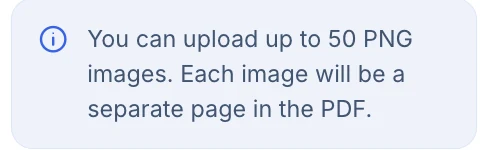
This tool accepts up to 50 images in one go, each becoming a page. That is a deliberate cap rather than a memory limit, and it is generous for the things PNGs usually are — a set of screenshots documenting a process, a deck exported as images, a batch of diagrams.
If you have more than 50, convert in batches and join the results with Merge PDF. Worth also asking whether the images should be PNG at all: a folder of 200 photographs saved as PNG is enormous for no benefit, and Convert Image will turn them into JPGs first.
Arranging the pages

Order on screen is order in the PDF. Drag to rearrange, or sort by name or date — and for screenshots, name order is usually chronological already, because the operating system numbers or timestamps them as it saves.
Blank pages can be inserted between images, which is more useful than it sounds when the set covers several distinct topics and you want the reader to notice the boundary.
Page size for graphics, not paper
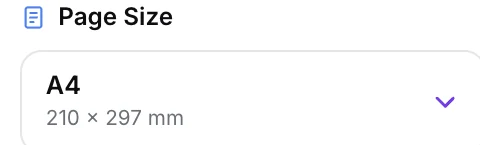
The choice matters more for PNGs than for photographs, because screenshots are rarely paper-shaped. A wide monitor capture placed on portrait A4 ends up as a thin strip across the middle of a mostly empty page.
Two ways out. Pick Fit to image, and each page takes the exact dimensions of its screenshot — no wasted space, and the reader sees the capture at a sensible size. Or keep a fixed page size and switch the orientation to landscape, which suits a document made entirely of wide captures.
If you go with Fit to image, set the margin to None as well. Margins are still applied at that setting, so leaving one on scales the image down inside a page sized for it — the opposite of what you were asking for.
The fit modes, applied to screenshots

The advice differs from photographs because screenshots have no unimportant edges. A photograph can lose a centimetre of sky; a screenshot that loses a centimetre has lost a toolbar.
- Fit page is the right answer nearly always — the whole capture, intact, with white space where the shapes disagree.
- Fill page crops to cover, and on a screenshot that means cutting off the parts a reader may need. Avoid.
- Actual size reads pixel dimensions as points, so a 1920-pixel capture is more than three times the width of an A4 page. Only useful for small graphics.
- Stretch distorts. On a diagram with circles in it, this is immediately visible.
Labelling the pages
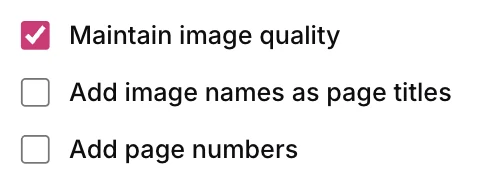
Adding the filename as a page title is more valuable for screenshots than for anything else, because Screenshot 2026-03-14 at 09.41.22.png at least tells a reader when the capture was taken. Page numbers help anyone referring to the document in a conversation.
The titles are drawn in a basic font that covers standard Latin characters only, so anything accented or non-Latin in a filename appears as a question mark. Rename first if that matters.
Turn your screenshots into a documentArrange them, size the page, download one file.Open PNG to PDF →
Getting a better result
Decide about transparency before you convert
It is the only choice here that cannot be reversed later. Leave high quality on to keep it; turn it off deliberately if you want everything on white.
Crop the captures first
A screenshot of one dialog is more useful than a screenshot of your entire desktop with the dialog somewhere in it. Crop Image takes seconds and makes the PDF both smaller and easier to read.
Check whether PNG was the right format
PNG is lossless, which is excellent for text and flat colour and wasteful for photographs. If your source images are photos that happen to be PNGs, converting them to JPG first with Convert Image will cut the PDF size substantially with no visible difference.
Landscape for wide captures
A document of monitor screenshots reads far better in landscape than portrait, and it is one dropdown.
Compress at the end if needed
PNGs embedded losslessly make a large PDF. That is the format doing its job. If the file needs to be smaller, Compress PDF handles it in one pass — though note it rebuilds pages as images, so any transparency goes then too.
What it will not do
- It does not accept more than 50 images at a time — convert in batches and merge.
- It does not create a text layer — text in a screenshot stays a picture of text.
- It does not preserve transparency with high quality off.
- It cannot render non-Latin characters in page titles.
Common questions
Will my transparent background survive?
Yes, as long as high quality is left on — the PNG is embedded as a PNG and its transparency comes with it. Turn the option off and the image is converted to JPEG, which cannot store transparency at all, so it is flattened onto white.
Why only 50 images?
It is a deliberate limit on this tool. For larger sets, convert in batches of 50 and combine the PDFs with Merge PDF.
Is the quality reduced?
Not by default. A PNG is embedded exactly as it is, with no re-encoding, so the image in your PDF is pixel-identical to the file you added.
Are my images uploaded?
No. The whole conversion happens in your browser on your own device. Nothing is transmitted, which matters when the screenshots are of internal systems.
Can I make the text in my screenshots searchable?
Not in the PDF itself. OCR PDF will read the captures and give you the words as a Word or text file, but it leaves the PDF as it is rather than adding a hidden text layer to it.
My PDF is huge. Is that normal?
For lossless PNGs, yes. A screenshot of a photograph-heavy page can be several megabytes on its own. Either convert the sources to JPG first, or compress the finished PDF.
The rest of the PDF toolkit
- JPG to PDFThe same job for photographs, with no image-count limit.
- PDF to PNGGoing the other way, page by page.
- Merge PDFJoin batches when you have more than fifty images.
- Add Page NumbersMore control than the checkbox here offers.
- Convert ImageTurn photographic PNGs into JPGs before converting.