The reason people convert a PDF to Word is almost always the same: something in it needs changing, and a PDF resists that by design. It stores positioned glyphs on a page, not flowing paragraphs, which is exactly why it looks identical everywhere and exactly why you cannot rewrite a sentence in it.
Converting recovers the editability. What it does not recover is the design, and understanding that split before you start is the difference between a useful conversion and a disappointing one.
Convert a PDF to Word nowRuns in your browser. Free, no sign-up, nothing uploaded.Open PDF to Word →
What you get, and what you do not
Being specific about this saves a lot of frustration. The conversion reads the text objects out of each page, groups them into lines by their vertical position, orders each line left to right, and writes them into a Word document as paragraphs.
| Comes through | Does not come through |
|---|---|
| All the words, in reading order | Fonts, sizes and colours |
| Line and paragraph breaks | Tables as tables |
| Page breaks between pages | Columns, headers and footers as such |
| Scanned pages, kept as pictures | Images embedded inside text pages |
So: you get the words, not the layout. That is the right trade for most reasons people convert — reusing the wording of a contract, rewriting a report, quoting a section, translating a document. It is the wrong tool if you wanted to edit a designed brochure and have it still look like a brochure.
Knowing this changes how you plan the work. Expect to spend a few minutes reapplying headings and rebuilding any table, and you will find the conversion did the tedious part — retyping — and left you the quick part.
Preserve layout: what the toggle really changes
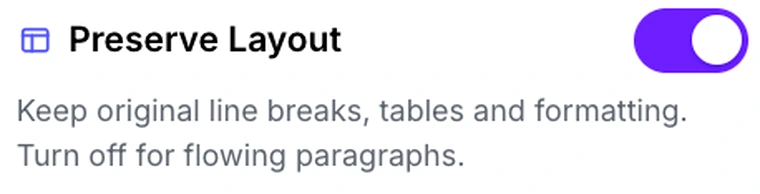
This is the most consequential control and its name undersells it. It decides how lines become paragraphs.
On (the default), every line in the PDF becomes its own paragraph in Word. The result mirrors the original page closely, which is ideal for anything where the line structure carries meaning — addresses, numbered clauses, poetry, forms, a table of contents. The drawback is that flowing prose arrives as a stack of short paragraphs, so editing a sentence that crosses two lines is awkward.
Off merges consecutive lines into paragraphs, breaking only at blank lines. Prose then behaves like prose: text reflows as you edit, and a sentence is a sentence. On a structured document it does the opposite of what you want, running distinct entries together.
The rule is easy: reading and rewriting wants it off; lists, clauses and anything tabular wants it on.
DOCX or DOC
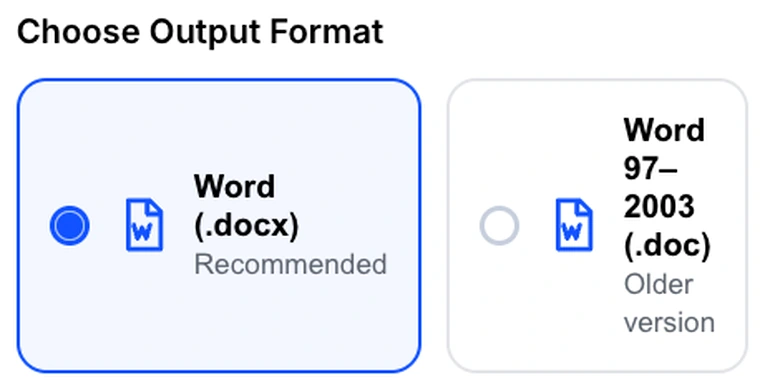
Choose DOCX unless something specifically requires otherwise. It is the modern Word format and it is the only one of the two that can hold pictures — which matters because scanned pages are delivered as images.
The DOC option produces rich text, which every word processor going back decades will open, but it is text only. Pages that came through as images are omitted from a DOC entirely rather than appearing as pictures. If your document mixes typed and scanned pages, DOC will silently give you a shorter document.
Scanned pages, and the OCR switch
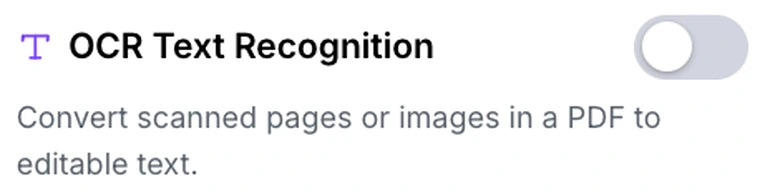
A scanned page contains no text objects at all — it is a photograph of words. There is nothing for the extractor to read, so those pages are instead rendered and embedded into the Word file as pictures, which keeps the document complete rather than leaving blank pages where content should be.
The tool tells you when this has happened, and how many pages were affected. That notice is the cue to turn on OCR and convert again.
With OCR enabled, each page is rendered at double size and read by a recognition engine, producing actual editable text. Two things to expect:
- It is much slower. Recognition is real work, done on your own machine, page by page. A long document takes minutes rather than seconds.
- It reads English. The recognition here is set to English, so a document in another script will come back wrong. For other languages, use OCR PDF instead, which offers thirteen and hands you a Word file directly.
Accuracy depends on the scan far more than on any setting. Pages that were fed in flat, at a sensible resolution, with dark ink on white paper, come back close to perfect. Anything faded, tilted, or captured with a phone camera pointed at a monitor comes back full of guesses — and re-scanning the original fixes more than any amount of correction afterwards.
A conversion that is really two conversions
It is worth noticing that a mixed document goes down two different paths at once. Pages with a text layer become editable paragraphs; pages without one become pictures. The output can therefore be half editable and half not, which is confusing until you know why.
This happens more often than you would think, because a PDF that has itself been through a compressor is entirely images — compression rebuilds pages as pictures. If a document you know was typed comes back as pictures, it has probably been compressed at some point in its life. OCR is the way back.
Convert your own documentPick the layout mode that matches your document, then download.Open PDF to Word →
Getting a better result
Find the original if one exists
Worth more than every setting combined. If the PDF was exported from a document that still lives somewhere — a shared drive, a sent-items folder, the person who wrote it — ten minutes asking beats any conversion.
Trim before converting
If you only need one section, pull it out with Extract Pages first. A shorter document converts faster, and with OCR on, far faster.
Match the toggle to the document, not the habit
Converting a contract with numbered clauses and prose in the same file is genuinely a compromise. If the clauses matter more, keep layout on and reflow the prose by hand.
Read the notice
The message about pages kept as images is the single most useful thing on the screen. It tells you whether you are looking at a real conversion or a picture book before you open the file.
Fix the styling last
Apply Word’s heading styles once the text is in and correct, rather than trying to get the conversion to preserve formatting it was never going to preserve. Styles applied in Word also survive going back to PDF, which formatting salvaged from a conversion often does not.
What it will not do
- It does not rebuild tables — a table arrives as lines of text.
- It does not carry fonts, sizes or colours — everything comes through as plain paragraphs.
- It does not extract images from text pages — only whole pages that have no text at all become pictures.
- It does not preserve columns, headers or footers as distinct elements.
- It cannot open an encrypted PDF — clear the password with Unlock PDF first.
Common questions
Why does my Word file look nothing like the PDF?
Because the conversion recovers text, not design. A PDF describes where marks sit on a page; Word describes a document that reflows. Translating faithfully between them is not possible in general, so this tool optimises for getting the words right and leaves the styling to you.
My document came out as pictures. What went wrong?
Nothing went wrong — those pages had no text to extract, which means they are scans or have been through a compressor. Turn on OCR and convert again.
Is my file uploaded?
No. Extraction, recognition and the building of the Word file all happen inside your browser. The document never leaves your machine, which matters when the reason you are converting is a contract or a medical record.
Can I convert it back afterwards?
Yes — Word to PDF handles the return trip, and that direction is far more reliable, because a PDF can describe anything a document can.
Will OCR fix a blurry scan?
Only partly. Recognition works from what is there; if a human squints at the page, the software will misread it too. Where a scan is poor, rescanning at a higher resolution does more than any setting.
Does it work on a phone?
Yes, though a long document with OCR turned on is real computation and will be noticeably slower on a handset. The result opens in any mobile word processor.
The rest of the PDF toolkit
- Word to PDFThe return trip, once your edits are done.
- OCR PDFThirteen languages, and it outputs a Word file directly.
- Edit PDFFor a short correction, editing in place beats a round trip.
- Extract PagesConvert one section instead of a whole report.
- Unlock PDFClear a password so the text can be read at all.