A watermark says something about a document that the document itself does not: this is a draft, this copy belongs to you, do not circulate this. It is a label rather than a lock, and used with that expectation it does its job well.
Pixpoo draws watermarks as real page content, which has consequences worth knowing — good ones for quality, honest ones for security.
Add a watermark nowText or image, any page, live preview. Free, nothing uploaded.Open Watermark PDF →
Text or image
Text is the right choice for status: DRAFT, CONFIDENTIAL, COPY, SPECIMEN, or a recipient’s name on a document you are circulating individually. It is drawn as vector text, so it stays perfectly crisp at any zoom and adds almost nothing to the file size.
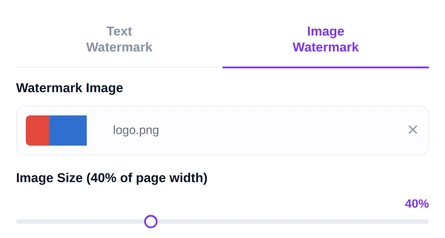
An image is for branding — a logo across a proposal, a stamp on a certificate. Use a PNG with a transparent background if you have one; a JPEG will bring its white rectangle along with it, which looks obviously pasted on. A scale control sizes it as a percentage of the page width.
The settings that decide whether it works

Opacity is the one that matters most, and the default of around thirty per cent is deliberately low. A watermark has to be readable enough to register and faint enough to read through. Too solid and it competes with the words underneath; too faint and it may as well not be there. Twenty to forty per cent covers nearly every case, and the live preview means you never have to guess.
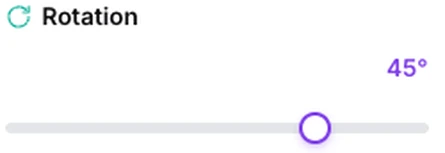
Rotation defaults to 45 degrees, and the diagonal convention exists for a practical reason: a slanted line crosses the horizontal lines of body text rather than running alongside them, so it reads as a mark on the page instead of as part of the content. Horizontal watermarks are worth considering for a small mark in a corner, where the diagonal would just look odd.

Position is a nine-point grid. The centre is the assertive choice for DRAFT on an internal document. A corner is the discreet one for a logo or a copyright line that should not interrupt reading. There is also a tile option that repeats the mark across the whole page in a grid, which is much harder to crop out or work around — the right setting for a document you are genuinely worried about being passed on.
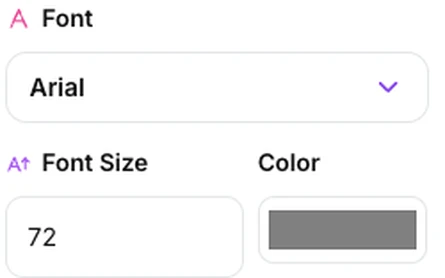
Font, bold and size are there too. One honest note about the font list: the choices map onto the three typeface families that every PDF reader is guaranteed to have — a sans-serif, a serif and a monospace. Picking Georgia or Times gives you the same serif face; Verdana or Arial gives you the same sans. So there are three distinct looks available rather than five, and for a single word at thirty per cent opacity the difference between them is largely academic anyway.
Which pages
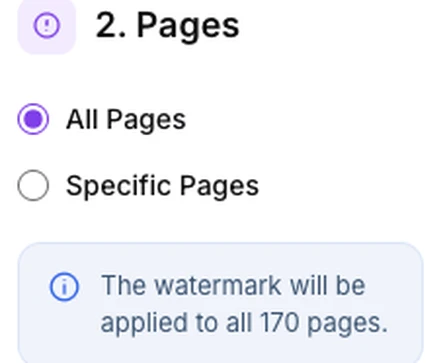
Every page, or a range you type. Every page is usually right — a watermark on page one only tells you nothing about page seven, which is precisely the page that will be forwarded on its own. Ranges are for the cases where part of a bundle has a different status from the rest: a draft section inside an otherwise final document, or an appendix marked as an internal copy.
What a watermark can and cannot do
Because the mark is drawn as ordinary page content rather than baked into the pixels, the page underneath is left completely alone: you can still select its words, its pictures hold their original detail, and no part of it is rebuilt. That is good for the document.
It also means the watermark is a page object like any other, and anyone with a capable PDF editor can select and delete it. This is not a flaw in the tool — it is what a watermark is. Every watermark in every product can be removed by someone determined, including from a rasterised page, where the alternative is a document nobody can read either.
So set your expectations accordingly. A watermark reliably tells an honest reader what they are holding, discourages casual forwarding, and makes an unauthorised copy embarrassing to circulate. It does not prevent anything. When you need prevention, that is Protect PDF with a document password — and the two work well together.
Mark your own documentAdjust it against the live preview, then download.Open Watermark PDF →
Getting a better result
Keep the text short
One word, or two. A whole sentence at low opacity across a page becomes visual noise that obscures the document without communicating anything. DRAFT works. A full legal notice belongs in a footer.
Grey beats colour
The default grey sits behind text without competing with it and prints predictably on any device. A coloured watermark can look striking on screen and awful in mono.
Name the recipient on sensitive circulations
A document watermarked with the reader’s own name is a far stronger deterrent than one saying CONFIDENTIAL, because it makes any leak traceable back to a person. Run the file once per recipient.
Tile it when it matters
A single central mark can be cropped around. A tiled one cannot be, without destroying the page.
Watermark last
Do it after merging, page removal and rearranging. Watermarking first means every later operation carries the mark, and pages you subsequently delete were watermarked for nothing.
What it will not do
- It does not prevent removal — the mark is a page object like any other.
- It does not stop copying or printing — that is Protect PDF.
- It does not vary the mark per page — one setting applies to everything in range.
- It does not offer five distinct fonts, despite the list — three underlying families.
- It cannot watermark an encrypted file — unlock it first.
Common questions
Will the watermark reduce the quality of my document?
No. It is drawn as an additional layer of page content, so nothing underneath is re-rendered or re-compressed. Text watermarks are vector, so they stay sharp at any zoom and barely affect the file size.
Can the watermark be removed?
By someone with a proper PDF editor, yes. That is true of watermarks generally rather than specific to this tool. Treat it as a label and a deterrent, and use a password when you need actual restriction.
What opacity should I use?
Somewhere between twenty and forty per cent for most documents. Lower for pages dense with text where legibility is critical; higher when the mark is the point and the content is secondary.
Can I use my company logo?
Yes, on the image tab. A PNG with a transparent background gives much the better result — a JPEG carries an opaque rectangle that will show as a pale box on the page.
Is my document uploaded?
No. The preview and the finished file are both produced in your browser, so a confidential document stays on your machine while you mark it as confidential.
Can I watermark only some pages?
Yes — type a range instead of applying to all. Though for most purposes, every page is the safer choice, since single pages get forwarded.
The rest of the PDF toolkit
- Protect PDFRestriction rather than labelling — the two pair well.
- Add Page NumbersThe other thing you add to every page at once.
- Sign PDFMark a document as yours in a different sense.
- Merge PDFAssemble the bundle before marking it.
- Watermark ImageThe same idea for a single picture.