Sometimes a PDF is the wrong container. A slide you want to drop into a chat, a diagram for a presentation, a page going into a listing that accepts images and not documents — all of these want a picture, and a PDF is stubbornly not one.
Converting to JPG turns each page into a photograph of itself. This covers what the quality settings actually mean in resolution terms, the per-page adjustments most people never open, and the three ways of getting the results out.
Convert PDF to JPG nowChoose pages, set the quality, download singly or as a ZIP.Open PDF to JPG →
The quality settings, in real numbers
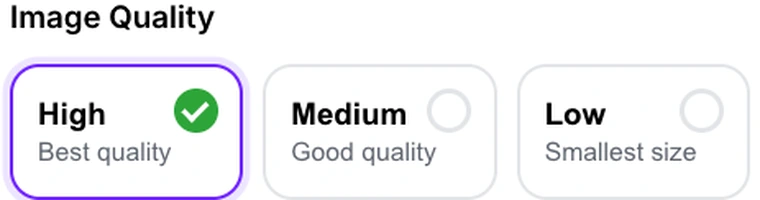
Three presets, each combining a rendering resolution with a JPEG compression level. The resolution is the part that decides how much detail exists at all:
| Setting | Resolution | A4 page becomes | Suits |
|---|---|---|---|
| High | 300 DPI | about 2480 × 3508 px | Printing, zooming, archiving |
| Medium | 150 DPI | about 1240 × 1754 px | Screens, email, documents |
| Low | 96 DPI | about 794 × 1123 px | Thumbnails, quick previews |
High is the default and is usually right, because you can always shrink an image afterwards and you can never add detail back. The exception is a long document: 300 DPI across fifty pages produces a lot of megabytes, and if the images are only going to be looked at on a screen, Medium halves the linear resolution and quarters the pixel count for very little visible difference.

The rule of thumb for choosing: match the resolution to the destination, not to your instincts about quality. An image that will be displayed 800 pixels wide gains nothing from being 2480.
Converting some pages, not all
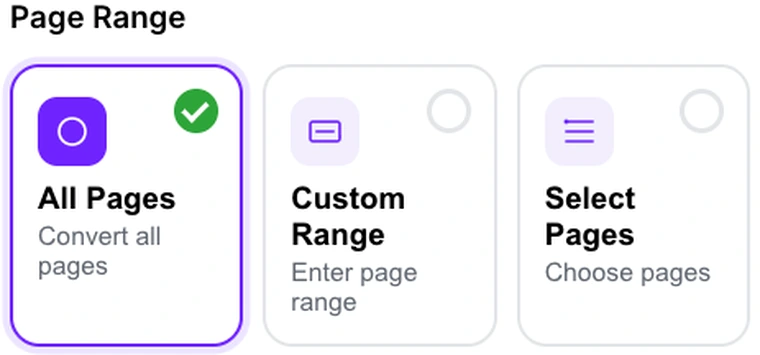
Three ways to choose: everything, a typed range like 1-5, 8, 11-13, or clicking individual pages in the preview. The typed form is quicker for a run of pages; clicking is better when the pages you want have no pattern — the four charts scattered through a report, say.
Do use one of them. Converting a 90-page document when you needed page 12 means waiting for 90 renders and then hunting through a ZIP.
The adjustments most people never open

There is a row of controls that changes the rendering before the JPEG is made, and it saves a round trip through an image editor:
- Rotation in 90-degree steps, for pages that were scanned sideways. Fixing it here means the exported image is upright, rather than being upright only when a viewer chooses to rotate it.
- Grayscale, which drops colour before encoding. On a colour scan this cuts the file size noticeably, and on a document where colour carries no meaning it costs nothing.
- Contrast, which pushes darks darker and lights lighter. Useful on a faded scan, harmful on anything containing a photograph.
Cropping to a shape

A PDF page is roughly 1:1.41 in A4 territory, which fits almost nothing else. The crop options let you take a square, a 4:3, a 16:9 or a ratio you type in, which is the difference between an image that sits properly in a slide and one that arrives letterboxed.
Bear in mind that cropping to a shape means losing what falls outside it. On a full page of text that is usually unacceptable; on a page dominated by one chart or diagram it is exactly what you want.
Three ways to take the results
Once the conversion is done you can download images individually, take everything as a ZIP, or build a PDF that contains all the converted images as pages.
That last option sounds circular — a PDF made from a PDF — but it has a genuine use. The output is a document whose pages are flat images: no selectable text, no copyable content, and a consistent appearance everywhere regardless of fonts. It is a reasonable way to circulate something you would rather people did not lift text out of, though it is a deterrent rather than protection. For real restrictions, Protect PDF is the right tool.
Convert your own documentPick the pages you need and skip the rest.Open PDF to JPG →
Getting a better result
Pick the pages before you press convert
The single biggest time saver. Rendering is real work done on your machine, and rendering pages you will delete is wasted work.
Prefer PNG for pages of text and diagrams
JPEG was designed for photographs and struggles with hard edges, which is exactly what text and line art are made of — look closely at small type in a JPEG and you will see faint smudging around the letters. PDF to PNG is lossless and produces cleaner results for those pages, at a larger file size.
Rotate here, not later
One click before conversion beats opening every exported image afterwards.
Go high, then shrink
If you are unsure, convert at High and reduce with Resize Image. Scaling down is the safe direction; scaling up invents detail that was never captured.
Watch the total when converting everything
A hundred pages at 300 DPI is a large ZIP. If the destination is a screen, Medium is the sensible default for bulk conversion.
What it will not do
- It does not keep text selectable — every page becomes an image, by definition.
- It does not extract embedded images — you get pictures of pages, not the pictures inside them.
- It cannot read a protected document — run it through Unlock PDF before converting.
- It does not produce transparent output — JPEG has no transparency, and pages are drawn on white.
Common questions
What resolution should I choose?
Match it to where the image is going. 300 DPI for print or archiving, 150 for screens and email, 96 for thumbnails. Higher costs file size and gains nothing beyond the display it ends up on.
Can I convert just one page?
Yes — type its number in the range field, or click it in the preview. A single page downloads as an image rather than a ZIP.
JPG or PNG?
Photographs and photo-heavy pages compress beautifully as JPG. Text, screenshots, charts and line drawings are cleaner as PNG, because lossless compression does not blur hard edges. If the page is mostly words, use PDF to PNG.
Are my files uploaded?
No. Rendering and encoding happen inside your browser on your own machine, so the document never leaves your device.
Why does small text look fuzzy?
Two possible reasons, and they have different fixes. If the resolution was too low, there were never enough pixels — convert again at High. If the resolution was fine, it is JPEG compression softening the edges of the letters, and PNG is the answer.
Can I turn the images back into a PDF?
Yes, with JPG to PDF — though the round trip loses the original text layer permanently, so keep the source document.
The rest of the PDF toolkit
- PDF to PNGLossless output, better for pages made of text.
- JPG to PDFThe return trip, for images you want as a document.
- Extract PagesPull out a section before converting it.
- Rotate PDFFix a sideways document once, for every tool downstream.
- Resize ImageBring a 300 DPI export down to the size a page needs.