Documents almost never arrive in one piece. A scanner saves a file per page, software exports a section at a time, and by the time you need to send something, you have eleven downloads and a form that accepts one attachment. Merging closes that gap.
This is a walkthrough of what actually happens when you press Merge on Pixpoo — including the one default that surprises people, and the situations where a merge quietly changes your pages more than you expected.
Merge PDFs nowRuns in your browser — nothing is uploaded. Free, no sign-up, no watermark.Open Merge PDF →
The five-second version
- Drop your PDFs onto the page, or click to browse.
- Drag the files into the order you want — the output follows the list top to bottom.
- Press Merge, then download.
That is the whole job for most people. The rest of this article is about the cases where it is not.
The default that catches people out
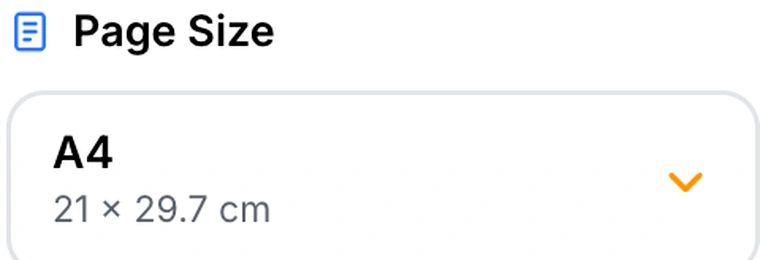
Page Size opens on A4, not Original. That means every page you merge is placed onto a fresh A4 sheet with a Normal margin around it, rather than being carried over at whatever size it already was.
For most paperwork this is exactly what you want — a stack of documents from different sources comes out as one consistent, printable file. But it does two things worth knowing about:
- A page that was not A4 to begin with is scaled to fit and centred. Nothing is stretched or cropped, but a Letter-sized page becomes slightly smaller inside an A4 frame.
- The Normal margin adds roughly half an inch of white space on every side, so pages that already had generous margins end up with more.
Set Page Size to Original when you want the pages transferred untouched — an archival copy, a legal exhibit where physical dimensions matter, or a set of scans you want reproduced exactly as captured. On Original the pages are copied straight across rather than redrawn onto a new sheet.
What survives a merge, and what does not
| Element | What happens |
|---|---|
| Text | Still selectable, still searchable |
| Vector graphics | Still sharp at any zoom |
| Embedded fonts | Travel with their pages |
| Images | Not re-compressed |
| Bookmarks, form fields, annotations | May not carry over intact |
| Page sizes and orientations | Preserved on Original; unified on a fixed size |
The pattern is simple: what is drawn on the page comes through reliably; the interactive layer around it does not. Bookmarks and form fields belong to their original document and have nowhere obvious to live in a combined one. If you are merging a fillable form and you need it to stay fillable, check the output before you send it.
Two settings that redraw your pages

Grayscale and Enhance Contrast are the only controls here that are not free. Both effects have to be painted into the pixels, so pages carrying them are re-rendered as images at 150 DPI. On those pages, text stops being selectable and fine detail softens.
That is a fair trade on a scan, which was already an image. It is a poor one on a text document that reads perfectly well as it is. Enhance Contrast in particular is aimed at tired originals — faded receipts, a photocopy of a photocopy, pencil notes, a page photographed in bad light. Avoid it on anything containing photographs, because the same push that rescues faint handwriting flattens the mid-tones a picture depends on.
Encrypted files behave differently
This one is not obvious from the interface. If one of your source files is encrypted — including files that open freely but carry permission restrictions on printing or copying — its pages cannot be copied across normally. Those pages are instead rendered and embedded as full-page images.
The practical consequence is that pages from an encrypted source arrive in the merged file without a text layer, even though every other page in the same document keeps one. If you notice that half your merged PDF is searchable and half is not, this is why. Running the source through Unlock PDF first avoids it entirely.
Arranging pages, not just files

The preview works at page level rather than file level, which is more useful than it first appears. You can interleave — dropping page three of one document between pages one and two of another — rather than only stacking whole files end to end.
Drag a thumbnail for a big move; use Move Up and Move Down for a precise single-step nudge, which is much easier than trying to drop something exactly between two neighbours. Everything is covered by undo, so experimenting costs nothing.
Blank pages, and why you might want them
Two controls insert empty pages. The toggle adds one after every source file automatically; selecting a page and inserting before or after does it in one specific place.
The reason is almost always double-sided printing. Without a break, one document ends and the next begins on opposite faces of a single sheet — fine on screen, confusing once the stack is separated. A deliberate blank also leaves room for a signature page you intend to add later, or gives a reader space to write.
Try it on your own filesDrag, arrange, merge. No account, no upload.Open Merge PDF →
Getting a better result
Arrange before you merge, not after
Reordering in the preview costs one drag. Reordering a finished 90-page PDF means going back to Organize PDF and finding the boundaries again. Thirty seconds of arranging beforehand saves the second pass.
Check the thumbnails when filenames look alike
scan_0012.pdf and scan_0021.pdf are a transposition apart. The preview is there precisely so you confirm by sight rather than by trusting a filename you did not choose.
Unlock protected files first
Otherwise you get a document where some pages are searchable and some are pictures. Unlock PDF removes a password you know, or lifts permission restrictions from a file that opens without one.
Merge first, compress second
If the combined file is heavier than you would like, that is a job for Compress PDF afterwards, not for the Grayscale toggle here. Compressing once at the end beats degrading pages on the way in.
Watch your device, not a quota
There is no file-count limit, because there is no server enforcing one. The real ceiling is memory: a few dozen ordinary documents is unremarkable, while a batch of large scans on a phone will feel it. That job is happier on a laptop.
What it will not do
- It cannot merge an encrypted file cleanly — those pages come through as images.
- It does not guarantee interactive elements survive — bookmarks, form fields and annotations may be lost.
- It does not compress — a merged file weighs roughly what its parts weighed.
- It does not merge anything but PDFs — convert images with JPG to PDF first.
Common questions
Does merging reduce quality?
Not by default. Pages are transferred rather than re-encoded, so images, text and vector art are identical to the source. The exceptions are deliberate: Grayscale and Enhance Contrast redraw pages at 150 DPI, and pages from an encrypted file are rasterised.
How many files can I combine?
There is no fixed limit. Because the work runs on your own machine there is no quota to hit — the constraint is how much memory your device has and how complex the documents are.
Can I put a page from one file in the middle of another?
Yes. The preview arranges individual pages, not just whole files, so interleaving is a drag rather than a workaround.
Are my documents uploaded?
No. Every PDF tool on Pixpoo runs inside your browser — the file is read from your disk, combined in memory on your machine, and saved back by the browser. Nothing is transmitted, which is why the tool keeps working if your connection drops halfway through.
Why is my merged file bigger than I expected?
Because nothing is thrown away. Merging is addition: the output holds everything all the inputs held. If the total matters, run Compress PDF on the result.
The rest of the PDF toolkit
- Split PDFThe opposite job — break one document into several.
- Organize PDFRearrange pages in a document you have already combined.
- Compress PDFTake the weight off once everything is in one file.
- Unlock PDFClear a password before merging, so pages keep their text.
- JPG to PDFTurn photographs into pages you can merge.